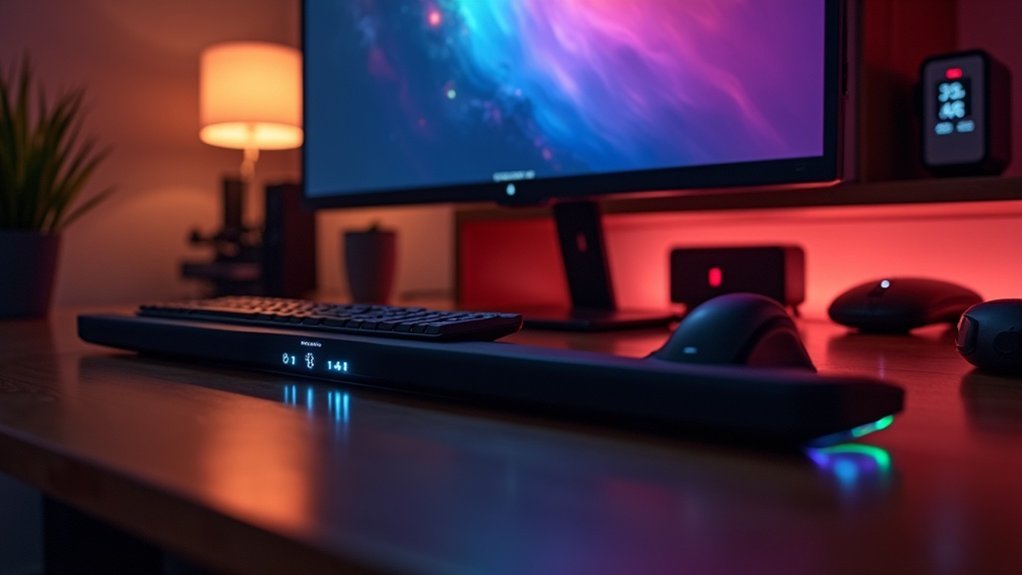
To use a soundbar as PC speakers, begin by checking your PC’s audio output options, such as HDMI, AUX, or optical connections. Connect the soundbar using your preferred method, ensuring compatibility with your setup. Set the soundbar as your primary audio device in the PC settings, and fine-tune audio features for optimal performance. For the best sound experience, position the soundbar in front of your monitor. If you’re interested in tips on specific soundbar models and further enhancements, continue reading for more insights!
Key Takeaways
- Verify your soundbar’s connection types (HDMI, AUX, optical, or Bluetooth) to ensure they are compatible with your PC’s audio output options.
- Connect the soundbar to your PC using the optimal method, prioritizing HDMI or optical for the best sound quality.
- In your PC’s sound settings, select the soundbar as the default audio output device for uninterrupted audio playback.
- Position the soundbar centrally in front of your monitor to improve sound distribution and overall audio experience.
- Fine-tune audio settings, such as enabling Dolby Digital, to enhance sound quality for gaming or media playback.
Understanding Soundbar Compatibility With PCS
To enhance your audio experience with soundbars, understanding their compatibility with PCs is essential.
Check if your soundbar has the appropriate audio input jacks that match your PC’s output options, such as HDMI or AUX. Compatibility largely depends on your PC’s sound card and the soundbar’s capabilities.
Verify that your soundbar’s audio input jacks align with your PC’s output options for seamless compatibility.
Some soundbars may only support specific connections, like HDMI ARC or optical TOSLINK. Additionally, ensure your audio drivers can handle multiple outputs, as some setups may restrict you to one device at a time.
For optimal performance, adjust your PC’s output settings to align with the soundbar’s requirements.
Connection Options for Your Soundbar
Connecting your soundbar to a PC offers several options that cater to different setups and preferences.
Here are some connection methods to evaluate for ideal sound quality:
- HDMI: For the best audio performance, use an HDMI connection, especially if your soundbar supports HDMI ARC.
- AUX (3.5mm): A simple wired connection for basic audio devices.
- Optical (TOSLINK): A digital connection that provides clear sound quality without interference.
- Bluetooth: For wireless streaming, though it may introduce some latency.
Choose the method that suits your setup, ensuring compatibility for a seamless audio experience!
Optimizing Sound Quality for PC Use
While you might think connecting a soundbar to your PC is enough for great audio, optimizing sound quality takes a few extra steps.
First, connect your soundbar using an HDMI or optical cable for superior sound. The optical connection is particularly effective for music, delivering better audio fidelity.
Next, adjust your PC’s audio settings to make the soundbar your primary output device and enable features like Dolby Digital for an enhanced audio experience.
If your soundbar system supports it, consider adding a compatible subwoofer to enhance bass response.
These adjustments can significantly improve your audio experience whether you’re gaming, watching movies, or enjoying music.
Placement Tips for Enhanced Audio Performance
Proper placement of your soundbar can dramatically enhance audio performance, so it’s worth paying attention to its positioning.
Here are some placement tips specifically for achieving a balanced audio experience with your soundbar:
- Position the soundbar centrally in front of your monitor or between dual monitors for optimal sound distribution.
- Place it close to the wall behind to boost bass response through wall reflections, enhancing overall audio depth.
- Avoid off-center placement to maintain a clear and immersive soundstage, ensuring that audio is evenly balanced across the listening area.
- Consider mounting it above the monitor for laptops or compact setups, which can free up valuable desk space while still delivering excellent sound quality.
Recommended Soundbars for Computer Setups
Choosing the right soundbar can significantly enhance your audio experience, especially when its placement is optimized for peak performance.
For compact setups, the Razer Leviathan stands out as an excellent choice, delivering impressive sound without taking up much space.
The Sonos Beam (Gen 1) conveniently fits under your monitor, while the upgraded Sonos Beam 2 provides enhanced audio quality for gaming and media consumption.
If you’re seeking a smaller option, the Cinebar One impressively packs high sound quality into just 35 cm.
Lastly, consider the Vizio SB3621n, which includes Bluetooth connectivity and a wireless subwoofer, making it a versatile option for utilizing a soundbar as your PC speakers.







