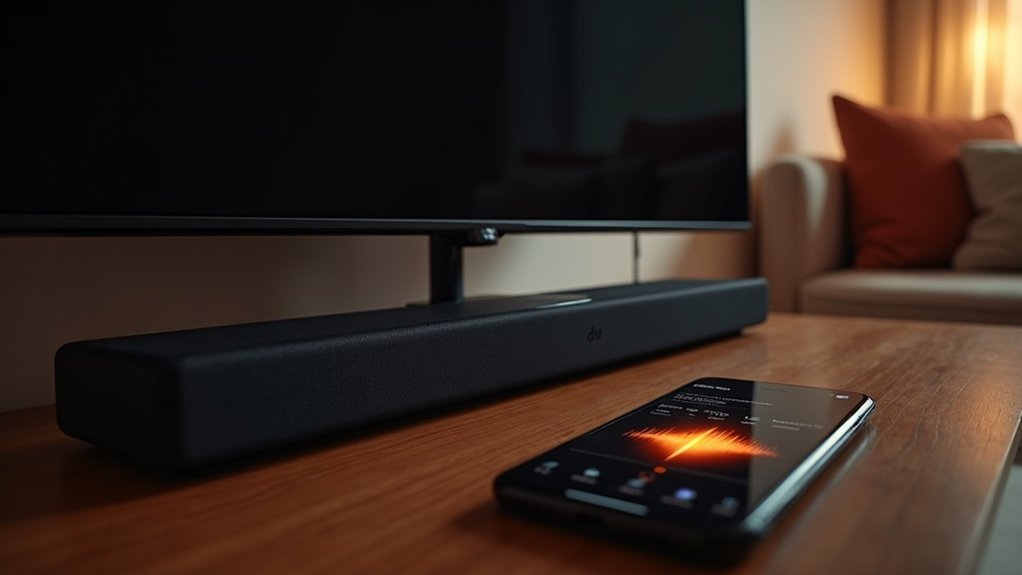
To stream Audible to your soundbar, begin by connecting your soundbar to Wi-Fi and ensuring your mobile device is on the same network. Utilize the Google Home app to link your Audible account, which will allow you to cast audiobooks directly to your soundbar for an enhanced listening experience. Alternatively, you can pair your device with the soundbar via Bluetooth; simply enable Bluetooth on both devices and follow the pairing steps. Enjoy the superior audio quality your soundbar provides for your audiobooks, and stay tuned for more tips on optimizing your soundbar experience!
Key Takeaways
- Ensure your soundbar is connected to the same Wi-Fi network or paired via Bluetooth with your mobile device for seamless streaming of audio content.
- Use the Google Home app to link your Audible account, allowing for voice command functionality and enhanced playback control through your soundbar.
- After establishing a connection, you can cast Audible content directly to your soundbar using the Google Home app for an immersive listening experience.
- To connect via Bluetooth, activate pairing mode on your soundbar and use your mobile device’s Bluetooth settings to establish the connection.
- Regularly update your soundbar’s firmware to maintain optimal performance and ensure compatibility with various streaming services, including Audible.
Setting Up Your Soundbar
Before you start streaming Audible to your soundbar, ensure that your soundbar is powered on and connected to your TV or audio source using HDMI ARC, optical, or AUX cable for optimal sound quality.
Connect your mobile device or computer to the same Wi-Fi network as your soundbar to enable wireless streaming. If you’re using a Bluetooth-enabled soundbar, activate Bluetooth pairing mode and connect through your device’s Bluetooth settings.
To stream Audible wirelessly, connect your device to the same Wi-Fi as your soundbar or pair via Bluetooth.
For HDMI ARC, confirm that HDMI CEC is enabled on both devices for seamless audio control.
For specific setup instructions, refer to your soundbar’s user manual or Help Center.
Connecting to Wi-Fi
Connecting your soundbar to Wi-Fi is crucial for streaming audio content seamlessly. First, ensure your soundbar is connected to the same Wi-Fi network as your mobile device or smart speaker.
During the initial setup, use the manufacturer’s app or web interface to connect your soundbar to your home network. Check that your Wi-Fi is stable and offers enough bandwidth for smooth audio streaming.
If you have a smart soundbar, verify it’s compatible with voice assistants or apps that enhance your audio experience.
Finally, regularly update the soundbar’s firmware via the app to maintain peak performance and compatibility with various streaming services.
Using the Google Home App
To stream Audible through your soundbar, begin by setting up the Google Home app on your mobile device.
In the app’s Music & audio settings, link your Audible account to enable voice command functionality.
Once this is complete, you can effortlessly cast your Audible content directly to your soundbar, enhancing your listening experience.
Setting Up Google Home
Setting up your soundbar for optimal audio performance is a straightforward process, especially when both your soundbar and mobile device are connected to the same Wi-Fi network.
First, refer to the soundbar’s user manual for any specific setup instructions. Once ready, ensure your soundbar is powered on and connected to your TV or audio source.
Use the accompanying app, if available, to navigate through the sound settings. For streaming audio, look for the “cast screen/audio” option to send content directly from your mobile device.
To control playback hands-free, simply say, “Hey Google, play my music on the soundbar,” and your device will handle the rest.
Linking Audible Account
Once you’ve set up your soundbar, linking your Audible account through the Google Home app is a straightforward process that enhances your audio experience.
Just follow these steps:
- Open the Google Home app on your mobile device and tap on your soundbar icon.
- Navigate to the “Music & audio” settings to find the option to link your Audible account.
- Follow the prompts to sign in using your Audible credentials.
After linking, you can control playback with voice commands like, “Hey Google, play my book on Audible.”
Check the “Music & audio” settings to ensure your account is successfully linked for a seamless listening experience on your soundbar.
Casting From Your Mobile Device
To cast Audible from your mobile device to your soundbar, you can connect via Google Home or set up Bluetooth.
Ensure that both your device and soundbar are on the same Wi-Fi network for a seamless connection.
Once linked, you can enjoy your audiobooks with enhanced sound quality through your soundbar.
Connecting via Google Home
If you want to enjoy your Audible audiobooks through your soundbar, connecting via Google Home is a simple and effective solution.
Follow these steps to enhance your audio experience:
- Ensure that both your mobile device and Google Home speaker are connected to the same Wi-Fi network.
- Open the Google Home app and select the device icon for your soundbar.
- Choose the “cast screen/audio” option to begin streaming your audio content.
Once your soundbar is connected, play your Audible content from your mobile device.
For added convenience, use voice commands like, “Hey Google, play my book on Audible,” after linking your Audible account in the app.
Enjoy your audiobooks with superior sound quality through your soundbar!
Using Bluetooth Setup
While connecting through Google Home is a great way to stream Audible, using Bluetooth offers another convenient method to enjoy your audiobooks on a soundbar.
To get started, ensure that Bluetooth is enabled on your mobile device and that your soundbar is in pairing mode. Access your device’s Bluetooth settings and select the soundbar from the list of available devices to establish a connection.
After pairing, open the Audible app and select the audiobook you wish to enjoy. Once you hit play, the sound will broadcast through the soundbar, elevating your listening experience.
If you encounter any issues, try reconnecting or restarting both your mobile device and the soundbar. Enjoy your audiobooks with enhanced audio quality!
Bluetooth Pairing Process
Before you can enjoy your audiobooks on a soundbar, it’s essential to pair your mobile device with it via Bluetooth.
Follow these steps for a successful pairing process:
- Enable Bluetooth: Ensure that both your mobile device and soundbar have Bluetooth activated.
- Activate Pairing Mode: Set your soundbar to pairing mode by pressing the Bluetooth button or selecting it in the settings menu.
- Connect: On your mobile device, access Bluetooth settings, locate your soundbar, and select it to establish the connection.
If you experience any issues, try moving closer to the soundbar or restarting both devices to reinitiate the pairing process.
Enjoy your streaming experience with your soundbar!
Linking Your Audible Account
To enjoy your Audible audiobooks through your soundbar, you need to link your Audible account using the Google Home app.
Begin by opening the app on your mobile device and selecting the soundbar you want to use for playback.
Navigate to the Music & audio settings to find the option to link your Audible account. Choose this option and follow the prompts to log in to your Audible account, confirming successful linking.
Ensure that your soundbar and mobile device are connected to the same Wi-Fi network for a seamless linking process and optimal playback experience.
Voice Commands for Playback
How can you easily control your Audible playback through your soundbar using just your voice?
Voice commands make it simple to enjoy your audiobooks while enhancing your sound experience. Here are some key commands you can use:
Voice commands simplify your audiobook experience, allowing you to enhance your sound enjoyment effortlessly.
- Start and Stop: Say, “Hey Google, play my book on Audible” or “Hey Google, pause” to control playback through your soundbar.
- Skip Chapters: To jump ahead, just say, “Hey Google, next chapter” and enjoy seamless transitions.
- Adjust Volume: Control the sound by saying, “Hey Google, set volume to 5” or “Hey Google, increase volume” for the perfect listening level.
With these commands, you’ll navigate your Audible experience effortlessly through your soundbar!







