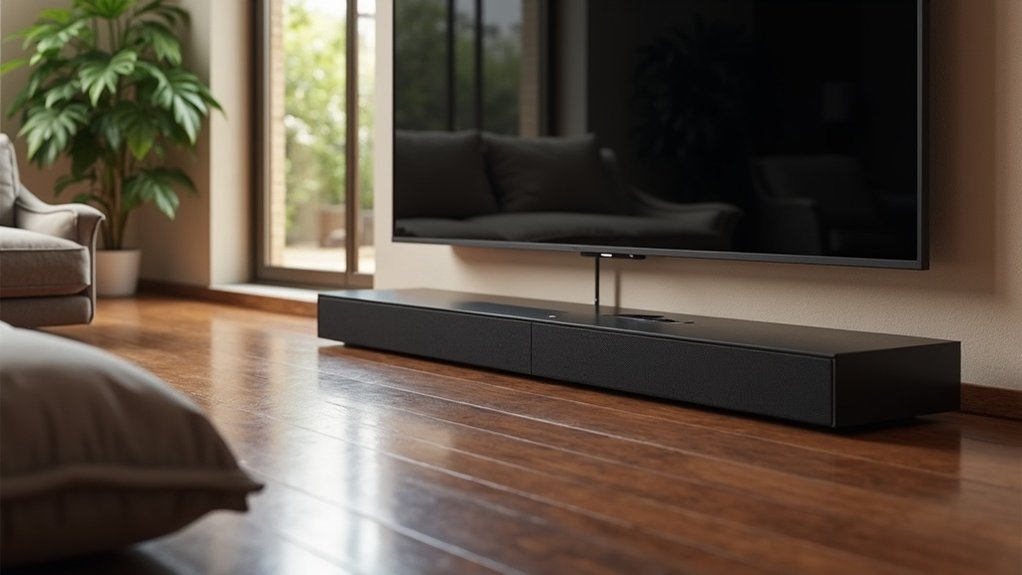
To reduce echo with your soundbar, begin by disabling your TV’s internal speakers through the audio menu to ensure that the soundbar is the sole audio output device. Next, navigate to the soundbar settings and turn off any virtual surround effects, which can contribute to echo. Adjust the audio delay to a setting between 20-50 milliseconds to synchronize the sound with the video effectively. Additionally, opt for HDMI ARC or Optical connections to prevent sound duplication. There are further steps you can take to enhance your soundbar setup for optimal audio performance.
Key Takeaways
- Disable TV speakers in the audio settings menu to prevent sound duplication and minimize echo effects.
- Use HDMI ARC or an Optical cable to connect your soundbar to the TV for the best audio performance.
- Adjust the soundbar’s audio delay settings to sync sound with video, ideally setting it between 20-50 milliseconds.
- Turn off virtual surround effects in the soundbar settings to improve clarity and reduce echo.
- Regularly check for firmware updates for both your soundbar and TV to maintain optimal audio performance.
Understanding the Echo Effect
When using a soundbar, the echo effect can be particularly disruptive, especially if both your TV speakers and soundbar are active simultaneously. This sound duplication occurs due to improper speaker settings, where overlapping audio sources create delays.
Surround sound settings can worsen the echo effect, making it more noticeable during playback. To eliminate this issue, ensure that the TV speakers are turned off and that only your soundbar is active.
Additionally, soundbars equipped with advanced digital signal processing may unintentionally create echo-like sounds, especially when virtual surround options are enabled. Regularly updating the firmware of your soundbar can also help resolve persistent audio issues, including unwanted echoes.
Common Causes of Echo With Soundbars
Echo with soundbars often occurs when both the TV speakers and the soundbar are activated simultaneously, leading to sound duplication.
Echo issues with soundbars arise when both the TV speakers and soundbar are on, causing sound duplication.
Additionally, audio processing delays from certain sound settings or external devices can result in noticeable echo effects.
If your soundbar features surround sound settings, these may further intensify echo issues by creating an artificial soundstage that obscures audio clarity.
Improper configuration of digital signal processing features can also lead to echo or a “box-like” sound quality.
Therefore, it’s crucial to ensure that only one audio source is active to significantly reduce or eliminate echo.
Steps to Disable TV Speakers
To enhance your soundbar experience and eliminate echo, you should adjust your TV’s speaker settings.
Navigate to the audio menu and disable the internal speakers to avoid sound duplication.
This ensures that only your soundbar outputs audio, optimizing your listening experience for movies, music, and more.
TV Speaker Settings Adjustment
Disabling your TV’s internal speakers can greatly enhance the audio experience when using a soundbar, as it prevents sound duplication that often leads to echo.
To adjust the settings, press the Home button for TCL Roku TVs or the Menu button for non-smart TCL models. Navigate to the audio or speaker settings menu and find the option to disable the TV speakers, typically by unchecking the box or setting “TV Speaker” to “Off.”
After confirming the changes, restart your TV to apply the new settings. Ensuring only one audio source is active will improve sound clarity and mitigate echo issues, allowing you to fully enjoy the rich, immersive sound that soundbars provide.
Audio Source Management Tips
After adjusting your soundbar settings, focus on effective audio source management to further reduce echo. Disabling your TV’s internal speakers ensures that sound output is exclusively through the soundbar.
| TV Type | Steps to Disable TV Speakers |
|---|---|
| TCL Roku TV | Home > Settings > Audio > Uncheck TV speakers |
| Non-Smart TCL | Menu > Settings > Speaker > Set “TV Speaker” to Off |
| Confirmation | Test sound output from the soundbar |
| Firmware Updates | Regularly check for updates on both your soundbar and TV |
| Compatibility | Updates may resolve various audio issues |
Following these steps can greatly enhance your soundbar experience.
Adjusting Soundbar Settings for Clarity
To enhance clarity on your soundbar, begin by disabling any virtual surround effects in the settings.
These features can lead to echo and muddled sound, so turning them off is crucial for achieving clear audio.
Additionally, adjusting the audio delay settings can help synchronize the sound with the video, further minimizing perceived echo.
Disable Virtual Surround Effects
When you encounter persistent echo issues with your soundbar, turning off virtual surround effects can greatly enhance audio clarity.
Access your soundbar’s settings menu to find the option for disabling any virtual surround sound features. These settings often contribute to unwanted echoes and distortions in audio output.
Consult your user manual for precise instructions tailored to your specific soundbar model, ensuring you effectively disable these features.
After making adjustments, test the audio output to confirm that the echo has been reduced or eliminated.
Additionally, regularly checking for firmware updates can optimize your soundbar’s performance and help resolve software-related audio issues.
Adjust Audio Delay Settings
Following the adjustment of virtual surround effects, fine-tuning the audio delay settings on your soundbar can significantly enhance audio clarity and synchronization.
Many soundbars feature a “lip sync” or “audio delay” option, which allows you to adjust the timing of the audio signal. Aim for a delay between 20-50 milliseconds to effectively align sound with video, minimizing any echo perception.
Ensure all connected devices, such as your TV, have consistent audio processing settings to avoid discrepancies.
Additionally, regularly check for firmware updates on your soundbar, as these updates can improve audio performance and further reduce echo-related issues.
Ensuring Proper Connections Between Devices
Proper connections between your soundbar and TV are essential for achieving optimal audio performance and minimizing echo. To connect your soundbar, use either HDMI ARC or an Optical cable; these options help reduce sound duplication.
Ensure that both the TV’s audio output and the soundbar’s input settings are correctly configured to avoid simultaneous audio sources that can lead to echo. Additionally, check for loose or faulty connections, as poor connectivity can result in audio delays, further contributing to echo effects.
If you have multiple audio devices, activate only one at a time to prevent overlapping sounds. Regularly inspect and update the firmware for both devices to resolve any potential audio syncing issues, ensuring the best sound experience from your soundbar.
Testing Audio Output After Adjustments
After confirming your soundbar is correctly connected, it’s time to test the audio output to ensure that adjustments have effectively reduced echo.
Begin by playing a variety of content, particularly focusing on dialogue-heavy scenes or music to evaluate clarity. Mute the TV speakers to ensure that only the soundbar is producing audio.
Move around the room to assess any remaining echo, as sound perception can differ based on location. If your soundbar includes calibration features, be sure to utilize them to further optimize the audio experience.
Document your observations before and after making adjustments to track improvements and identify any lingering issues that may require additional tweaks.
This methodical approach will significantly enhance your overall listening experience with your soundbar.
Exploring Firmware Updates for Compatibility
While you may have refined your soundbar’s setup, exploring firmware updates can further enhance compatibility with your TV and address lingering audio issues like echo.
Regularly checking for updates from the manufacturer guarantees your soundbar has the latest audio processing capabilities and essential bug fixes. Many soundbar brands offer clear instructions on their websites for downloading and installing updates, typically via USB or direct internet connection.
Keeping your firmware up to date can greatly improve performance, reducing audio delay that contributes to echo. Consult your soundbar’s user manual for specific update procedures to maintain ideal sound quality and overall functionality.
Seeking Community Support for Troubleshooting
How can you effectively tackle echo issues with your soundbar? Engaging with online communities dedicated to soundbars, such as Facebook groups or specialized forums, can provide valuable insights.
Share your soundbar model along with your TV brand to receive specific troubleshooting advice tailored to your setup. Participating in discussions often reveals sound settings and adjustments that others have found effective in reducing echo.
You’ll find step-by-step guidance on modifying audio settings for both your soundbar and TV. Additionally, community feedback may lead to discovering firmware updates or alternative audio configurations that collectively resolve echo problems.
Utilize these resources to enhance your sound experience efficiently and collaboratively.







