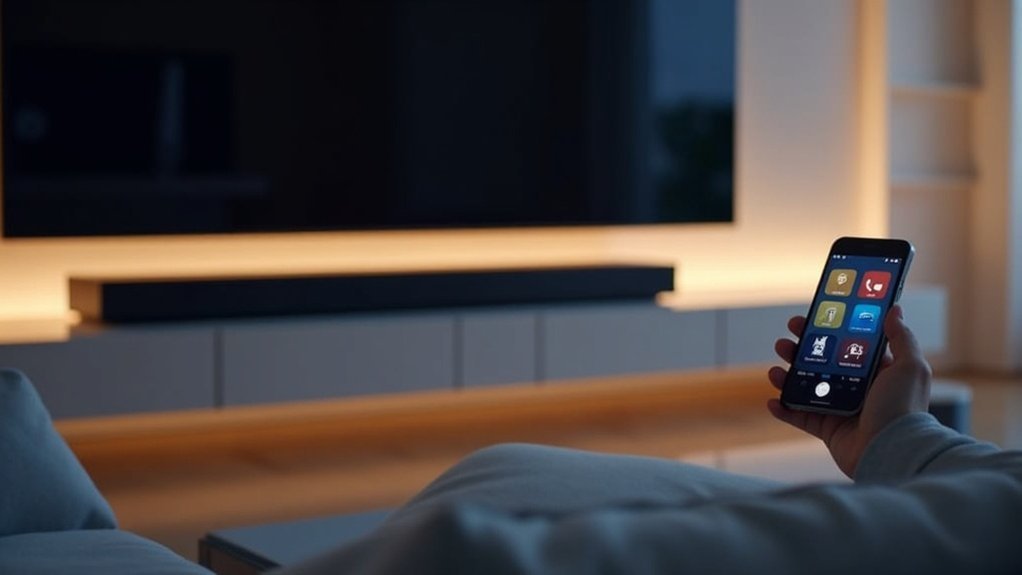
To integrate your soundbar with your smart home, start by ensuring it’s powered on and connected to the same Wi-Fi network as your device. Next, install the latest Google Home app. Open the app, tap the Add button, and select ‘Set up device’ to find your soundbar. Follow the prompts to complete the setup. Once integrated, you can easily manage audio settings for an enhanced sound experience. Stick around to discover more tips on optimizing your soundbar performance!
Key Takeaways
- Ensure your soundbar is powered on and connected to the same Wi-Fi network as your smart home devices.
- Download and install the latest Google Home app on your mobile device for setup.
- Use the Google Home app to add and configure your soundbar as a new device for optimal performance.
- Customize settings and rename the soundbar in the app for easier management and enhanced voice control capabilities.
- Enjoy superior audio experiences and seamless control via Google Assistant, elevating your soundbar’s integration with your smart home setup.
Setting up Your Soundbar With Google Home
Integrating your soundbar with Google Home enhances your smart home experience, and it’s a straightforward process.
Start by ensuring your soundbar is powered on. If it was previously connected, reset it by holding the microphone button until you hear a beep.
Next, install the latest version of the Google Home app on your mobile device and open it. Select ‘Set up device’, then ‘New device’, and choose your configured Home to find nearby devices.
Make sure your soundbar is connected to the same Wi-Fi network as your device.
Once set up, you can effortlessly control your soundbar using the Google Assistant in the app, allowing for a seamless audio experience in your home.
Initial Steps for Connection
To get started with connecting your soundbar to a smart home system, first ensure that it’s powered on and functioning properly. If it was previously connected, reset it by holding the microphone button until you hear a beep.
Ensure your soundbar is powered and functioning; reset it if needed by holding the microphone button until you hear a beep.
Next, follow these steps:
- Install the latest version of the Google Home app on your mobile device.
- Confirm your soundbar is connected to the same Wi-Fi network as your mobile device.
- Open the Google Home app and navigate to the settings menu.
- Select ‘Set up device’ and then ‘New device.’
- Complete the setup to see your soundbar on the home screen.
Adding Your Soundbar to the Google Home App
Now that your soundbar is set up and ready, adding it to the Google Home app is a straightforward process. First, ensure your soundbar is powered on, and reset it if necessary. Next, open the Google Home app, tap the Add button, and select ‘Set up device’ followed by ‘New device’. Make sure your soundbar is connected to the same Wi-Fi network as your mobile device. The app will search for devices; confirm the connection when prompted. Once connected, your soundbar will appear on the home screen, allowing you to control volume and access additional settings.
| Step | Action | Notes |
|---|---|---|
| 1 | Open the Google Home app | |
| 2 | Tap the Add button | To begin the setup process |
| 3 | Select ‘Set up device’ | For device management |
| 4 | Confirm connection to soundbar | Verify it’s powered on |
| 5 | Control the soundbar from the home screen | Access volume and settings |
Connecting to Your Wi-Fi Network
Connecting your soundbar to your Wi-Fi network is essential for seamless operation and integration with smart home devices. Follow these steps to ensure a successful connection:
- Power on your soundbar and reset it to default settings by holding the microphone button until you hear a beep.
- Ensure you have the latest version of the Google Home app installed on your mobile device.
- In the app, select ‘Set up device’ and then ‘New device.’
- Confirm that your soundbar is on the same Wi-Fi network as your mobile device.
- Wait for the soundbar to connect, and you’re ready to control it through the app.
Enjoy enhanced audio experiences and smart functionality with your soundbar!
Finalizing Your Soundbar Setup
Once you’ve completed the initial setup in the Google Home app, it’s time to finalize your soundbar’s configuration for optimal performance. Your soundbar will now be visible on the home screen, confirming that the integration was successful. Utilize the app to easily adjust volume settings and rename the device for easier identification. If you wish to remove it later, the app provides an option for that as well.
| Action | Description |
|---|---|
| Control Volume | Adjust through the Google Home app |
| Change Device Name | Rename for simpler identification |
| Remove Device | Manage your connected devices with ease |
| Support | Reach out to LG helpdesk for assistance |
Enjoy enhancing your audio experience with your newly configured soundbar!







