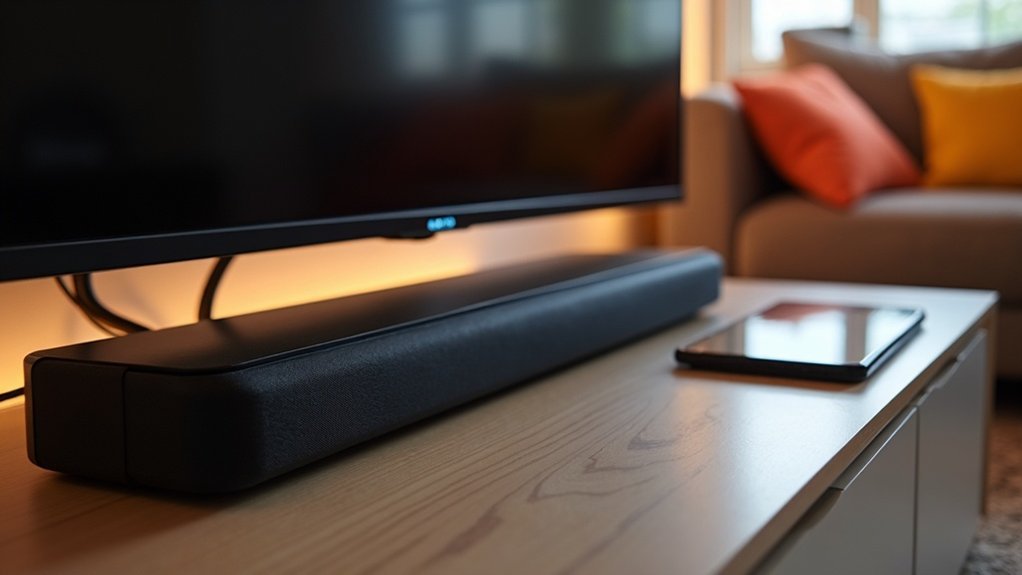
To integrate your soundbar with Google Assistant, first ensure it’s powered on and connected to the same Wi-Fi network as your Google Home device. Press and hold the “Wi-Fi” button for eight seconds to enable pairing mode. Next, download the Google Home app and follow the prompts to set up a new device, connecting your soundbar seamlessly. Once connected, you can test voice commands such as “Hey Google, play music on the soundbar.” Continue exploring to uncover additional setup tips and troubleshooting advice specific to soundbars!
Key Takeaways
- Ensure the soundbar is powered on and connected to the same Wi-Fi network as your Google Home device.
- Use the Google Home app to set up the soundbar by selecting [Set Up Device] and confirming the connection.
- Listen for a confirmation sound from the soundbar to verify successful connection after setup.
- Test voice commands like “Hey Google, play music on the soundbar” to check functionality.
- If issues arise, restart the soundbar and app, and ensure both devices are on the same network.
Preparing Your Soundbar for Connection
Before you start integrating your soundbar with Google Assistant, make certain it’s ready for connection.
First, verify your soundbar is powered on and connected to the same Wi-Fi network as your Google Home device for seamless integration.
To initiate the connection process, press and hold the “Wi-Fi” button on the back of the soundbar for at least eight seconds until you hear a second tone.
Next, download and open the Google Home app on your smartphone.
Tap the (+) button, select [Set Up Device], and choose [New Device].
Follow the prompts to confirm the connection once your soundbar is found.
Setting Up Google Home for Device Integration
Now that your soundbar is ready for connection, it’s time to set up Google Home for seamless integration.
First, open the Google Home app on your device and tap the (+) button at the top left. Select [Set Up Device], then choose [New Device]. You’ll need to select the home for your soundbar.
After that, press [Next] to let the app search for your soundbar. Once it appears, confirm the connection.
Congratulations! You’ve successfully set up your soundbar. Now, test its functionality by issuing voice commands to Google Assistant to verify everything’s working perfectly.
Enjoy an enhanced audio experience with your new soundbar!
Connecting Your Soundbar to Google Assistant
Connecting your soundbar to Google Assistant is a straightforward process that enhances your home audio experience.
First, power on your soundbar and put it in pairing mode by holding the “Wi-Fi” button for eight seconds until you hear a second tone.
Power on your soundbar and activate pairing mode by holding the “Wi-Fi” button for eight seconds until you hear a second tone.
Next, open the Google Home app, tap the (+) button, select [Set Up Device], and choose [New Device].
Pick the appropriate home and press [Next] to search for your soundbar.
When it appears, confirm the connection by pressing [Yes].
Finally, say out loud a command to test functionality, like adjusting the volume or changing inputs.
Enjoy your seamless integration!
Confirming the Soundbar Connection
Once your soundbar is connected through the Google Home app, you’ll hear a confirmation sound indicating the connection is successful.
Make sure to hit “Yes” in the app to finalize this step, and select the correct room for ideal organization.
After confirming, your soundbar will appear in the app, allowing you to test its functionality with voice commands, enhancing your audio experience.
Connection Confirmation Steps
To confirm that your soundbar is successfully connected, listen for a brief sound that plays from the device once you’ve completed the setup in the Google Home app.
Next, press “Yes” at the bottom right of the screen to acknowledge the soundbar connection. You’ll also see a notification asking if you want to send device stats and crash reports; choose based on your privacy preferences.
Don’t forget to select the correct room for the soundbar to ensure seamless device management.
Finally, verify that the soundbar appears in the Google Home app for smooth integration and future voice commands.
Testing Functionality Commands
After you’ve connected your soundbar to Google Assistant, it’s essential to test its functionality with a few simple voice commands.
Try these commands to confirm everything is working:
- “Hey Google, turn on the soundbar.”
- “Hey Google, set the volume to 15.”
- “Hey Google, play music on the soundbar.”
Listen for a small sound indicating the soundbar is responding.
Also, check if it appears in the Google Home app—this confirms successful integration.
If it doesn’t respond, verify it’s on the same Wi-Fi network as your Google Home device to effectively test functionality.
Testing Functionality With Voice Commands
Now that you’ve connected your soundbar to Google Assistant, it’s time to test its functionality.
Start by using common voice commands like, “Hey Google, play music on the soundbar,” and check if it responds as expected.
If you encounter any issues, revisit the Google Home app to troubleshoot and ensure your soundbar is set up correctly for optimal performance.
Verifying Connection Success
Once you’ve connected your soundbar to Google Assistant, it’s crucial to verify that the integration was successful.
To test functionality, you can try the following commands:
- Say, “Hey Google, play music on the soundbar.”
- Say, “Hey Google, turn up the volume on the soundbar.”
- Say, “Hey Google, switch the soundbar to HDMI 1.”
If your soundbar responds correctly to these commands or plays a confirmation sound, that’s a positive indication of successful integration.
Additionally, check the Google Home app to ensure your soundbar is listed as connected, confirming that everything is functioning smoothly.
Common Voice Commands
How can you maximize your soundbar’s integration with Google Assistant? Get acquainted with common voice commands to control your soundbar easily. Here are some essential commands you can use:
| Command | Function | Example |
|---|---|---|
| Turn on/off the soundbar | Power control | “Turn on the living room soundbar.” |
| Set the volume | Volume adjustment | “Set the volume of the soundbar to 50.” |
| Change the source | Input selection | “Set the input of the soundbar to HDMI 1.” |
| Play or pause music | Playback control | “Play music on the soundbar.” |
With these commands, you’ll enhance your audio experience effortlessly.
Troubleshooting Issues Efficiently
Although troubleshooting might seem challenging, efficiently testing your soundbar’s functionality with Google Assistant can be straightforward.
Start by ensuring your soundbar is connected to Wi-Fi and linked to the Google Home app.
Then, use the following voice commands:
- Say, “Hey Google, turn on the soundbar.”
- Test the volume with, “Hey Google, set the volume of the soundbar to [number].”
- Check input settings by saying, “Hey Google, set the input of the soundbar to HDMI 1.”
If it doesn’t respond, check the Google Home app for connection status or updates.
Additionally, be sure to press the button on your remote if needed to help with troubleshooting.
Troubleshooting Connection Issues
If you’re experiencing difficulties connecting your soundbar with Google Assistant, there are several common steps you can take to troubleshoot the issue.
First, ensure your soundbar is powered on and in pairing mode by pressing and holding the “Wi-Fi” button on the back for at least eight seconds until you hear a second tone.
Next, confirm that your smartphone is connected to the same Wi-Fi network as your soundbar.
If the soundbar doesn’t appear in the Google Home app, try restarting both the app and the soundbar.
Lastly, check for any available software updates in the settings menu, and if issues continue, consider resetting the soundbar to factory settings.







