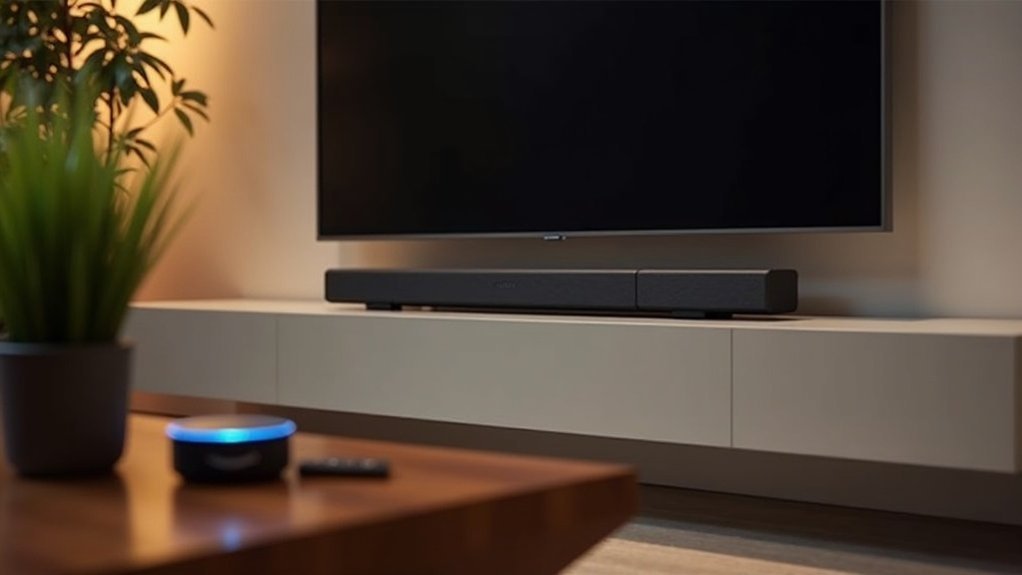
To integrate your soundbar with Alexa, begin by downloading the manufacturer’s app and ensure both devices are connected to the same Wi-Fi network. Enable Alexa support on the soundbar and add it as a new device within the Alexa app. Once set up, you can use voice commands to manage playback and adjust volume. If you encounter any issues, check the connectivity and troubleshoot as necessary. Continue exploring for additional tips on enhancing your audio experience and optimizing your soundbar setup.
Key Takeaways
- Download the manufacturer’s app and connect the soundbar to the same Wi-Fi network as your Alexa device.
- Activate built-in Alexa support on the soundbar by pressing the dedicated Alexa button.
- Add the soundbar as a new device in the Alexa app using the “Add Device” option.
- Use voice commands to control playback and volume, such as “Alexa, play music on [Soundbar Name].”
- Ensure both devices are updated and troubleshoot connectivity issues if they arise.
Setting Up Your Soundbar for Alexa Integration
To integrate your soundbar with Alexa, begin by downloading the manufacturer’s app, such as the Yamaha Sound Bar Controller, from the App Store or Google Play.
Ensure your soundbar is powered on and connected to the same Wi-Fi network as your Alexa device for optimal performance.
For the best performance, make sure your soundbar is powered on and connected to the same Wi-Fi network as your Alexa device.
If your soundbar features built-in Alexa support, activate it by pressing and holding the dedicated Alexa button.
In the Alexa app, add your soundbar as a new device by selecting “Add Device” and following the prompts.
Once set up, you can effortlessly control playback and adjust volume using Alexa voice commands, enhancing your audio experience.
Downloading the Necessary Apps
Before you can control your soundbar with Alexa, you’ll need to download the appropriate app for your specific model.
For instance, if you own a Samsung soundbar, make sure to download the SmartThings app. Alternatively, if your soundbar is a Yamaha, you should get the Yamaha Sound Bar Controller app.
These apps are readily available on the App Store or Google Play. It’s important that your mobile device is connected to the same Wi-Fi network as your soundbar to ensure a seamless setup.
Follow the guidelines provided in the app to connect your soundbar to Wi-Fi and activate Alexa support, enabling you to effortlessly use voice commands with your soundbar.
Connecting Your Soundbar to Wi-Fi
Connecting your soundbar to Wi-Fi is a crucial step for enjoying voice control with Alexa.
Begin by powering on your soundbar and ensuring it’s within range of your Wi-Fi network. Utilize the manufacturer’s app, such as the Yamaha Sound Bar Controller for Yamaha models, to streamline the connection process.
Follow the on-screen instructions to select your Wi-Fi network and input the password. It’s important to ensure that your soundbar is compatible with Alexa for seamless integration.
Once connected, you can explore sound settings in the app for additional information on using Alexa and other features required for optimal performance.
Enabling Alexa Support on Your Soundbar
To enable Alexa support on your soundbar, begin by downloading and installing the appropriate app for your soundbar model.
After setting up the app, press and hold the Alexa button located on your soundbar to initiate voice activation.
Follow the on-screen prompts in the app to finalize the integration, allowing you to enjoy hands-free control of your soundbar.
App Installation Process
Once you’ve selected the appropriate app for your soundbar model, the installation process is quite simple.
Begin by downloading the app from the App Store or Google Play, such as the Yamaha Sound Bar Controller for Yamaha models.
Then, power on your soundbar and connect it to your Wi-Fi network using the app, following the on-screen instructions.
If your soundbar is equipped with a dedicated Alexa button, press and hold it to start the setup process.
After completing these steps, your soundbar will show up as a device in the Alexa app, allowing for voice control.
Just ensure that your model is compatible with Alexa features for optimal performance.
Voice Activation Setup
Now that your soundbar is set up and connected to the app, you can enable Alexa support for voice activation.
First, ensure your soundbar is powered on and connected to the same Wi-Fi network as your Alexa device. If you’re using a Yamaha YAS-109, download the Yamaha Sound Bar Controller app from the App Store or Google Play.
Next, press and hold the Alexa button on the soundbar to activate support. Follow the on-screen prompts in the app to complete the integration.
Once finished, you’ll be able to use voice commands for playback, volume adjustments, and switching audio sources, enhancing your soundbar experience.
Completing the Setup in the Alexa App
To complete the setup of your soundbar in the Alexa app, start by ensuring both your soundbar and the Alexa-enabled device are connected to the same Wi-Fi network.
Next, follow the app’s prompts to configure necessary settings and enable voice commands.
This will allow you to effortlessly control playback and volume of your soundbar using Alexa’s voice commands.
Connecting Soundbar to Alexa
How can you easily connect your soundbar to Alexa?
First, ensure your soundbar is powered on and connected to the same Wi-Fi network as your Alexa device.
Download and open the Alexa app, then tap the “Devices” icon in the bottom right corner to start adding your soundbar.
Select “Add Device,” choose “Speaker,” and select your soundbar’s brand to follow the on-screen instructions.
After setup, enable Alexa support by pressing the Alexa button on the soundbar.
Once connected, you can use the Alexa app to control playback, adjust settings, and create custom speaker groups for multi-room audio, enhancing your overall sound experience.
Configuring Device Settings
Once you’ve added your soundbar to the Alexa app, you’ll need to configure its settings for optimal audio performance.
Start by tapping the Devices icon, then select the “+” symbol to add your soundbar. Choose the device type and follow the on-screen instructions to connect it to your Wi-Fi and link it to your Alexa account.
Ensure your soundbar supports Alexa functionality, such as the Samsung Q series or Yamaha YAS-109.
After the setup, access the device card in the app to adjust preferences like volume and input source, ensuring a tailored audio experience that meets your needs.
Voice Command Activation
Activating your soundbar with Alexa requires a few straightforward steps within the Alexa app. First, verify that your soundbar and Alexa device are on the same Wi-Fi network. Open the app, tap the “Devices” icon, and select “Add Device.” Follow the on-screen instructions to enable Alexa support on your soundbar.
Here’s a quick reference table:
| Step | Action |
|---|---|
| Connect | Verify both devices are on the same Wi-Fi |
| Open Alexa App | Tap on “Devices” |
| Add Device | Select “Add Device” |
| Follow Instructions | Enable Alexa support |
| Use Voice Commands | Try commands like “Alexa, play music” |
Now you can effortlessly control your soundbar with voice commands!
Using Voice Commands With Your Soundbar
To enjoy the full benefits of your soundbar with Alexa, you first need to ensure it’s compatible and Alexa support is enabled.
Follow the setup instructions for your specific soundbar model. Once that’s done, you can effortlessly control your soundbar using voice commands like, “Alexa, play music on [Soundbar Name]” or “Alexa, turn up the volume on [Soundbar Name].”
You can even create custom speaker groups in the Alexa app for multi-room audio control. Use commands such as “Alexa, skip this track” or “Alexa, enable Voice Enhance mode” for a richer audio experience tailored to your preferences.
Customizing Your Audio Experience
While integrating your soundbar with Alexa opens up a world of audio possibilities, customizing your audio experience can take it to the next level. You can personalize your settings and enjoy tailored audio environments with these features specifically designed for soundbars:
- Create custom playlists for workouts, cooking, or relaxation to enhance your soundbar’s performance.
- Use hands-free commands to control playback and volume effortlessly, making it easy to enjoy your favorite content.
- Leverage Alexa Multi-Room Audio for simultaneous playback in different areas, allowing your soundbar to be part of a cohesive audio experience throughout your home.
- Designate specific audio setups by creating custom speaker groups in the Alexa app, optimizing your soundbar’s output for various activities.
- Access a wide range of content, from music to podcasts, enhancing your listening experience through your soundbar.
Embrace these options to enjoy seamless audio control and elevate your soundbar experience!
Troubleshooting Common Issues With Alexa Integration
Integrating your soundbar with Alexa enhances your listening experience, but sometimes things don’t go as planned.
First, ensure that your soundbar and Alexa device are connected to the same Wi-Fi network for seamless communication. If your soundbar isn’t responding to commands, try restarting both devices to refresh the connection.
Check the Alexa app under the “Devices” section to confirm that your soundbar is recognized. Make sure that voice permissions are enabled in the app settings to ensure proper control.
If you encounter audio issues, verify that your soundbar’s firmware is up to date, and consider performing a power cycle to resolve potential glitches.







