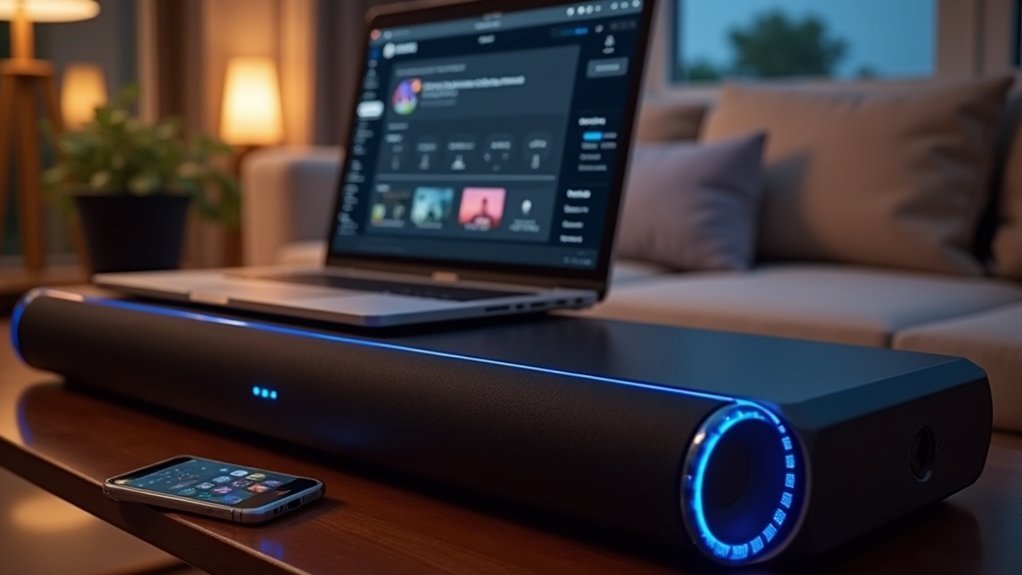
To enhance Bluetooth audio on your soundbar, ensure it is properly paired with your audio device and maintain a distance of no more than 30 feet to reduce signal interference. Avoid placing other electronics, such as Wi-Fi routers, nearby, and make it a habit to regularly update the soundbar’s firmware for optimal performance. If you continue to experience issues, consider resetting the soundbar to its factory settings. For the best sound quality, look into wired connections like HDMI ARC or optical cables, which can help eliminate problems associated with Bluetooth. There are additional factors to consider for an improved audio experience with your soundbar.
Key Takeaways
- Ensure your soundbar and audio source are properly paired and kept within 30 feet to minimize signal interference for optimal sound quality.
- Keep electronic devices such as Wi-Fi routers and microwaves away from the soundbar to reduce any potential interference that could affect audio performance.
- Regularly check for and install firmware updates on both the soundbar and connected devices to enhance overall performance and audio clarity.
- For a more stable and lag-free audio experience, consider utilizing wired connections like HDMI ARC or optical audio instead of relying solely on Bluetooth.
- If you experience persistent connectivity issues, try resetting the soundbar to its factory settings and then reconnect your Bluetooth device for a fresh start.
Ensure Proper Pairing and Proximity
To ensure optimal Bluetooth audio performance on your soundbar, begin by checking that both the soundbar and your audio source are properly paired.
Make sure the soundbar is in pairing mode and that the audio device is set to discoverable. Maintain a distance of no more than 30 feet to reduce signal interference and enhance audio quality.
Avoid physical obstructions such as walls or furniture that could disrupt the audio signal. Regularly inspect for nearby electronic devices that might cause audio dropouts.
If you experience connection issues, try unpairing and then re-pairing the devices to refresh the Bluetooth connection and resolve any minor glitches.
Minimize Interference From Other Devices
While you mightn’t realize it, interference from other electronic devices can considerably impact the Bluetooth audio performance of your soundbar.
To minimize interference and enhance audio quality, consider these strategies:
- Keep your soundbar and Bluetooth devices within a 30-foot range to reduce signal disruptions caused by walls and obstacles.
- Avoid placing nearby electronics, such as Wi-Fi routers or microwaves, as they can interfere with Bluetooth signals due to frequency overlap.
- Turn off or distance yourself from other Bluetooth devices connected to your soundbar to prevent bandwidth congestion.
Regular firmware updates on your soundbar and connected Bluetooth devices can also improve compatibility and help mitigate interference issues, ensuring you enjoy the best audio experience.
Update Firmware for Optimal Performance
Keeping your soundbar’s firmware up to date is essential for maximizing Bluetooth audio performance. Regularly check the manufacturer’s website for the latest release updates, as these can significantly enhance sound quality and resolve known bugs that may disrupt connectivity.
If possible, connect your soundbar to Wi-Fi for quicker and more convenient firmware updates. Some models offer automatic update features—enable this option to ensure you don’t miss critical improvements.
Always refer to the user manual for specific instructions tailored to your soundbar model. By prioritizing firmware updates, you’ll optimize your audio settings and enjoy superior digital audio experiences.
Reset Soundbar to Factory Settings
If you’re experiencing persistent issues with your soundbar’s Bluetooth audio, resetting it to factory settings can often restore optimal performance. Here’s how to proceed:
- Locate the reset button on the back or bottom of your soundbar, or consult the user manual for guidance.
- Press and hold the power button or the dedicated reset button for 10-15 seconds.
- Be aware that this action will erase all custom settings, including any paired Bluetooth devices and audio output preferences.
After the reset, you’ll need to reconnect your Bluetooth device by putting the soundbar into pairing mode.
Regularly performing a reset can be a helpful troubleshooting step for resolving connectivity issues.
Explore Wired Connections as an Alternative
Considering the limitations of Bluetooth audio, exploring wired connections can significantly enhance your soundbar’s performance. Utilizing HDMI ARC or optical audio cables ensures stable, lossless audio transmission, effectively eliminating lag and interference. These connections provide high-quality sound, making them superior to Bluetooth speakers. Additionally, a 3.5mm line-level output serves as a reliable option for connecting various audio sources, steering clear of the drawbacks associated with Bluetooth compression.
| Connection Type | Advantages | Best Use |
|---|---|---|
| HDMI ARC | Supports advanced audio formats | Home theater setups |
| Optical Audio | Ideal for long-distance signals | Clear sound quality |
| 3.5mm Output | Bypasses Bluetooth issues | General audio connections |







