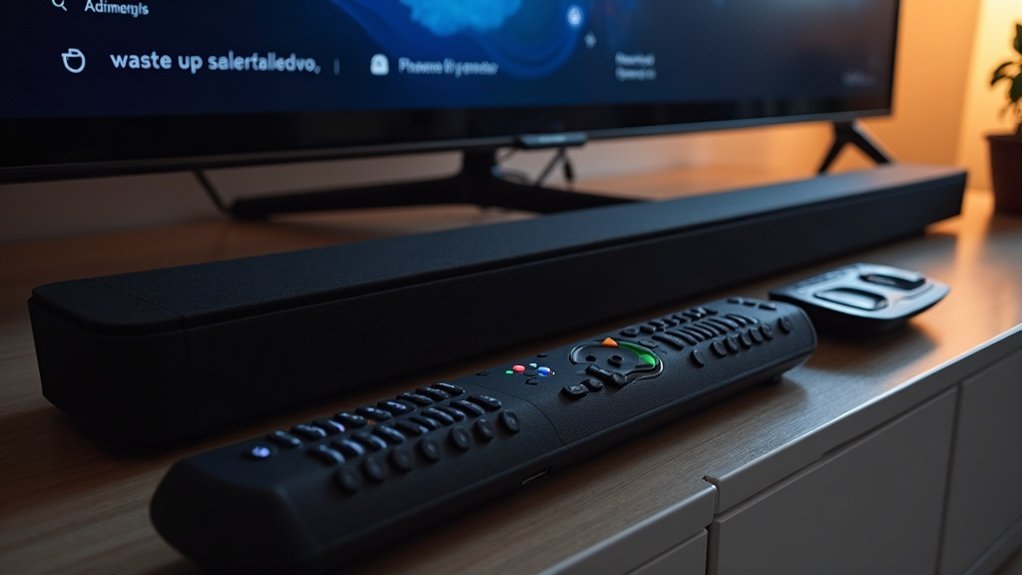
If your soundbar won’t switch inputs, begin by checking the remote control for new batteries and test its functionality using a smartphone camera. Inspect all cable connections for security and damage, ensuring you are using high-speed HDMI cables that support ARC. Power cycle the soundbar by unplugging it for at least 10 seconds. Consult the user manual for the correct input switching procedures, and consider performing a factory reset if necessary. There are additional troubleshooting steps you can take to resolve the issue effectively.
Key Takeaways
- Ensure the soundbar remote has fresh batteries and test it for functionality with other devices or a smartphone camera.
- Check and secure all cable connections, verifying that you are using high-speed HDMI cables that support ARC for optimal performance.
- Power cycle the soundbar by unplugging it, waiting 10 seconds, then plugging it back in to reset internal functions.
- Refer to the soundbar user manual for the correct input switching button and consult troubleshooting tips for common issues related to soundbars.
- Perform a factory reset if problems persist, following the manual instructions to restore the soundbar to its original settings.
Check Remote Control Functionality
Have you checked your soundbar’s remote control functionality? Start by ensuring it has fresh batteries, as low power can hinder its ability to switch inputs on your soundbar.
Test the remote with other devices or use your smartphone camera to see if it’s emitting an infrared signal. If the remote is unresponsive, look for obstructions that might block this signal.
As a troubleshooting step, try the physical buttons on the soundbar itself to change the input. If issues persist, consider resetting the remote control, especially if it has programmable features, to resolve any glitches affecting its functionality.
Inspect Cable Connections
Inspecting cable connections is essential for resolving soundbar input issues. Start by checking that all cable connections are secure and undamaged. Loose or faulty connections can hinder input switching.
Inspecting and securing cable connections is crucial for fixing soundbar input issues. Ensure all connections are intact to avoid functionality problems.
Focus on these key areas:
- Confirm you’re using high-speed HDMI cables that support ARC for peak performance with your soundbar.
- Inspect the optical cable for wear and confirm it’s firmly connected to both the soundbar and the source device.
- Verify you’re using the correct HDMI port on your TV for ARC; using the wrong input can cause problems with soundbar functionality.
If needed, unplug and plug them back to ensure a secure connection.
Power Cycle the Soundbar
Power cycling your soundbar can effectively resolve input issues by resetting its internal functions. To perform a power cycle, simply unplug the soundbar from the power source for at least 10 seconds. This quick maintenance step helps clear temporary glitches that may interfere with input switching. Once you reconnect the soundbar, allow it to fully boot up before attempting to switch inputs again. Regular power cycling can enhance your soundbar’s overall performance.
| Step | Action | Purpose |
|---|---|---|
| 1 | Turn off and unplug the soundbar | Reset internal functions |
| 2 | Wait 10 seconds | Clear temporary glitches |
| 3 | Plug back in and turn on | Allow full boot-up before use |
Refer to User Manual for Input Switching
When you encounter input switching issues with your soundbar, referring to the user manual can be immensely helpful, as it provides specific guidance tailored to your model.
Referring to your soundbar’s user manual can provide crucial guidance for resolving input switching issues specific to your model.
Follow these steps for effective input switching:
- Locate the correct button: The manual includes diagrams showing the remote or physical controls for switching inputs specific to soundbars.
- Check supported inputs: Verify you understand how to toggle between HDMI, optical cable, and other options commonly found on soundbars.
- Consult troubleshooting tips: The manual often has solutions for common input switching problems and software glitches related to soundbars.
Perform a Factory Reset
If you’re still facing input issues after switching settings, performing a factory reset can often resolve underlying software glitches with your soundbar.
To reset your device, locate the reset button on the back or bottom of the soundbar and press it for a few seconds until the indicator light blinks. If there’s no reset button, power on the soundbar and hold the volume up and down buttons simultaneously for about 10 seconds.
This process will erase all custom settings, returning your soundbar to its original state. Always consult the user manual for specific instructions, then reconfigure your input settings and connections for ideal audio output.







