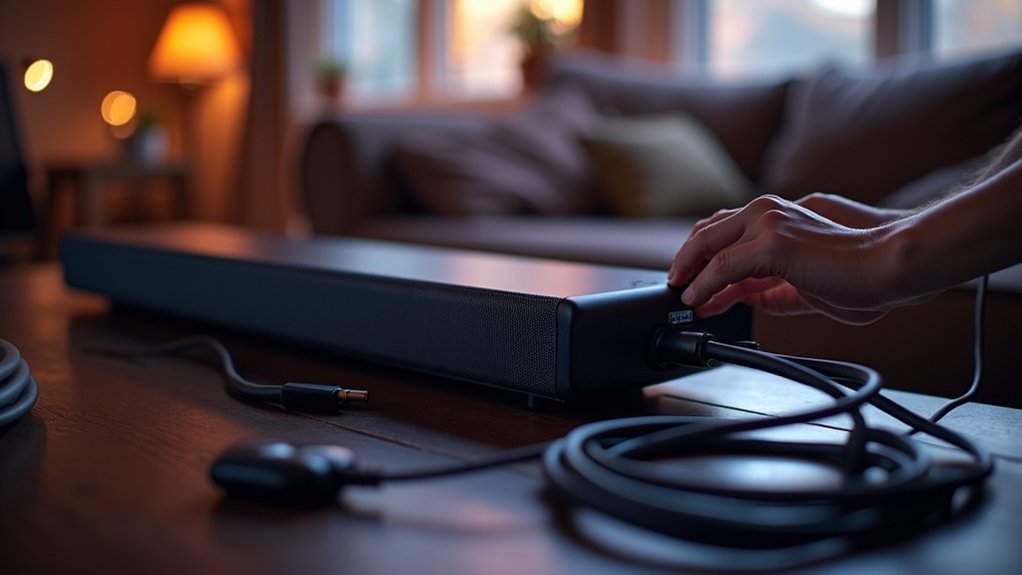
To fix static noise from your soundbar, begin by checking and reseating all audio connections. Inspect for any damaged cables and replace them if necessary. To reduce electronic interference, try moving nearby devices away from the soundbar. Consider performing a firmware update using the manufacturer’s app to ensure optimal performance. Test various audio sources such as HDMI, optical, and AUX to identify the issue. If the static noise continues, it may be advisable to consult a technician or reach out to manufacturer support for further assistance. Explore additional troubleshooting steps for a more comprehensive resolution tailored to soundbars.
Key Takeaways
- Inspect and reseat all audio cables connected to your soundbar, ensuring secure connections to prevent static noise.
- Power cycle your soundbar and any connected devices by unplugging them for 30 seconds to refresh the system.
- Test alternative audio cables and different audio sources to identify the cause of the static noise affecting your soundbar.
- Reduce electronic interference by relocating nearby devices and using shielded cables to improve sound quality.
- Check for firmware updates through your soundbar manufacturer’s app to enhance performance and resolve any issues.
Understanding Static Noise in Soundbars
Static noise in soundbars often stems from a combination of connection issues and external interference. Loose cables or faulty inputs can greatly degrade audio quality, causing unwanted static during playback.
Additionally, electromagnetic interference from nearby electronic devices, such as mobile phones or routers, contributes to these disturbances. Environmental factors like heat and humidity may further impact your soundbar’s performance.
To reduce static noise, it’s advisable to use high-quality cables, such as optical or HDMI, which provide a stronger connection. Regularly updating your soundbar’s firmware can also resolve compatibility issues and eliminate glitches that might lead to static sounds while operating.
Common Causes of Static Noise
Understanding the common causes of noise interference is crucial for addressing the frustrating issue of static in your soundbar. Here are some typical culprits behind static noise:
- Bad signals from your TV or input source
- Poor or loose connections with HDMI or optical cables
- Interference from nearby electronic devices, such as mobile phones
- Environmental factors like humidity and heat
- High volume settings on the input device, which can lead to distortion
Identifying these issues is essential for resolving static noise and restoring your soundbar’s audio quality.
Initial Troubleshooting Steps
Once you’ve identified the common causes of static noise in your soundbar, it’s time to tackle the issue with some initial troubleshooting steps.
Start by inspecting and reseating all audio cables, particularly the HDMI cable, ensuring they’re securely connected and free from damage.
Next, relocate any electronic devices, such as mobile phones, away from the soundbar to minimize potential interference.
Change the audio source to see if the static persists across different connections.
Power cycle both the soundbar and connected devices by unplugging them for 30 seconds.
Finally, adjust the volume levels on both the soundbar and the input device to ensure they’re balanced, as mismatched levels can contribute to static noise.
Checking Connections and Cables
Start by inspecting the quality of your soundbar cables, ensuring they’re not damaged or substandard.
Next, make sure all connections to your soundbar are secure, as loose fittings can lead to unwanted static noise.
If issues persist, consider testing alternative cables to determine if the problem lies with your current soundbar setup.
Inspect Cable Quality
Inspecting cable quality is crucial for eliminating static noise from your soundbar and ensuring optimal sound performance.
To achieve the best audio experience, make sure to:
- Check all audio cables for visible damage, such as frayed wires or bent pins.
- Confirm that cable connections are securely plugged in at both ends.
- Use high-quality, shielded cables to minimize electromagnetic interference (EMI).
- Regularly inspect and replace worn-out cables to maintain sound quality.
- Consider using optical cables instead of HDMI or AUX connections for clearer audio signals.
Secure All Connections
Securing all connections is essential for eliminating static noise from your soundbar. Start by ensuring all cables connecting the soundbar to your TV or other devices are securely plugged in, as loose connections can lead to sound issues.
Inspect HDMI, optical, or AUX cables for any visible damage, such as frayed wires or bent pins. Reseat the cables by unplugging and re-plugging them to ensure a proper connection, which helps eliminate static noise caused by poor contact.
Additionally, opt for high-quality cables, as inferior ones may not transmit audio signals effectively. Regularly check and tighten all connections to prevent them from loosening over time, ensuring optimal sound quality from your soundbar.
Test Alternative Cables
When dealing with static noise from your soundbar, testing alternative cables can be an essential step in diagnosing the issue.
Start by inspecting all audio cables, including HDMI, for visible damage. Confirm connections are secure at both ends to avoid loose contacts.
Consider these points:
- Experiment with high-quality audio cables to rule out inferior options that may affect sound quality.
- For optical audio connections, ensure your TV audio output is set to PCM format for optimal performance.
- Minimize distance for Bluetooth connections to reduce potential interference and enhance audio clarity.
- Disconnect any other paired devices that could disrupt the soundbar’s performance.
Reducing Electronic Interference
To reduce electronic interference with your soundbar, begin by identifying nearby devices that may disrupt your audio experience.
Position your soundbar away from these potential sources of interference and utilize high-quality, shielded cables for all connections.
This thoughtful placement and selection of materials can significantly diminish static noise, ensuring you enjoy the best sound quality from your soundbar.
Identify Nearby Devices
How can you effectively reduce electronic interference that leads to static noise in your soundbar? Start by identifying nearby devices that may disrupt your audio experience.
- Keep mobile devices like phones and tablets at least three feet away from the soundbar.
- Avoid placing the soundbar near routers or DECT phone bases, as they can cause interference.
- Ensure that no metal objects obstruct the line of sight between the soundbar and its subwoofer.
- Regularly check and adjust the placement of your soundbar and connected devices to minimize potential disruptions.
- Use surge protectors specifically designed for audio equipment instead of standard power strips to further protect your sound system.
Optimize Device Placement
Identifying nearby devices is just the first step in addressing static noise issues with your soundbar. To optimize placement, ensure your soundbar is positioned at least three feet away from electronic devices such as wireless routers, microwaves, and smartphones. Maintain a clear line of sight to the wireless subwoofer to avoid obstacles that can disrupt signals. It’s important to avoid placing the soundbar on metal surfaces, as this can degrade audio quality; instead, opt for non-metallic surfaces. Regularly check the positioning of your devices to prevent interference. For a stable audio connection, consider using an optical cable for transmission, as it significantly minimizes the risk of electromagnetic interference.
| Device Type | Recommended Distance |
|---|---|
| Wireless Router | 3 feet |
| Microwave | 3 feet |
| Smartphone | 3 feet |
| Metal Surfaces | Avoid |
| Subwoofer | Line of Sight |
Use Shielded Cables
Using shielded cables is essential for reducing electronic interference that can lead to static noise in your soundbar. These cables are designed with a protective layer, ensuring a clear audio signal for an optimal listening experience.
Here are some tips to enhance your soundbar setup:
- Choose high-quality shielded HDMI or optical cables for the best audio quality.
- Look for cables specifically labeled as “shielded” to ensure maximum protection against interference.
- Keep audio cables as short as possible to minimize signal loss.
- Avoid running audio cables parallel to power cables to reduce the risk of interference.
- When necessary, cross cables at right angles to further diminish the chances of noise disruption.
Updating Firmware and Software
While it might seem tedious, regularly updating your soundbar’s firmware and software is crucial for maintaining peak performance and resolving issues like static noise.
Manufacturers frequently release firmware updates to enhance functionality and fix bugs specific to soundbars. To update, connect your soundbar to the internet via Wi-Fi or Ethernet, then access the manufacturer’s app or settings menu tailored for soundbars.
Regular firmware updates are essential for improving soundbar functionality and resolving bugs; connect to the internet to access updates easily.
Follow the provided instructions carefully, as improper updates can exacerbate issues. Some soundbars include an automatic update feature, allowing you to stay current effortlessly.
After updating the firmware, restart your soundbar to verify all changes take effect and re-establish connections with other devices, ensuring optimal audio performance.
Testing Different Audio Sources
After confirming your soundbar’s firmware and software are up to date, it’s time to troubleshoot static noise by testing different audio sources.
Start by switching between various inputs to identify the source of the issue:
- Test HDMI connections with different ports on your soundbar.
- Use an Optical cable for comparison to see if the static persists.
- Connect via AUX to check compatibility with your audio devices.
- Try Bluetooth with different devices to rule out wireless interference.
- Confirm that the correct input is selected on your soundbar for proper functionality.
When to Seek Professional Support
If you’ve tried all troubleshooting options and the static noise from your soundbar persists, it may be time to seek professional support. Ongoing issues can indicate deeper problems that require expert intervention. Consider the following scenarios:
| Situation | Action |
|---|---|
| Static noise despite trying different inputs | Contact a soundbar technician |
| Under warranty and issues remain unresolved | Reach out to the soundbar manufacturer |
| Suspected incompatibility with devices | Consult with a soundbar professional |
| Potential firmware issues | Request a diagnostic update |
| Known issues with your soundbar model | Engage customer support |
Professional support can offer insights and solutions that may not be immediately apparent. Don’t hesitate to reach out for assistance with your soundbar.







