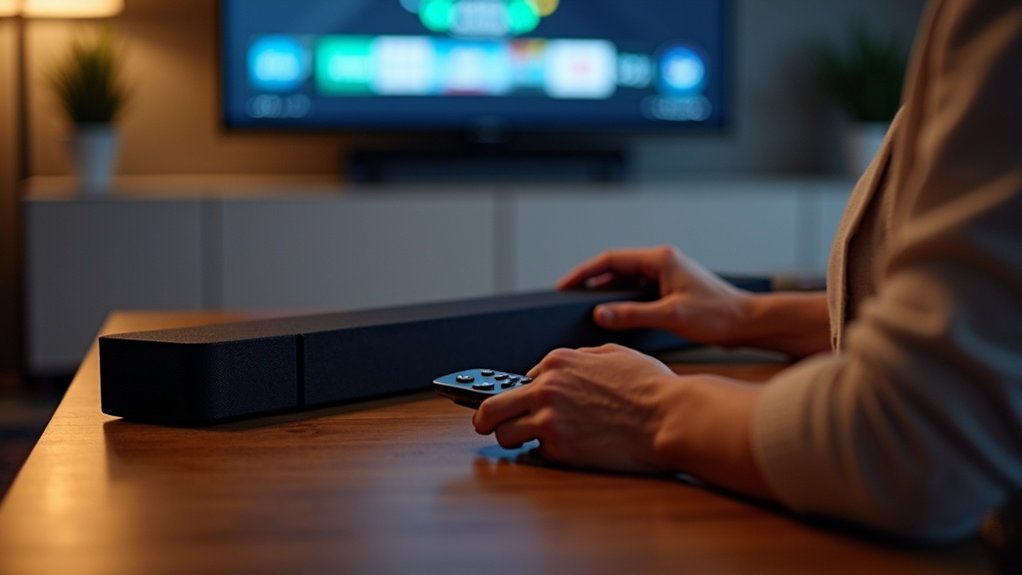
If your soundbar remote isn’t responding, start by checking the batteries to ensure they’re fresh and installed correctly. Remove any obstructions between the remote and soundbar, and make sure you’re within range. Power cycle the soundbar by unplugging it for 60 seconds. If you’re using HDMI-CEC, check for conflicts and consider disabling it if necessary. Additionally, try using the physical buttons on the soundbar itself for basic control. There are more solutions available to effectively resolve your issue.
Key Takeaways
- Check and replace the remote batteries with fresh, high-quality ones, ensuring they are installed correctly.
- Ensure there is a clear line of sight between the remote and soundbar, removing any obstructions.
- Power cycle the soundbar by unplugging it for 60 seconds, then plugging it back in to reset.
- Verify HDMI-CEC settings on both the soundbar and TV to avoid conflicts that limit remote control.
- Use physical buttons on the soundbar or a companion app for control if the remote remains unresponsive.
Common Soundbar Remote Issues
When your soundbar remote isn’t responding, it can be incredibly frustrating, especially during your favorite movie.
Common issues include unresponsiveness, where the remote fails to control the soundbar, often due to signal blockage or interference from other devices.
Common problems with soundbar remotes include unresponsiveness, often caused by signal blockage or interference from nearby devices.
You might notice that the volume control buttons aren’t functioning properly, making adjustments difficult.
Additionally, some users experience limited remote range, requiring close proximity to the soundbar for effective operation.
Conflicts with HDMI-CEC settings can also restrict control, causing the soundbar to respond only to the TV remote.
Identifying these issues is the first step toward resolving your soundbar remote problems.
Check the Batteries
Addressing unresponsiveness in your soundbar remote often starts with checking the batteries.
Always use fresh, high-quality batteries to ensure optimal performance. First, verify the battery orientation in the remote; make sure to align the + and – symbols correctly.
If the remote still doesn’t respond, try a second set of new batteries to eliminate any defects. For consistent performance, consider replacing batteries regularly and avoid mixing different types or brands.
Lastly, dispose of old batteries properly to prevent environmental issues. Following these steps can help restore functionality to your soundbar remote efficiently, ensuring you enjoy your audio experience without interruptions.
Make Sure Nothing Is Blocking the Signal
To ensure your soundbar remote functions properly, maintain a clear line of sight between the remote and the soundbar.
Stand within 15-20 feet and point the remote directly at the soundbar, as distance and angle can weaken the infrared signal.
Additionally, be aware of bright lights or reflective surfaces nearby that may disrupt the remote’s performance for your soundbar.
Clear Line of Sight
A clear line of sight is essential for your soundbar remote to function effectively. To ensure optimal performance, point the remote control directly at the soundbar, as infrared signals require an unobstructed path to operate.
Remove any obstacles, such as furniture or decorative items, that could block the signal. Maintain a distance of 15-20 feet for peak performance.
Additionally, test the remote in various lighting conditions, as bright lights can interfere with the infrared signal.
Regularly check and clean the infrared sensor areas on both the remote and soundbar to prevent dust or debris from obstructing the signal.
Distance From Soundbar
While using the soundbar remote, maintaining an appropriate distance is essential for optimal performance. Ensure you’re within 15-20 feet of the soundbar, as this range maximizes signal strength.
Here are key points to consider:
- Ensure a clear line of sight to the soundbar.
- Avoid large objects like furniture that may obstruct the signal.
- Replace remote batteries if functionality decreases.
- Test the remote from various angles to check for interference.
- Be mindful of bright lights that could disrupt the IR signal.
Lighting Conditions Impact
Maintaining a clear line of sight isn’t just about distance; lighting conditions also significantly impact the performance of your soundbar remote. Bright lights or direct sunlight can interfere with the IR signals, causing your remote to seem unresponsive.
To ensure effective communication, stand within 15-20 feet of your soundbar and keep the path clear of obstructions like furniture or decorative items.
If you find that the remote only works at close range, it may indicate weak batteries or an issue with the IR sensor, which can be worsened by poor lighting conditions.
Always test your remote in various lighting environments to identify any potential issues.
Power Cycle the Soundbar
Power cycling your soundbar is a straightforward yet effective method to troubleshoot issues with the remote control. Here’s how you can do it:
Power cycling your soundbar is an easy and effective way to resolve remote control issues.
- Turn off the soundbar.
- Unplug the power cord from the wall outlet.
- Wait for at least 60 seconds to ensure a complete reset.
- Plug the power cord back into the outlet.
- Turn the soundbar back on and test the remote.
This process can help eliminate temporary glitches or communication problems between the soundbar and its remote.
Additionally, regularly power cycling your soundbar can improve its overall performance and responsiveness.
Check for HDMI-CEC Conflicts
After power cycling your soundbar, it’s important to check for HDMI-CEC conflicts that might affect the remote’s functionality.
First, verify that both your soundbar and TV have HDMI-CEC enabled in their settings. If your soundbar responds only to your TV remote, it may be due to HDMI-CEC prioritizing the TV’s control.
To regain full control of your soundbar, consider disabling HDMI-CEC or T-Link on your TV.
Additionally, ensure all HDMI cables are securely connected; loose connections can disrupt communication between devices using HDMI-CEC, leading to remote malfunctions.
Addressing these conflicts can help restore your soundbar’s responsiveness and enhance your overall audio experience.
Try a Remote Reset
If your soundbar remote isn’t responding, trying a remote reset can often resolve the issue.
Follow these steps to perform a remote reset effectively:
- Remove the batteries from the remote to power it down completely.
- Press and hold any button on the remote for 10 seconds to discharge residual power.
- Reinsert fresh batteries, ensuring correct polarity (+ and -).
- Test the remote functionality by trying to control your soundbar.
If it’s still unresponsive, consider additional troubleshooting or contact support for further assistance.
This remote reset can rejuvenate your remote and restore its functionality, ensuring you get the best audio experience from your soundbar.
Use the Buttons on the Soundbar Itself
When your soundbar remote isn’t responding, you can still control essential functions directly from the soundbar itself.
Locate the power, volume, and input selection buttons on the device to manage settings temporarily.
This method ensures your soundbar remains operational while you troubleshoot remote issues or wait for a replacement.
Basic Controls Overview
Soundbars often come equipped with essential control buttons directly on the unit, offering a simple way to manage audio settings.
Familiarizing yourself with these basic controls can enhance your troubleshooting efforts when the remote isn’t functioning properly. Here are the typical buttons you’ll find on a soundbar:
- Power: Turns the soundbar on or off.
- Volume Up: Increases the audio level.
- Volume Down: Decreases the audio level.
- Input Selection: Allows you to switch between different audio sources.
- Mute: Silences the audio output.
For specific button locations and functions, refer to your soundbar’s user manual.
This will help you navigate settings effectively without needing to rely on the remote.
Temporary Functionality Solutions
While troubleshooting your soundbar remote, you can quickly regain control by using the physical buttons located directly on the unit. Most soundbars include basic controls for power, volume, and input selection. Familiarize yourself with the layout to access essential functions efficiently. If your soundbar has an LED display, monitor changes while adjusting settings manually.
| Button Function | Description |
|---|---|
| Power | Turns the soundbar on/off |
| Volume Up | Increases sound level |
| Volume Down | Decreases sound level |
| Input Selection | Switches input source |
| Mute | Silences sound |
Consider companion apps as alternative temporary functionality solutions for enhanced control over your soundbar and other electronic devices.







