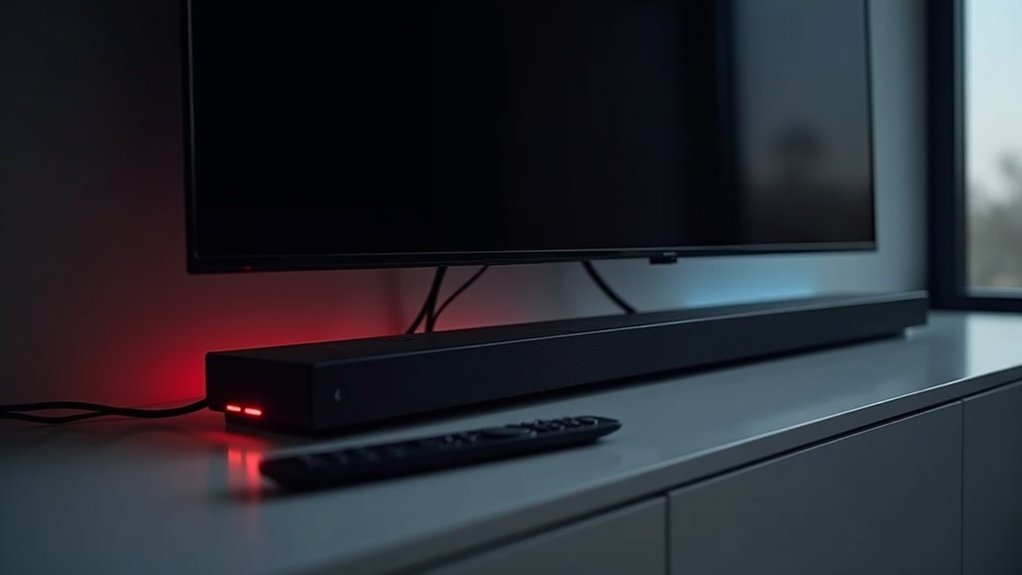
If your soundbar isn’t detecting the optical connection, first check that the optical cable is securely connected and free of damage. Ensure that your soundbar is set to the correct input mode for optimal performance. Adjust your TV audio settings to output via S/PDIF and ARC, and make sure the volume isn’t muted. Test with different devices or cables to rule out any potential issues. If problems persist, consider updating your soundbar’s firmware to enhance compatibility. There are additional troubleshooting steps you can explore to achieve a lasting fix for your soundbar.
Key Takeaways
- Ensure that the optical cable is securely connected and free of damage, with both ends properly plugged into the soundbar and your TV.
- Verify that the soundbar is set to the correct input mode by cycling through the options to select optical input, and keep an eye on the indicator lights.
- Adjust your TV’s audio settings to output mode “S/PDIF and ARC,” and make sure the volume is not muted.
- Test the soundbar with alternative devices and a different optical cable to eliminate any issues with the original setup.
- Check for firmware updates for your soundbar by visiting the manufacturer’s website and following the update process to ensure compatibility and optimal functionality.
Check Cable Connections
Before diving into more complex troubleshooting steps with your soundbar, it’s essential to check your cable connections first.
Verify that the optical cable is securely plugged into both your soundbar and TV; loose connections can cause detection issues.
Inspect the cable for visible damage, such as bends or frays, which might affect audio quality.
Confirm you’re using the correct optical port on both devices, as some soundbars and TVs have multiple options.
Don’t forget to remove any plastic caps on the cable ends; these protectors can block connectivity.
If you’re using an optical-to-AUX adapter, make sure it’s fully connected and compatible with your soundbar’s audio settings.
Verify Optical Input Selection
To ensure your soundbar detects the optical input, it’s essential to set it to the correct mode. Many soundbars may default to a different audio source, so it’s important to check your settings. Utilize your remote to cycle through the input options and confirm that the optical input is selected. Look for indicator lights on the soundbar, which will help validate the connection. If you still experience issues, consider performing a power cycle on both the soundbar and the TV.
| Action | Purpose | Result |
|---|---|---|
| Check settings | Confirm optical input mode | Validates audio output detected |
| Use remote | Select correct input | Confirms connection |
| Observe lights | Indicate active input | Validates detection |
| Power cycle devices | Reset input selection | Restores functionality |
Adjust TV Audio Settings
After confirming the optical input selection on your soundbar, it’s time to adjust the audio settings on your TV for optimal integration with your soundbar.
Navigate to the TV audio settings menu and set the output to “S/PDIF and ARC” to ensure a seamless optical audio connection. Make sure the output format is set to PCM-Stereo, which is crucial for delivering clear sound through your soundbar.
Also, check that the TV volume isn’t muted and is set to a reasonable level, as low volume can hinder sound transmission to the soundbar.
If issues persist, consider performing a factory reset on your TV to resolve any settings that may be interfering with the optical connection.
Test With Alternative Devices
If you’re still experiencing issues with your soundbar not detecting the optical input, testing it with alternative devices can be a great way to identify the underlying problem.
Begin by connecting your soundbar to various devices, such as a Blu-ray player or gaming console, to determine if the soundbar recognizes the optical input. Be sure to use a different optical cable as well, to eliminate the possibility of damage.
Additionally, connecting the soundbar directly to a PC can help ascertain if the issue lies within the TV’s output settings. Ensure that all devices are powered on and configured to the correct settings before conducting your tests for the best results.
Update Soundbar Firmware
Updating your soundbar’s firmware can often resolve issues, including problems with the optical input not being detected.
Start by checking the manufacturer’s website for the latest firmware version compatible with your specific soundbar model. If your soundbar supports wireless updates, connect it to your home Wi-Fi; otherwise, you can use a USB drive to download the necessary files.
Make sure to follow the manufacturer’s instructions to initiate the firmware update through the settings menu or companion app. It’s important to confirm that the soundbar is powered on and not in use during the update process.
After the update is complete, restart the soundbar and check if the optical connection is functioning properly.







