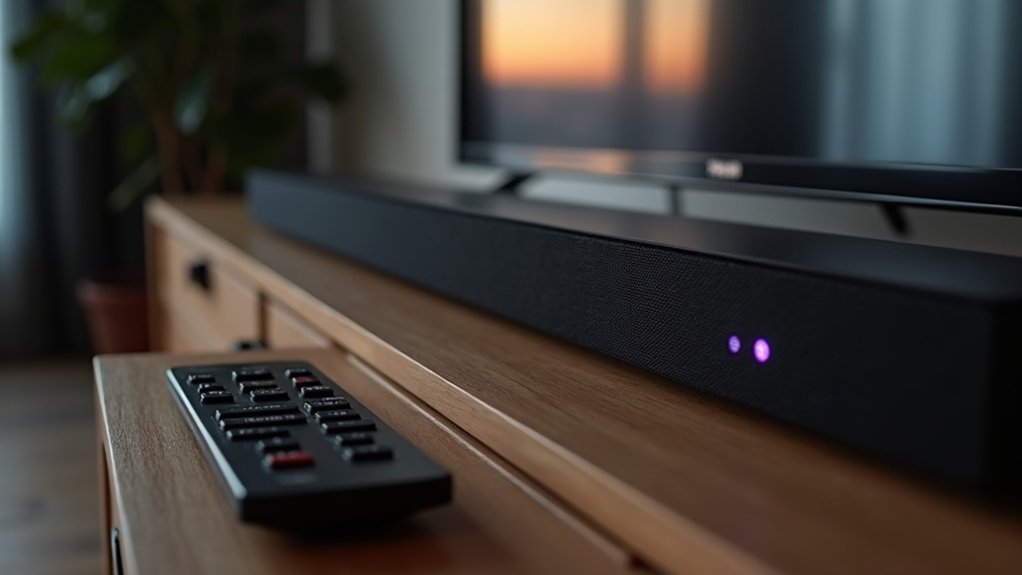
To resolve the issue of a soundbar producing no sound, begin by examining your input and output connections. Ensure that all cables are securely connected, undamaged, and that the correct audio source is selected. If you’re utilizing HDMI ARC, double-check the settings on both your soundbar and TV to ensure compatibility. For optimal performance, consider connecting your audio source directly to the soundbar. If you continue to experience issues, try re-pairing your subwoofer, updating the firmware, or performing a factory reset to restore the soundbar’s settings. Additional troubleshooting tips can be found throughout the website.
Key Takeaways
- Verify that the soundbar is correctly set to the appropriate input source, such as HDMI ARC, Optical, or Bluetooth.
- Check all cable connections between the TV and soundbar for security and any signs of damage.
- Restart both the TV and soundbar to refresh the connection and resolve temporary glitches.
- Ensure that the TV audio settings are configured to output sound to the soundbar, and select the correct audio format.
- If issues persist, consider updating the firmware on both devices and perform a factory reset if necessary.
Double-Check Your Input and Output
Before diving into more complex troubleshooting steps, it’s essential to double-check your soundbar’s input and output settings to ensure everything is correctly configured.
First, verify that your soundbar is set to the appropriate input source, such as HDMI ARC, Optical, or Bluetooth, depending on how it’s connected to your TV.
Next, confirm that the TV’s audio settings are adjusted to output sound to the soundbar.
Inspect all cable connections for security and any signs of damage.
Restart both the TV and soundbar to refresh their connections.
If available, utilize the soundbar’s mobile app to confirm the input selection and review any additional settings that may be affecting audio playback.
Solve For HDMI ARC Problems
If you’re experiencing issues with your soundbar not producing sound via HDMI ARC, it’s crucial to verify that both the soundbar and your TV are correctly configured to utilize this feature.
If your soundbar isn’t producing sound via HDMI ARC, ensure both devices are properly configured for this feature.
Follow these troubleshooting steps:
- Ensure the HDMI cable is securely connected to the HDMI ARC-capable port on both the soundbar and the TV.
- Enable HDMI-CEC settings on both devices to facilitate proper communication.
- Check the TV’s audio output settings to make sure audio is directed to the soundbar.
- If problems persist, consider using an optical cable as an alternative, though it may not support all audio formats.
Additionally, remember to regularly update the firmware on both the soundbar and the TV for optimal compatibility and performance.
Look Up Compatible Audio Formats
To guarantee peak audio performance from your soundbar, it’s essential to check the compatibility of the audio formats supported by both your soundbar and TV.
Start by looking up compatible audio formats like Dolby Digital, Dolby Digital Plus, and DTS. Not every soundbar can decode all audio formats, so consult the user manuals for both devices.
When configuring your TV audio settings, make sure you select the appropriate format to enhance playback quality. Additionally, experimenting with surround sound and stereo options can help you find the best audio output that matches your preferences and device capabilities during basic troubleshooting.
For optimal soundbar performance, be mindful of the audio formats your devices support.
Plug Your Source Directly Into the Soundbar
To troubleshoot sound issues with your soundbar, consider connecting your source device directly to the soundbar instead of through the TV.
This approach can streamline your setup and help you determine whether the issue originates from the source device or the soundbar itself.
However, be aware that direct connections may restrict access to built-in TV apps or features that utilize HDMI ARC.
Direct Source Connection Benefits
Connecting your source directly to the soundbar streamlines your audio setup and can greatly enhance your listening experience. This direct connection reduces latency and allows for immediate audio output, bypassing your TV’s processing, which can sometimes introduce sound issues.
The benefits of connecting directly to your soundbar include:
- Simplified connections with fewer devices involved, making setup easier.
- Compatibility with various audio formats like Dolby Digital and DTS, ensuring high-quality sound.
- Reduced risk of HDMI ARC-related issues, providing a more reliable connection.
- Direct testing of external devices to identify and resolve sound problems efficiently.
Troubleshooting Connection Issues
When troubleshooting sound issues with your soundbar, plugging your external device directly into the soundbar’s HDMI IN or optical input can greatly simplify the process. Start by connecting your device using an HDMI cable, ensuring that both the soundbar and the device are powered on. After connecting, check the audio settings on your device to confirm they match the input selected on the soundbar. If you hear audio, the issue likely lies with the connection between the soundbar and the TV. Refer to the table below for quick checks specific to soundbars:
| Task | Action |
|---|---|
| Check Input Source | Set soundbar to HDMI/Optical |
| Verify Power | Power both devices |
| Configure Audio Settings | Match output audio formats |
| Test with Another Device | Ensure device functionality |
Turn Off the Sleep Timer
If your soundbar suddenly stops producing sound, it might be due to an activated sleep timer. To resolve this, check your soundbar settings to ensure the sleep timer is disabled or set to a longer duration.
If your soundbar stops producing sound, check if the sleep timer is activated and adjust the settings accordingly.
Follow these steps:
- Navigate to the settings menu on your soundbar.
- Look under the “System” or “Power” settings for the sleep timer option.
- Disable any eco modes that may cause automatic shutdown.
- For specific instructions, consult the user manual for your soundbar model.
This will help maintain sound output and guarantee uninterrupted audio playback.
Re-Pair the Subwoofer and Surround Speakers
To re-pair your subwoofer and surround speakers with your soundbar, begin by ensuring that the subwoofer is powered on and within range of the soundbar.
Then, press and hold the pairing button on the subwoofer until its indicator light starts to blink.
Next, do the same on the soundbar to initiate the connection.
If the pairing is unsuccessful, try power cycling both the subwoofer and soundbar before attempting to pair them again.
For model-specific instructions, consult the user manual of your soundbar.
Subwoofer Pairing Process
Re-pairing your subwoofer with the soundbar is critical for restoring ideal sound performance, especially if you’ve noticed a loss of bass or connectivity issues.
Follow these steps:
- Ensure both the soundbar and subwoofer are powered on and placed close together.
- On the soundbar, press and hold the pairing button until the indicator light activates.
- Activate the pairing mode on the subwoofer.
- If available, utilize the mobile app for guidance and visual indicators.
If pairing fails, reset both devices to factory settings and repeat the process according to the manufacturer’s instructions.
Confirm successful pairing by checking that the subwoofer’s indicator light is solid.
Surround Speakers Setup
Ensuring your surround speakers are properly set up is essential for achieving an immersive audio experience with your soundbar.
To re-pair your subwoofer and surround speakers, start by powering on all devices and keeping them close to the soundbar. Access the soundbar’s settings through the remote or mobile app, and select the option for connecting additional speakers.
Initiate pairing mode by pressing the pairing buttons on the subwoofer and surround speakers simultaneously. Once they’re in pairing mode, check for a confirmation message on the soundbar to confirm successful connection.
If it fails, clear previous connections and minimize interference from other wireless devices to enhance the setup process.
Update Firmware or Perform a Factory Reset
If you’re experiencing no sound from your soundbar, updating the firmware or performing a factory reset can often resolve the issue.
Follow these steps for effective troubleshooting:
- Navigate to the settings menu on both your soundbar and TV.
- Check for firmware updates, ensuring both devices are connected to the internet.
- If issues persist, locate the factory reset option in the settings.
- Keep in mind that a factory reset erases all customized settings, requiring you to reconfigure your sound preferences.
Always consult your soundbar’s user manual for specific instructions, as firmware update and reset procedures may vary by model.
This can help address persistent audio issues and improve your overall sound experience.
Troubleshooting Common Sound Bar Issues
When troubleshooting sound issues with your soundbar, several common factors may contribute to the problem.
First, check all cables connecting your TV and soundbar; ensure they’re securely connected and undamaged.
Ensure all cables between your TV and soundbar are securely connected and free from damage.
Next, review the sound settings on both devices; confirm the correct input source is selected and that the volume isn’t muted.
If you’re using HDMI ARC, verify that the cable is in the correct port and that HDMI-CEC is enabled.
You might also experiment with audio formats in the TV settings, switching to PCM if necessary.
Finally, performing a power cycle can resolve temporary glitches affecting sound output.







