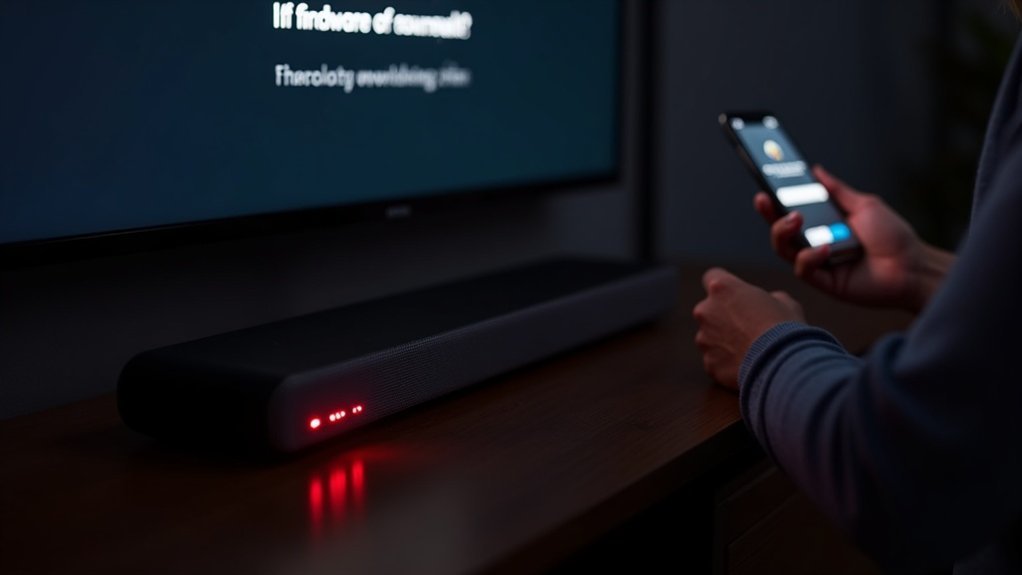
If your soundbar’s firmware update has failed, start by ensuring it is plugged in and connected to a stable power source. Check that the USB drive is formatted to FAT32 and contains only the required firmware files. Next, attempt to reset the soundbar by following the instructions in its manual. If the issues continue, assess for any signs of unresponsiveness and reach out to the manufacturer for further assistance. Keeping your soundbar’s firmware updated can help prevent future problems. There are various effective solutions available, so continue to explore your options for the best soundbar experience.
Key Takeaways
- Ensure your soundbar is connected to a reliable power source and has a strong network connection while performing the firmware update.
- Verify that the USB drive is formatted to FAT32 and contains only the essential firmware files in the root directory.
- If you encounter ongoing issues, consider resetting your soundbar to factory settings before trying the firmware update again.
- Be cautious not to interrupt the update process; refrain from turning off or disconnecting the power during the firmware installation.
- If the firmware update fails, reach out to the manufacturer for assistance or inquire about possible repair options.
Initial Troubleshooting Steps
Before diving into more complex solutions, it’s crucial to tackle some initial troubleshooting steps to resolve your soundbar’s firmware failure.
First, verify that your soundbar is plugged into a power source and connected to a stable network or USB for updating the firmware.
Ensure your soundbar is properly plugged in and connected to a reliable network or USB for firmware updates.
Check that your USB drive is formatted to FAT32 and contains only the necessary firmware files in the root directory.
Clear the USB drive or reset the soundbar to eliminate any software conflicts.
Finally, confirm there are no connectivity issues that could disrupt the update process.
Following these steps prepares you for a successful firmware update on your soundbar.
Official Firmware and Update Methods
To ensure your soundbar operates optimally, begin by downloading the latest firmware specific to your model from the manufacturer’s official support website.
It’s crucial to follow the update process instructions carefully, whether you’re using a USB drive or an over-the-air method.
Steer clear of unofficial firmware, as it may lead to various issues or void your warranty.
Download Latest Firmware
Updating your soundbar’s firmware is essential for optimal performance, and downloading the latest official firmware is the first step in this process.
Begin by visiting the manufacturer’s official support website dedicated to soundbars to find the latest firmware specifically designed for your soundbar model. Ensure your USB drive is formatted to FAT32 and only contains the firmware files in the root directory.
Steer clear of unofficial firmware versions or alternative methods, as these can lead to complications.
Finally, carefully follow the provided instructions for USB or over-the-air updates, and make sure the update process remains uninterrupted to prevent firmware corruption.
Update Process Instructions
Once you’ve downloaded the official firmware for your soundbar, it’s essential to follow the correct update process to guarantee a smooth installation.
First, format your USB drive to FAT32 and place only the firmware files in the root directory. Connect the USB to your soundbar and follow the manufacturer’s instructions for either USB or over-the-air updates.
Avoid unofficial firmware versions to prevent issues. Keep the soundbar plugged in and powered on throughout the update to avoid interruptions.
If the update fails, contact the manufacturer for repair or replacement options, especially if the soundbar becomes unresponsive post-update.
Resetting the Soundbar
If you’re experiencing issues with your soundbar, resetting it can often resolve minor software glitches that hinder firmware updates or connectivity.
To reset your soundbar, locate the reset button or follow the specific procedure outlined in your user manual to restore factory settings. Ensure that the soundbar is powered on and stable before initiating the reset process to avoid interruptions.
Some models may require pressing a combination of buttons on the remote control, so it’s important to check your documentation for exact instructions.
After resetting the soundbar, wait a few moments before attempting to reconnect or update the firmware again for optimal performance.
Handling Update Failures
Resetting your soundbar can help resolve various issues, but sometimes firmware updates still encounter failures. If this happens, make sure to follow these steps:
Resetting your soundbar can resolve many issues, yet firmware updates may still fail. Follow these steps to address any problems effectively.
- Don’t turn off the soundbar or disconnect it from power; this can corrupt the firmware and lead to further issues.
- Check for unresponsiveness; some soundbar models may require professional assistance to recover from update failures.
- Contact the manufacturer for repair or replacement options; they may provide these services at no cost, even if your warranty has expired.
- Ensure a stable power and internet connection before initiating updates to prevent interruptions that could lead to malfunction.
Staying proactive can help you avoid further complications with your soundbar.
Staying Informed and Maintaining Firmware
Staying informed about your soundbar’s firmware is essential for ensuring peak performance and accessing new features. Regularly check the manufacturer’s official support website for updates specific to your model.
Join online forums and community groups focused on soundbars to learn about common issues and shared solutions. Subscribe to newsletters or follow social media channels for announcements on firmware patches.
Utilize manufacturer resources, like user manuals and troubleshooting guides, to understand update procedures.
Finally, keep a record of your soundbar’s firmware version and update history to track changes that may affect your home theater system’s performance.
Seeking Professional Assistance
When firmware issues persistently affect your soundbar’s performance, seeking professional assistance is crucial.
Here are some guidelines to ensure you receive effective support:
- Contact Bose Customer Support: They provide specialized assistance tailored to your specific soundbar model.
- Prepare Relevant Information: Have your model number, any error messages, and a record of troubleshooting steps ready, including the buttons on the remote that you’ve pressed.
- Inquire About Available Services: Ask about firmware recovery options or hardware repairs that may be covered under warranty.
- Use Official Support Channels: This ensures compliance with manufacturer standards, minimizing the risk of further complications.







