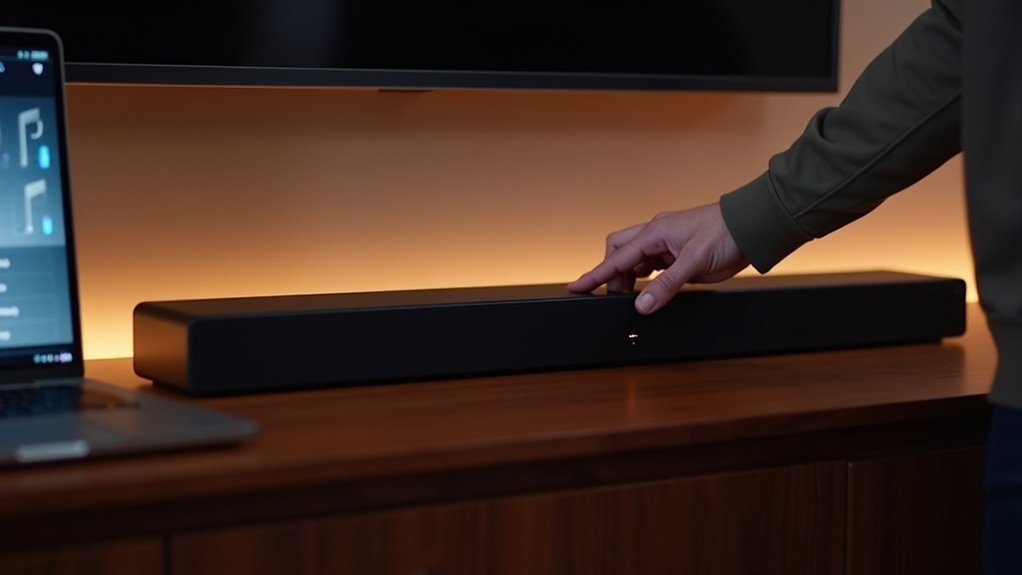
To downgrade your soundbar firmware, start by factory resetting the device and ensuring it’s connected to power. Use the SmartThings app to navigate to Firmware Update or download the appropriate version from the Samsung Download Center. For USB downgrades, format a drive to FAT32, copy the firmware files onto it, power off your soundbar, and connect the USB drive. Follow the on-screen prompts to complete the downgrade. If you encounter issues, you can find detailed troubleshooting tips provided on our soundbar support page.
Key Takeaways
- Ensure your soundbar is factory reset and connected to a stable power source before starting the downgrade process.
- Download the correct older firmware version from the Samsung Download Center and check compatibility with your specific soundbar model.
- Use the SmartThings app to initiate the downgrade by selecting your soundbar, then navigating to Information > Firmware Update, and selecting Update Now.
- Alternatively, for USB downgrades, copy the unzipped firmware files to a FAT32 formatted USB drive, connect it to the powered-off soundbar, and follow on-screen prompts.
- After downgrading, restart the soundbar, reconfigure settings, and test audio functionality to ensure proper operation.
Before You Start
Before you start downgrading your soundbar’s firmware, make sure it has been factory reset, indicated by a flashing green status light.
Next, download and update the SmartThings app on your iOS or Android device; this app is essential for managing firmware updates for your soundbar.
If you prefer to use a USB method, visit the Samsung Download Center to download the firmware files specific to your soundbar model.
Ensure your soundbar is connected to a stable Wi-Fi network for the SmartThings app downgrade.
Lastly, familiarize yourself with the current firmware version by holding the Sound Control (gear icon) for 6 seconds until it powers off.
Methods for Downgrading Firmware
To successfully downgrade your soundbar’s firmware, you have two primary methods: using a USB drive or the SmartThings app. Here’s what you need to do:
- Download the appropriate firmware file from the Samsung Download Center specifically for your soundbar model.
- Unzip the file and copy it to a USB drive formatted to FAT32.
- Ensure your soundbar is powered off, then connect the USB drive.
- If using the SmartThings app, verify your soundbar is connected to Wi-Fi, then access the firmware update option within the app.
- It’s recommended to perform a factory reset before downgrading the firmware to ensure a clean installation.
These methods will help you restore your soundbar’s functionality and performance effectively.
Downgrading Using the App
If your soundbar requires a firmware downgrade, the SmartThings app makes it easy to do so.
Start by ensuring your soundbar is powered on and connected to Wi-Fi. Open the SmartThings app, select your soundbar from the control menu, and navigate to Information > Firmware Update.
Ensure your soundbar is powered on and connected to Wi-Fi, then access the SmartThings app for firmware updates.
You’ll see the option to Update Now; select it to commence the downgrade process. Before you begin, check the current firmware version by holding the Sound Control (gear icon) for six seconds until the version appears.
Lastly, always perform a factory reset on your soundbar before proceeding with firmware updates to ensure a successful process.
Downgrading via USB
Downgrading your soundbar firmware via USB is a straightforward process that requires careful attention to detail.
Follow these steps to guarantee a successful downgrade:
- Visit the Samsung Download Center to find the correct firmware file for your specific soundbar model.
- Download and unzip the firmware file from the site.
- Copy the firmware files directly to a USB drive, ensuring you don’t place them in any folders.
- Connect the USB drive to your powered-off soundbar, then switch the device to the USB source.
- Follow any on-screen prompts and ensure that the soundbar remains powered throughout the update process.
Checking Current Firmware Version
Knowing how to check the current firmware version of your soundbar is essential for troubleshooting and ensuring optimal performance. To do this, simply press and hold the Sound Control (gear icon) for 6 seconds until the unit powers off, at which point the firmware version will be displayed on the screen.
| Firmware Format | Description | Importance |
|---|---|---|
| B1234 | Current version example | Identify potential issues |
| B1235 | Latest version available | Ensure ideal functionality |
| B1236 | Possible update needed | Refer to support documentation |
| B1237 | Known issues reported | Gather community feedback |
| B1238 | Compatibility checks | Consider downgrade options |
Regularly checking your soundbar’s firmware can help maintain its performance and functionality.
Troubleshooting Common Issues
When you encounter issues with your soundbar after a firmware update, it’s essential to identify common problems that may arise.
Many users have successfully downgraded their firmware to resolve these issues, and sharing your experiences can offer valuable insights.
Let’s explore some of these success stories and community troubleshooting tips specifically tailored for soundbars to help you get yours back on track.
Common Firmware Problems
Many soundbar users encounter common firmware problems that can disrupt their audio experience, often arising after an update.
Issues frequently include:
- Audio synchronization problems or distorted sound
- Compatibility issues with streaming services and devices
- Loss of features or settings available in the latest version
- Bugs affecting connectivity with smart home systems
- The need for factory resets before and after downgrading
These problems can lead you to consider downgrading your firmware to restore functionality and improve performance.
Addressing these issues promptly guarantees a better soundbar experience and helps maintain optimal usage of your device.
Downgrade Success Stories
While downgrading soundbar firmware can seem challenging, countless users have successfully navigated the process to resolve performance issues with their soundbars.
Many found that reverting to a previous stable version restored functionality, addressing problems like connectivity drops and audio sync issues.
Users often highlighted the importance of following manufacturer instructions for USB or SmartThings updates to guarantee compatibility with their soundbars.
Community discussions reveal that downgrading is a reliable solution for specific soundbar models suffering from bugs post-update.
Remember to back up your current settings and configurations before initiating a downgrade, as this step can prevent data loss and streamline the process.
Community Troubleshooting Tips
If you’re experiencing issues with your soundbar after a firmware update, troubleshooting can often lead to effective solutions.
Here are some community tips to ensure you’re on the right track:
- Confirm your soundbar is factory reset, indicated by a flashing green status light.
- Use the SmartThings app or a USB drive for accessing previous firmware versions.
- Keep track of your current firmware version through the soundbar’s settings.
- Engage with online communities for shared experiences and tips specific to soundbars.
- Regularly monitor discussions for known issues and potential solutions related to soundbars.
These steps can help you effectively navigate and resolve common soundbar problems.
Contacting Support for Assistance
When you need assistance with downgrading your soundbar firmware, there are several convenient support options available. You can access help through the Samsung Members App on your phone for immediate guidance, or utilize online chat and phone support for expert advice. If you require further assistance, community forums provide valuable troubleshooting tips and shared experiences from other users. Below is a summary of support options available:
| Support Option | Description | Access Method |
|---|---|---|
| Phone Support | Speak directly with a support agent | Call the support number |
| Online Chat | Real-time assistance via chat | Samsung website |
| Samsung Members App | Quick help through the app | Download from app store |
| Community Forums | Engage with other users | Visit Samsung forums |
| Warranty Information | Details on warranty and resources | Access online resources |
These options ensure that you can find the help you need for your soundbar-related issues quickly and efficiently.







