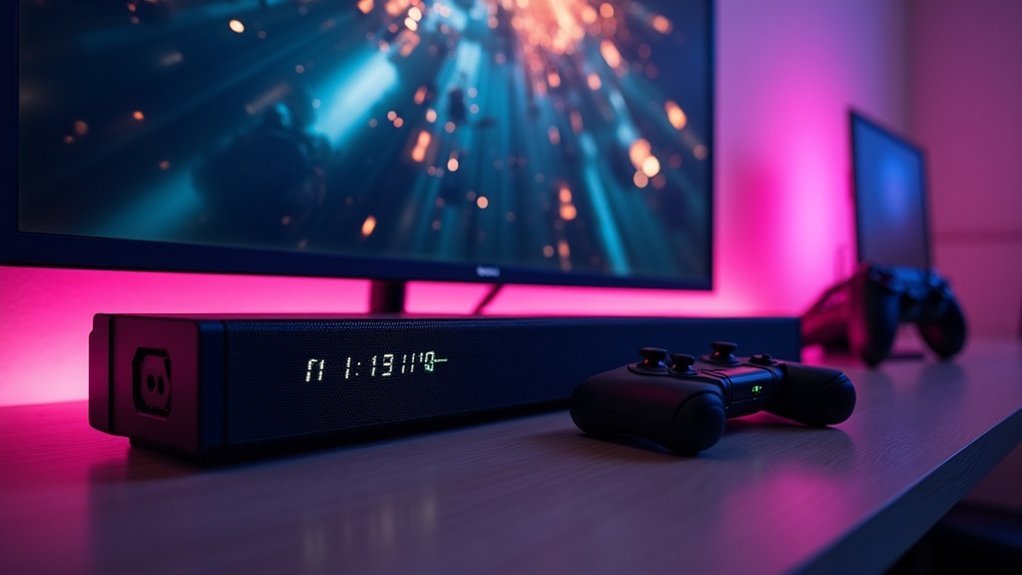
To calibrate your soundbar for gaming, begin by positioning it directly below your TV, centered, and at ear level for optimal sound delivery. Connect it using an HDMI ARC or eARC port to ensure the best audio quality. Activate the SpaceFit Sound feature to customize the audio based on your room’s acoustics. Adjust your gaming console settings to enable bitstream output and set your TV’s HDMI output to “Enhanced” for improved performance. Finally, experiment with different sound modes, such as Gaming Mode and Dialogue Enhancement, to create an immersive gaming experience. Explore additional tips to enhance your soundbar setup effectively.
Key Takeaways
- Connect the soundbar to your gaming system via HDMI ARC or eARC to achieve the best audio quality and support for advanced surround formats such as Dolby Atmos.
- Adjust your gaming console’s audio output settings to bitstream, which allows for effective decoding of surround formats and enhances overall audio fidelity.
- Activate game mode features on the soundbar to fine-tune sound profiles specifically designed for an immersive gaming experience.
- Experiment with various sound modes, including Gaming Mode and Dialogue Enhancement, to discover the optimal audio settings for your gameplay.
- Utilize the SpaceFit Sound feature to customize the soundbar’s audio output based on your room’s unique characteristics for maximum performance.
Start With Proper Soundbar Placement
To achieve the best audio experience while using your soundbar, start by positioning it correctly. Place it directly below your TV, ensuring it’s centered and parallel to the screen for optimal audio clarity. Aim for ear level to enhance dialogue intelligibility and sound effects.
Maintain a clear path between the soundbar and your listening area, avoiding obstructions that could hinder sound projection. Consider wall mounting for improved acoustics, especially with upfiring drivers.
Finally, experiment with positioning to find the best sound dispersion, and add soft furnishings like rugs to minimize reflections and absorb excess noise for a clearer audio experience.
Connect Your Soundbar to the Right Input
To ensure optimal audio quality for gaming with your soundbar, connect it to your TV’s HDMI ARC or eARC port.
This connection not only supports advanced surround formats like Dolby Atmos but also enables high-bandwidth audio transmission.
Additionally, setting your TV’s HDMI output to “Enhanced” will further enhance your soundbar’s performance during gameplay.
Optimal Input Connections
Connecting your soundbar through the HDMI ARC or eARC port on your TV is essential for achieving optimal audio quality, especially for gaming. This setup supports high-bandwidth formats like Dolby Atmos, enhancing your surround sound experience.
Set your TV’s HDMI output to “Enhanced” mode to maximize bandwidth, ensuring peak sound. Utilize the bitstream setting on your TV or streaming device, allowing the soundbar to decode surround formats efficiently.
For an even better audio experience, consider a direct HDMI connection from the soundbar to your gaming console. Always use high-quality HDMI cables to prevent audio lag and distortion, optimizing your sound calibration feature.
HDMI ARC Benefits
Utilizing HDMI ARC or eARC for your soundbar offers significant advantages that enhance your audio experience.
This connection transmits high-quality audio formats like Dolby TrueHD and uncompressed Dolby Atmos, ensuring superior sound quality for all your media. By simplifying your setup, HDMI ARC sends audio from your TV back to the soundbar, reducing clutter and making your entertainment space more organized.
Adjust your TV’s audio settings to “Enhanced” for optimal sound performance. Additionally, using HDMI-CEC allows you to control both your soundbar and TV with one remote, streamlining your transitions between different media.
For the best results, connect your gaming console directly to the soundbar, maximizing audio fidelity and delivering an immersive sound experience.
Activate SpaceFit Sound Feature
Activating the SpaceFit Sound feature on your compatible soundbar enhances your audio experience by refining sound output to suit your specific room environment.
To enable this feature, simply press the Sound Control button until “SPACEFIT SOUND” appears on the display. Ensure your soundbar is connected to a compatible Samsung TV (2021 – 2025 QLED Q70 TVs and above) for optimal calibration.
After activation, use the Up button on the remote to confirm it’s on, which will be indicated by “ON” on the screen.
SpaceFit Sound customizes your listening experience by adjusting audio settings based on room size and characteristics, ensuring peak performance for all your sound needs.
Adjust Gaming Console or TV Settings
To maximize your soundbar’s audio experience, adjust your gaming console’s audio output to bitstream, allowing the soundbar to effectively decode surround formats.
Confirm your TV’s HDMI output is set to “Enhanced” when using HDMI ARC or eARC for ideal audio quality.
Activating any game mode features on the soundbar can further refine sound profiles, enhancing both action and dialogue clarity.
Optimize Audio Output Settings
How can you guarantee your gaming experience is truly immersive with a soundbar? To optimize audio output settings, follow these steps:
- Set your gaming console to output audio in surround sound formats, like Bitstream, so your soundbar can effectively decode the audio.
- Adjust the soundbar’s HDMI output settings to “Enhanced” for Dolby Atmos support, ensuring high-bandwidth audio for a superior experience.
- Enable audio enhancement features on your soundbar, such as Dolby Digital or DTS, for improved sound clarity and depth.
Enable Game Mode Features
Enabling Game Mode features on your soundbar markedly enhances your gaming experience by reducing input lag and increasing responsiveness.
Start by adjusting the HDMI settings on your gaming console to output the highest quality audio format, such as Bitstream. Connect your soundbar via a dedicated HDMI ARC or eARC port to support advanced audio formats like Dolby Atmos, elevating sound quality.
Confirm your soundbar is set to the appropriate audio mode for gaming, optimizing sound effects and dialogue clarity. Additionally, activate any specific gaming features on your soundbar to enhance sound localization, creating a more immersive gaming environment.
Experiment With Different Sound Modes
While exploring the audio capabilities of your soundbar, experimenting with different sound modes can greatly enhance your overall audio experience.
Here are three key modes to evaluate:
- Gaming Mode: Optimizes bass and treble for improved audio cues, making it easier to hear footsteps and explosions in games.
- Dialogue Enhancement: Ensures clear communication during cutscenes and character interactions, enhancing narrative immersion in your favorite films and shows.
- Virtual Surround Sound: Simulates multi-channel audio, creating an immersive environment that pulls you deeper into movies and games alike.
Regularly test these audio settings on your soundbar to discover which sound modes best fit your viewing and gaming preferences.
Fine-Tune Audio With Auto Calibration
To achieve the best audio performance from your soundbar during gaming sessions, fine-tuning the audio with auto calibration is essential.
Many modern soundbars feature automatic calibration, which adjusts audio settings based on your room’s acoustics. Using a calibration microphone, these soundbars analyze sound levels and speaker placement, ensuring sound quality is optimized for your listening area.
Modern soundbars utilize automatic calibration to optimize audio settings based on your room’s acoustics for enhanced sound quality.
The calibration process involves playing test tones through the soundbar’s speakers, allowing the system to accurately measure and adjust frequency levels.
Remember to position the microphone at ear level and regularly recalibrate after any changes in room layout to maintain an immersive gaming experience.







