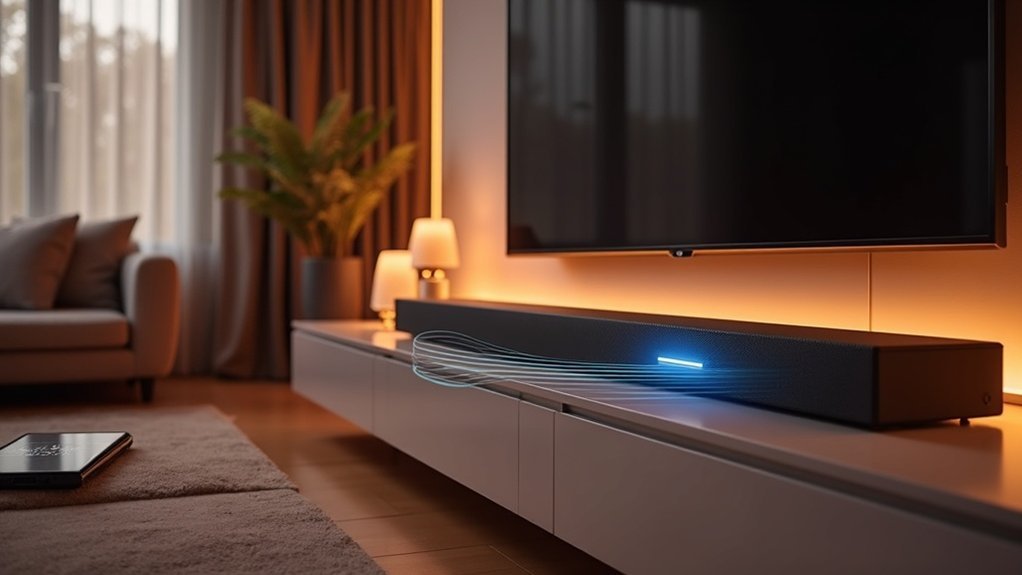
To calibrate your soundbar, first, position your rear speakers next to your seating area and ensure the soundbar is at ear level and centered with the TV. To initiate the calibration process, press and hold the HDMI button until “1-CALIBRATION” appears on the display. Follow the countdown along with the calibration tone. For speaker position, repeat the calibration process until you see “2-DONE.” After that, adjust the surround sound levels to your preference for the best audio experience. Stay tuned for the next steps to learn more about enhancing your audio setup with your soundbar.
Key Takeaways
- Position the soundbar at ear level and center it with your television for optimal audio performance.
- Begin the calibration process by pressing and holding the HDMI button until the display shows “1-CALIBRATION,” followed by a countdown.
- Make sure detachable rear speakers are properly placed before starting the calibration to ensure the best sound distribution.
- Use the remote control to select and adjust the surround sound levels, including side, Atmos, and rear channels, to enhance audio depth and spatial effects.
- Regularly revisit your calibration settings and make adjustments based on room acoustics and personal preferences to maintain the best sound quality from your soundbar.
Calibrate the Listening Zone
To guarantee peak sound quality with your soundbar, you must calibrate the listening zone effectively.
Position the detachable rear speakers beside your seating area for an ideal audio experience.
Position detachable rear speakers alongside your seating area to enhance your audio experience dramatically.
Begin the calibration process by pressing and holding the HDMI button on your remote control until “1-CALIBRATION” appears on your soundbar display. A countdown will commence from 5 to 1, followed by a calibration tone indicating the start.
Ensure that all remote control buttons remain disabled during this process, except for STANDBY and HDMI, to prevent interruptions.
Upon successful calibration, your soundbar will display “1-DONE,” confirming the completion of the process.
Calibrate the Speaker Position
To achieve ideal sound quality with your soundbar, you need to carefully consider its placement.
Begin by following the calibration process steps, ensuring that the soundbar is positioned correctly based on the size of your room.
This setup is essential for enhancing your audio experience and maximizing the performance of your soundbar.
Ideal Speaker Placement Tips
Although proper placement of your soundbar might seem straightforward, it’s essential for achieving ideal sound quality in your space.
For optimal surround sound, position your soundbar at ear level and ensure that it’s centered with your television. This setup enhances audio immersion, particularly for Samsung sound systems.
Make sure to take into account your room’s layout; effective soundbar placement is vital for successful audio calibration.
To initiate the calibration process, press and hold the HDMI button on the remote until “2-CALIBRATION” appears, followed by a countdown and calibration tone.
Upon completion, your display will show “2-DONE,” confirming that you’ve achieved optimal soundbar placement for the best audio experience.
Calibration Process Steps
Calibrating the speaker position of your soundbar is an essential step to ensure optimal audio performance.
To begin, press and hold the HDMI button on your remote until “2-CALIBRATION” appears on the screen. A countdown from 5 to 1 will follow, signaling the start of the audio calibration process.
For the best results, ensure your detachable rear speakers are positioned in your preferred locations before initiating this process.
Once the calibration is complete, “2-DONE” will display, confirming successful calibration.
If calibration fails, “SETUP FAILED” will appear, prompting you to verify your speaker placement and repeat the process, particularly if you’re a Samsung customer aiming for superior sound quality.
Adjusting for Room Size
After successfully completing the calibration process, adjusting for room size is crucial to optimize your soundbar’s audio quality.
Start by positioning your detachable rear speakers strategically around the room to ensure optimal sound distribution.
Then, press and hold the HDMI button on your remote until “2-CALIBRATION” appears on the soundbar display. A countdown from 5 to 1 will follow, leading into the calibration tone, which fine-tunes the speaker positions.
Once the process is complete, the display will show “2-DONE,” indicating effective calibration.
Proper placement of the speakers in relation to your room’s dimensions is essential for achieving the best soundbar audio experience.
Surround Sound Level Selection
To achieve ideal audio performance with your soundbar, selecting the appropriate surround sound level is vital.
After calibrating your speaker position, you can choose from three options: high, low, or the default middle setting.
To switch levels, simply press the corresponding button on your remote control repeatedly until you reach your desired setting.
Adjusting the surround sound level based on personal preferences can greatly enhance your listening experience with your soundbar, so experimentation is encouraged.
Calibration Notes
As you prepare for soundbar calibration, it’s crucial to follow the steps outlined in the manual closely to avoid common pitfalls.
Pay particular attention to speaker placement, as improper positioning can lead to a “SETUP FAILED” message during the process.
Calibration Steps Overview
Calibrating your soundbar involves a series of precise steps designed to enhance sound quality and performance.
First, ensure that all remote control buttons, except for STANDBY and HDMI, are disabled to prevent any interference during the process.
Begin the calibration, during which you’ll hear calibration tones counting down from 5 to 1 for both the listening zone and speaker position calibrations.
A successful calibration will display “1-DONE” and “2-DONE” on the soundbar.
If you see “SETUP FAILED,” reassess your speaker placement and follow the instructions closely.
Adhering to these steps is essential for achieving superior audio performance from your soundbar.
Common Calibration Issues
Calibration can sometimes present challenges that affect the outcome of your soundbar setup. If you see a “SETUP FAILED” message, this likely indicates issues with speaker placement or connections.
Confirm your soundbar is correctly positioned; improper placement can drastically degrade sound quality.
During the calibration process, all remote control buttons—except STANDBY and HDMI—are disabled to eliminate interference, so follow instructions meticulously.
Neglecting these steps can result in suboptimal calibration, particularly in surround sound systems where immersive audio is vital.
Aim for precise adherence to guidelines to optimize your soundbar’s performance and enhance your overall audio experience.
Overview of SpaceFit Sound
When looking to elevate your auditory experience, SpaceFit Sound presents a refined solution by calibrating sound output specifically for your room’s dimensions and characteristics.
This feature is compatible with select Samsung soundbars from the Q-Series, produced between 2021 and 2025, and enhances audio performance through cutting-edge sensor technology. It meticulously analyzes your environment and adjusts sound quality based on the room’s acoustics, providing an immersive listening experience.
To activate SpaceFit Sound on your soundbar, simply press the Sound Control button on your remote; the display will confirm that it’s activated.
Keep in mind, functionality may differ by model and software version, so it’s advisable to refer to your product guidelines for optimal results.
Enabling SpaceFit Sound on Soundbar
Activating SpaceFit Sound on your Samsung soundbar is a straightforward process that greatly enhances your audio experience.
First, press the Sound Control button on your remote until the display shows “SPACEFIT SOUND.”
Next, use the Up button to activate the feature; you’ll see “ON” appear on the soundbar’s display.
SpaceFit Sound intelligently calibrates audio output based on your surrounding environment, ensuring a superior listening experience specifically tailored for soundbars.
This feature is compatible with select Samsung TVs and Q-Series Soundbars released from 2021 to 2025.
To deactivate SpaceFit Sound, simply press the Down button on your remote.
Enjoy sound that’s perfectly suited to your space.
Activating Adaptive Sound on Samsung TV
To enhance your audio experience with a soundbar, activating Adaptive Sound is essential. Follow these steps to optimize your sound output:
| Step | Action |
|---|---|
| 1. Open Settings | Navigate to the Settings menu on your soundbar. |
| 2. Audio Settings | Access the “Audio Settings” section. |
| 3. Enable AI Mode | Activate AI Mode for real-time audio enhancement. |
| 4. Adaptive Sound | Select “Adaptive Sound” for dynamic audio optimization. |
This AI technology remasters audio as intended by engineers, enhancing your listening experience based on the environment and content.
User Experiences and Tips
While many users have successfully calibrated their soundbars, sharing specific experiences and tips can greatly enhance your setup.
Adjusting side surround channels to +3dB and Atmos channels to +2dB often improves spatial effects. Experimenting with settings, like +6dB for rear channels and +3dB for overheads, can yield better results.
Since soundbar setups can vary widely, discussing your equipment and settings in community forums dedicated to soundbars is beneficial.
Remember, soundbars may require different calibration techniques compared to traditional audio systems for ideal 3D effects.
Regularly revisiting and tweaking your calibration based on room acoustics and personal preferences is vital for maintaining optimal sound quality.







