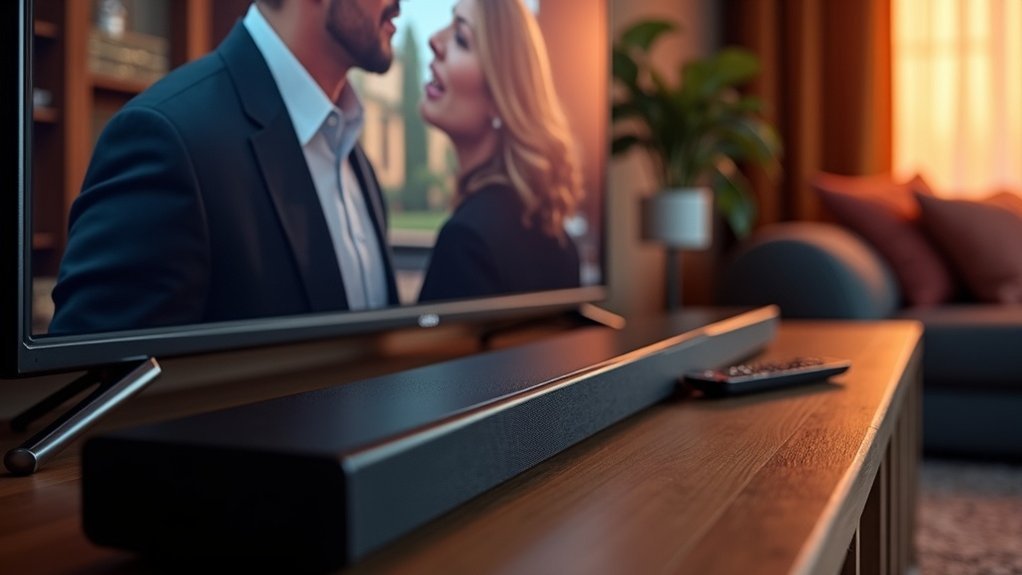
To adjust your soundbar’s lip sync, begin by using the audio sync button on your remote for quick adjustments. You can also employ the sound control button to fine-tune audio delays. For real-time correction, utilize the Audio Sync +/- adjustment feature. Additionally, check your soundbar’s audio settings for options like lip sync or audio delay. Don’t forget to explore different connection methods and keep your firmware updated for improved synchronization. There’s much more to discover to optimize your soundbar setup effectively.
Key Takeaways
- Use the Audio Sync button on your soundbar remote to make incremental adjustments to audio timing for better synchronization.
- Activate the Sound Control button on your soundbar remote to fine-tune audio sync in real-time using the Left and Right buttons.
- Utilize the Audio Sync +/- adjustment feature to increase or decrease audio delay as needed while watching movies or shows through your soundbar.
- Access the audio settings menu on your soundbar to find options like “lip sync” or “audio delay” for further adjustments.
- Regularly check for firmware updates for your soundbar, as they can improve synchronization capabilities and help resolve audio delay issues.
Understanding Audio Delay Issues
When you use a soundbar to enhance your movie or gaming experience, you might notice that the audio doesn’t sync perfectly with the visuals, which can be frustrating.
This audio delay, often referred to as lip sync issues, occurs when the audio and video signals aren’t aligned. Different processing times in soundbars and TVs, particularly with high-bitrate audio formats like DTS and Dolby Digital, can exacerbate these discrepancies.
The type of connection you use—such as HDMI ARC, optical, or Bluetooth—also impacts the delay.
To improve your audio experience with your soundbar, consider adjusting the settings on both your soundbar and TV to minimize these synchronization problems.
Using the Audio Sync Button
To effectively resolve audio delay issues with your soundbar, many remote controls feature an Audio Sync button.
This handy tool allows you to adjust the audio sync until it perfectly matches the video. After pressing the Audio Sync button, simply use the Skip Forward and Backward buttons to make incremental timing adjustments.
This method offers a precise way to align audio with video, particularly for significant sync problems. Whether connected via HDMI or other methods, this user-friendly feature ensures a seamless viewing experience, maintaining optimal audio-visual synchronization for all your entertainment needs.
Utilizing the Sound Control Button
Adjusting lip sync using the Sound Control button on your soundbar is an easy process that significantly enhances your viewing experience.
To begin, press the Sound Control button on your soundbar remote to activate the sync adjustment feature. Then, utilize the Left and Right buttons to fine-tune the audio sync until it perfectly matches the video.
This intuitive method allows for quick adjustments, making it perfect for live viewing situations. Regularly adjusting audio sync can greatly improve your overall enjoyment, especially when transitioning between different audio sources and formats, ensuring optimal sound quality and synchronization.
Fine-Tuning With Audio Sync +/- Adjustment
Utilizing the Audio Sync +/- adjustment feature on your soundbar can significantly enhance your viewing experience by allowing you to correct any audio delays in real time. This straightforward adjustment enables you to fine-tune the audio sync while enjoying your favorite movies and shows, ensuring it aligns perfectly with the visuals. Keep adjusting until you achieve the ideal synchronization, mitigating any lag issues that may arise from different audio formats or connection methods.
| Action | Adjustment Type | Effect |
|---|---|---|
| Press ‘+’ | Increase Delay | Audio lags behind the visuals |
| Press ‘-‘ | Decrease Delay | Audio leads ahead of the visuals |
| Monitor | Visual Cues | Guarantee audio-visual alignment |
| Repeat | Fine-Tuning | Achieve perfect audio synchronization |
Adjusting TV Audio Settings
After fine-tuning your soundbar’s audio sync, it’s important to check the soundbar’s audio settings for further adjustments.
Access the audio settings menu on your soundbar to find options like “lip sync” or “audio delay.” Many soundbars come equipped with automatic sync features that help adjust audio timing, addressing sync issues effectively.
If available, try negative delay adjustments to counteract any audio lag. Ensure your soundbar is set to the correct audio output format; switching to PCM can often reduce sync issues when connected via HDMI ARC.
Lastly, regularly check for firmware updates for your soundbar, as they can enhance audio-video synchronization capabilities.
Exploring Connection Methods
When setting up your soundbar, the connection method you choose can greatly impact audio quality and synchronization. For ideal results, use HDMI ARC, as it enhances both audio fidelity and sync.
Ensure that all cables, whether HDMI or optical, are securely connected to prevent audio disruptions. Opting for optical cables can minimize latency compared to analog options, improving audio-video sync.
Additionally, consider connecting devices directly to the soundbar instead of the TV to reduce audio delay. Be cautious with Bluetooth connections, as they often introduce lag; wired connections are typically the best choice for seamless playback.
Seeking Further Assistance From Samsung Support
If you’re still facing audio sync issues with your soundbar, reaching out to Samsung Support can provide the personalized assistance you need.
For tailored help with soundbar audio sync issues, consider contacting Samsung Support for expert guidance.
They can guide you through specific soundbar settings, including utilizing the Audio Sync button for adjustments.
Before contacting support, verify that your soundbar firmware is updated, as outdated software can cause sync problems.
If built-in troubleshooting doesn’t resolve the issue, Samsung Support may recommend alternative solutions or additional devices to help with audio delay.
Access warranty information and customer service options through the Samsung Support website or app for efficient assistance.







