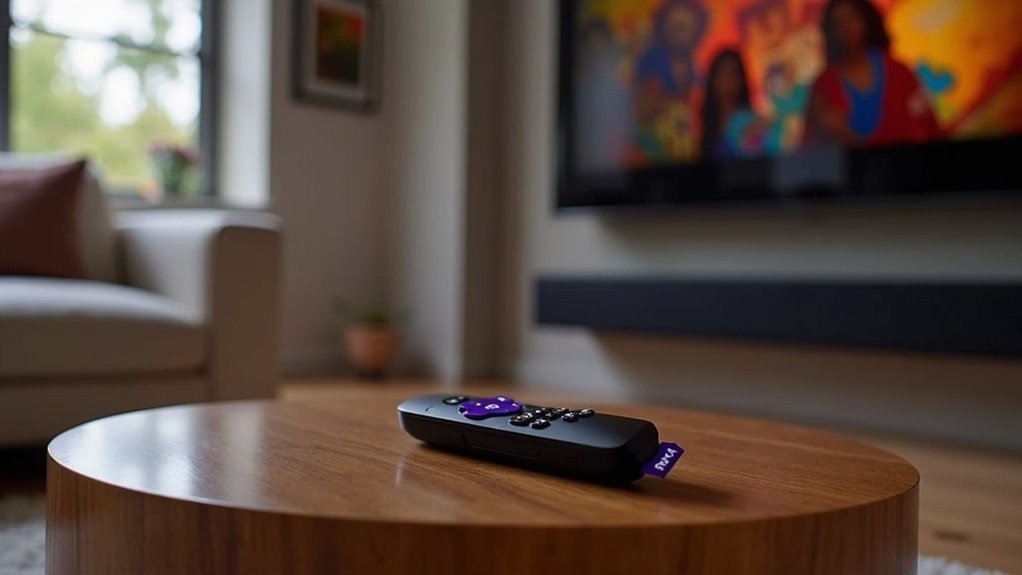
Yes, you can control your soundbar’s volume with your Roku remote if both your TV and soundbar support HDMI ARC or CEC features. To set this up, connect your soundbar to the HDMI-ARC port on your TV using a standard HDMI cable. Next, navigate to your TV settings to enable system audio control and 1-touch play. This configuration allows you to manage the volume directly through your Roku remote. For a seamless experience, there’s plenty more to discover about the setup process for soundbars.
Key Takeaways
- Ensure the soundbar supports HDMI ARC or CEC features for compatibility with your setup.
- Connect the soundbar to the designated HDMI-ARC port on your TV using a standard HDMI cable to enhance your audio experience.
- Access your TV settings and enable “System audio control” to manage the soundbar volume effectively.
- Activate “1-touch play” in settings for seamless operation and automatic device switching, ensuring a smooth audio experience.
- Test volume adjustments using your remote to confirm successful integration with your soundbar, allowing you to enjoy high-quality sound effortlessly.
Verify That Your TV and Soundbar Have ARC or CEC
Have you checked if your soundbar is compatible with HDMI ARC or CEC features? This is crucial for using your soundbar with your Roku remote.
Look for ARC or CEC labels on the HDMI ports of your soundbar, as these indicate compatibility for two-way communication with your TV. To establish a connection, use a standard HDMI cable and plug it into the designated HDMI-ARC port on your soundbar.
After connecting, navigate to Settings > System > CEC on your Roku TV to enable audio control features.
Finally, test your Roku remote to ensure that volume adjustments work smoothly with your soundbar. Enjoy your enhanced audio experience!
Connect Your Soundbar to Your Roku TV
To connect your soundbar to your Roku TV, start by using a standard HDMI cable and plug it into the HDMI-ARC port on your TV.
Ensure that both your TV and soundbar are compatible with HDMI-ARC or CEC features for optimal audio control.
After establishing the connection, navigate to your TV settings to enable system audio control, completing the setup for a seamless audio experience with your soundbar.
HDMI Connection Requirements
Connecting your soundbar to your Roku TV through HDMI is essential for seamless control with your Roku remote.
To ensure optimal performance, adhere to these HDMI-ARC connection requirements:
- Verify that both your soundbar and Roku TV support HDMI-ARC or HDMI-CEC features.
- Locate the HDMI ports labeled as ARC or CEC on your TV and soundbar.
- Use a high-quality HDMI cable to establish the connection.
- Regularly update the software on both your Roku TV and soundbar to maintain compatibility.
Enabling Audio Control Settings
Once you’ve established the HDMI-ARC connection between your soundbar and Roku TV, the next step is to activate the audio control settings. To do this, navigate to Home > Settings > System > Control other devices (CEC). Ensure you check the box for “System audio control” so that your Roku remote can adjust the soundbar’s volume. Additionally, enable “1-touch play” for seamless operation between both devices. Finally, test your setup by using the Roku remote to control the soundbar volume and confirm that everything is functioning smoothly.
| Step | Action | Result |
|---|---|---|
| 1. Access Settings | Navigate to Home > Settings > System | Open CEC options |
| 2. Enable Audio Control | Check “System audio control” | Roku remote controls soundbar volume |
| 3. Turn on 1-Touch Play | Enable “1-touch play” | TV and soundbar power on together |
| 4. Test Functionality | Adjust volume with Roku remote | Confirm successful setup |
| 5. Enjoy Audio | Experience enhanced sound | Immersive viewing experience |
This process will ensure that your soundbar is fully integrated with your Roku TV, providing you with an enhanced audio experience for all your viewing needs.
Accessing TV Settings
Accessing your soundbar settings is essential for ensuring that your Roku remote can control it effectively. Here’s how to navigate through the settings:
- Press the Home button on your Roku remote.
- Scroll down to find the ‘Settings’ option.
- Navigate to ‘System’ to manage connected devices and audio settings.
In ‘Control other devices (CEC)’, enable features that allow your Roku remote to control your soundbar.
Make sure to select the correct HDMI input for your soundbar in the ‘TV Inputs’ section.
Don’t forget to save your changes for seamless operation!
Enable Controlling Your Soundbar in Settings
To control your soundbar with the Roku remote, start by navigating to the Roku settings menu.
Enable the CEC feature to allow for seamless control and ensure your soundbar is listed among the devices.
After completing these steps, test the volume functionality of your soundbar to confirm that everything is functioning properly.
Access Roku Settings Menu
How can you easily control your soundbar with your Roku remote? Start by accessing the settings on your Roku TV.
Follow these simple steps to activate soundbar control:
- Press the Home button on your Roku remote.
- Navigate to ‘Settings’ and select ‘System.’
- Go to ‘Control other devices (CEC)’ and enable ‘System audio control.’
- Activate ‘1-touch play’ for easy device switching.
Finally, confirm the ARC option is enabled and save your changes.
With these settings adjusted, you can enjoy seamless volume control for your soundbar connected to your Roku remote, enhancing your audio experience while enjoying your favorite shows and movies.
Enable CEC for Control
Enabling CEC (Consumer Electronics Control) on your Roku TV is crucial for seamless soundbar integration and control.
Begin by navigating to Home > Settings > System > CEC. Here, you can activate audio control features that allow you to manage your soundbar directly from your Roku remote.
Use the “Search for CEC devices” option to find your soundbar and ensure it appears in the list. To simplify sound control even further, enable “System audio control” and “1-touch play.”
With these settings in place, you can easily adjust the volume of your soundbar using your Roku remote, significantly enhancing your audio experience while watching your favorite shows.
Test Soundbar Volume Functionality
Wondering if your Roku remote can truly control your soundbar’s volume? You can test the soundbar volume functionality easily! Just follow these steps:
- Press the Home button and navigate to ‘Settings’ on your Roku TV.
- Select ‘System’ and then ‘Control other devices (CEC)’.
- Ensure that ‘System audio control’ is enabled for volume adjustment to manage your soundbar effectively.
- Don’t forget to enable ‘1-touch play’ and confirm that the ‘ARC’ option is activated for seamless integration with your soundbar.
Configure and Control Sound With Your Roku Remote
If you’re looking to streamline your home entertainment setup, controlling your soundbar with your Roku remote is a fantastic way to simplify your experience.
First, ensure your soundbar is connected to the HDMI-ARC port on your smart TV. Then, navigate to Home > Settings > System > Control other devices (CEC) to enable system audio control.
Activate “System audio control” and “1-touch play” for seamless integration with your soundbar. Make sure the ARC setting is enabled in the audio settings of your TV.
Finally, test the setup by using your Roku remote to adjust the soundbar’s volume, confirming that everything is powered on and properly connected.
Enjoy an enhanced audio experience with your soundbar!
Finalizing ARC Settings
With your soundbar now connected and controlled through your Roku remote, it’s time to finalize the ARC settings for optimal audio performance.
Follow these steps to ensure seamless control of your soundbar and other devices:
- Navigate to the ‘Settings’ menu and select ‘System’ to enable ‘Control other devices (CEC).’
- Enable ‘System audio control’ to allow the Roku remote to manage the soundbar volume effortlessly.
- Check ‘1-touch play’ for automatic switching to the soundbar when the TV powers on.
- Enable the ‘ARC’ option to confirm that your soundbar is properly recognized.
After saving these settings, test the soundbar functionality with your Roku remote to ensure smooth audio management and enhance your home entertainment experience!







