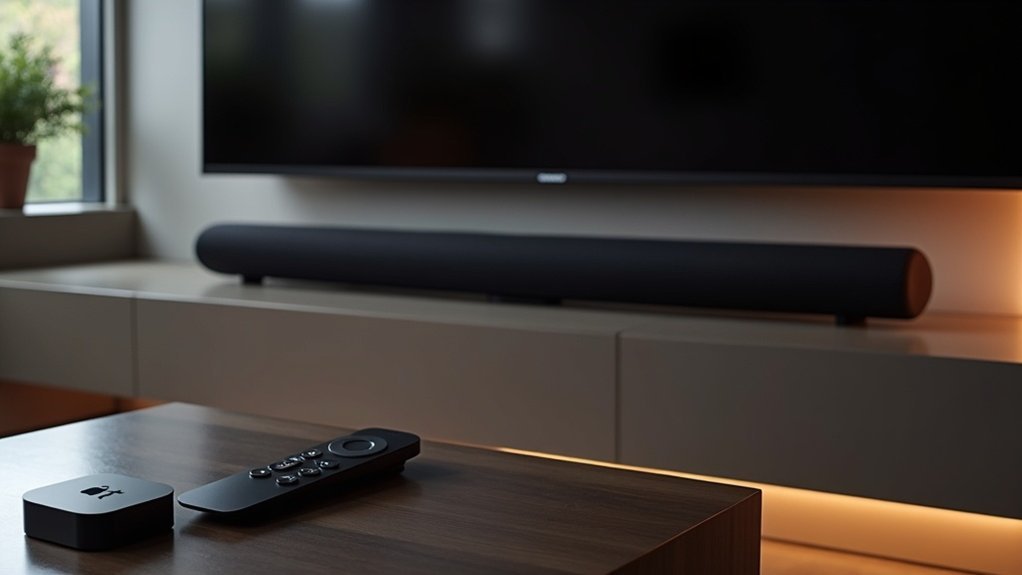
Yes, you can control a soundbar’s volume using your Apple TV. To achieve this, make sure to enable HDMI-CEC on both devices for smooth integration. This feature allows you to utilize your Apple TV remote for direct volume adjustments on your soundbar. If HDMI-CEC isn’t available, you can set up IR settings or use the “Learn New Device” feature to program your soundbar’s remote commands. For additional guidance on setup and troubleshooting, continue exploring options to enhance your audio experience.
Key Takeaways
- Many soundbars support volume control through Apple TV via HDMI-CEC, ensuring smooth integration and operation.
- For optimal functionality, make sure HDMI-CEC is enabled on both your soundbar and Apple TV.
- If HDMI-CEC is not an option, you can utilize infrared (IR) settings on your Apple TV to manage the soundbar’s volume.
- Connecting your soundbar through HDMI ARC improves communication and simplifies volume adjustments.
- Using a universal remote can help streamline control, especially if you find yourself juggling multiple remotes.
Understanding Soundbar Compatibility With Apple TV
When considering how to control your soundbar with an Apple TV, it’s crucial to understand compatibility factors. Many soundbars work seamlessly with the Apple TV remote if they support HDMI-CEC, allowing for effortless volume control.
To ensure compatibility, make sure to enable HDMI-CEC settings on both devices. If your soundbar doesn’t support HDMI-CEC, you can configure the Apple TV to use infrared (IR) for volume adjustments by navigating through the settings menu.
Additionally, the Apple TV remote can learn commands from other remotes, enabling you to program it for soundbars that don’t utilize HDMI-CEC. Always refer to your soundbar’s manual for specific compatibility details.
Setting Up HDMI-CEC for Seamless Control
To enjoy seamless control of your soundbar, you’ll need to activate HDMI-CEC settings on both your soundbar and Apple TV.
Start by accessing the soundbar’s settings to find options like “HDMI Control” or “Link.”
Then, configure your Apple TV under Settings > Remotes and Devices.
If you encounter any issues, ensure both devices are updated and troubleshoot by rebooting them if necessary.
This setup will enhance your audio experience and simplify control of your soundbar alongside your Apple TV.
Enable HDMI-CEC Settings
Enabling HDMI-CEC settings is essential for achieving seamless control between your soundbar and other devices, such as your Apple TV. This feature allows for effective communication between the devices.
Begin by accessing your soundbar’s settings and look for options labeled “Sync,” “Link,” or “HDMI-CEC,” as these terms may vary by manufacturer. After enabling HDMI-CEC on your soundbar, ensure that your HDMI cable supports HDMI-CEC.
Additionally, check your TV’s settings to confirm that HDMI-CEC is activated, as this will enhance the overall functionality and control of your soundbar, particularly for volume adjustments.
Troubleshoot Device Compatibility Issues
Even after enabling HDMI-CEC settings on your soundbar and Apple TV, you might experience compatibility issues that disrupt seamless control. To troubleshoot, first, verify that your soundbar’s HDMI-CEC is activated and look for specific manufacturer names like “Anynet+” or “Bravia Sync.” In addition, set the Apple TV volume control to “Auto” to enhance compatibility with your soundbar. If HDMI-CEC isn’t available, utilize the “Learn New Device” feature to program your soundbar’s IR remote commands to your Apple TV remote. Finally, ensure your soundbar is connected through an HDMI ARC port for optimal communication.
| Step | Action | Importance |
|---|---|---|
| Check HDMI-CEC Status | Verify both soundbar and Apple TV have it enabled | Essential for control |
| Set Volume Control | Change to “Auto” in Apple TV settings | Simplifies volume adjustments |
| Use Learn New Device | Program commands if HDMI-CEC fails | Guarantees compatibility |
| Confirm HDMI ARC | Ensure soundbar connects via HDMI ARC | Enables proper communication |
Troubleshooting Volume Control Issues
If you’re experiencing issues with controlling your soundbar’s volume through your Apple TV, there are several steps you can take to troubleshoot the problem effectively.
- Access Settings on your Apple TV and navigate to Remotes and Devices to check Home Theater Control configurations for your soundbar.
- Verify that HDMI-CEC is enabled in both your soundbar and TV settings to ensure compatibility.
- If volume control isn’t functioning, select “Learn New Device” in the Volume Control settings to pair your soundbar remote with the Apple TV.
- Restart both the Apple TV and soundbar to resolve any temporary connectivity issues that might affect volume control.
These steps can help you regain control over your audio experience with your soundbar.
Alternative Methods for Controlling Volume
After troubleshooting volume control issues with your soundbar and Apple TV, you might want to explore alternative methods for managing your audio settings specifically for soundbars.
If HDMI-CEC isn’t available, you can configure volume control by selecting “Receiver via IR” or “TV via IR” in your Apple TV settings, allowing you to adjust your soundbar’s volume more effectively.
Configure volume control on your Apple TV by selecting “Receiver via IR” or “TV via IR” for better soundbar adjustments.
Additionally, by using the “Learn New Device” option, your Apple TV remote can learn to control your soundbar remote, streamlining your audio experience.
Connecting your soundbar to the TV via HDMI ARC or optical audio may also facilitate volume adjustments through the TV.
For persistent issues, consider investing in a universal remote that can control both your soundbar and Apple TV seamlessly.
Using the Apple TV Remote App for Volume Adjustments
How do you adjust the volume of your soundbar using the Apple TV Remote app?
Unfortunately, as of iOS 16, the Apple Remote app doesn’t currently support volume control, which limits your ability to adjust sound levels directly for your soundbar.
Here are some alternatives you can explore to manage your soundbar’s volume effectively:
- Use a physical remote that supports volume control for your soundbar.
- Consider a universal remote that can integrate volume adjustments for multiple devices, including your soundbar.
- Look into HDMI-CEC features that allow your soundbar to respond to commands from your Apple TV, enabling easier volume adjustments.
- Provide feedback on the Apple Remote app to encourage its developers to consider adding volume control features in future updates.
Without these options, you may find it challenging to manage your soundbar’s volume effectively.
User Experiences and Common Problems
While many users appreciate the seamless integration of soundbars with their home entertainment systems, they’ve encountered significant challenges when it comes to controlling volume effectively.
Common frustrations include the difficulty in managing volume levels through various remotes, especially after changing sound systems or brands. Some users found relief by enabling HDMI-CEC settings, which can improve compatibility with their soundbars.
However, many still face troubleshooting hurdles, often resorting to multiple remotes due to inconsistent functionality. Community forums reveal a pattern of compatibility issues across various soundbar brands, highlighting that these problems aren’t isolated and contribute to a collective user experience of annoyance and confusion.
Exploring Universal Remote Options
Are you tired of juggling multiple remotes for your soundbar? Universal remotes can simplify your audio experience by allowing you to control your soundbar with one device.
Here’s what to take into account:
- Look for models that support HDMI-CEC to easily manage volume control.
- Confirm compatibility with your specific soundbar model to ensure seamless integration.
- Choose brands like Logitech Harmony or GE that can learn commands from existing remotes.
- Follow the onscreen instructions for configuring your remote, which may involve entering device codes.
This way, you’ll streamline your sound experience and enjoy effortless control over your audio devices.
Keeping Your Devices Updated for Optimal Performance
To ensure your soundbar delivers the best audio experience, keeping it updated is essential. Regularly check for firmware updates specific to your soundbar to take advantage of the latest improvements and features.
These updates often enhance compatibility with various devices, including your Apple TV, particularly with HDMI-CEC settings that allow for better volume control through your remote. Manufacturers frequently release updates that improve sound quality and introduce new functionalities, making it crucial to stay informed.







