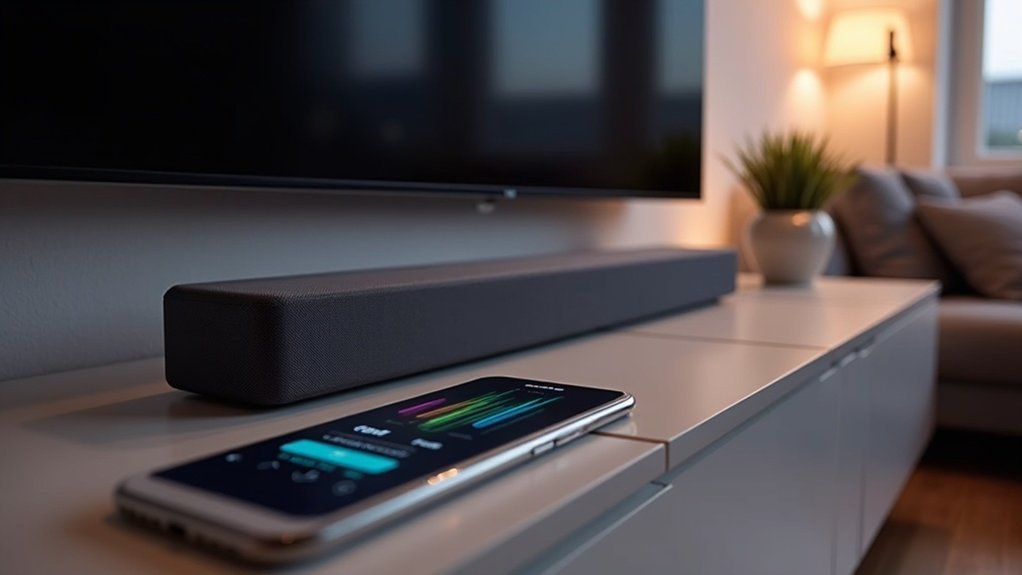
To use Tidal Connect on your soundbar, first ensure that both your soundbar and mobile device are connected to the same Wi-Fi network. Open the Tidal app, start playing a song, and tap the device output icon to select your Tidal Connect-enabled soundbar. If necessary, check for soundbar compatibility and update its firmware. This setup enhances audio quality with high-resolution streaming, making the most of your soundbar’s capabilities. Stay tuned for tips on troubleshooting and optimizing your soundbar experience with Tidal!
Key Takeaways
- Verify that your soundbar is compatible with Tidal Connect by consulting Tidal’s official compatibility list.
- Make sure both your soundbar and mobile device are connected to the same Wi-Fi network for a smooth experience.
- Download and launch the latest version of the Tidal app on your mobile device.
- Start playing a song in the Tidal app, tap the device output icon, and choose your soundbar from the available options.
- To ensure your soundbar operates at its best, regularly check for and install firmware updates.
What Is Tidal Connect?
Tidal Connect transforms your soundbar experience by enabling high-quality music streaming directly from the Tidal app.
This innovative feature allows you to wirelessly send audio to compatible soundbars, bypassing the limitations of Bluetooth and utilizing Wi-Fi for a cleaner and more stable connection.
Tidal Connect wirelessly streams audio to soundbars, leveraging Wi-Fi for superior stability and sound quality over Bluetooth.
Much like Spotify Connect, your mobile device can serve as a remote control while the music streams directly from Tidal’s servers.
With support for high-resolution audio formats, including 24-bit MQA and Dolby Atmos, Tidal Connect ensures exceptional sound quality through your soundbar.
Setup is a breeze—simply connect both your soundbar and mobile device to the same Wi-Fi network, eliminating the hassle of initial pairing.
Benefits of Using Tidal Connect
Using Tidal Connect with your soundbar offers numerous advantages that elevate your audio experience to new heights.
With TIDAL Connect, you can enjoy:
- Seamless streaming of high-resolution audio directly from Tidal servers, enhancing the sound quality of your soundbar.
- Elimination of range limitations by utilizing Wi-Fi, allowing you to control playback from anywhere in your home without interruptions.
- An intuitive interface for easy navigation and music control via the Tidal app, making it simple to find your favorite tracks.
- Support for lossless 24-bit MQA streams, ideal for audiophiles craving top-tier audio quality that your soundbar can deliver.
These benefits ensure you experience exceptional sound while preserving battery life on your mobile devices, making Tidal Connect a smart choice for any music lover looking to maximize their soundbar’s performance.
Compatible Soundbars for Tidal Connect
To fully enjoy Tidal Connect, it’s essential to ensure that your soundbar is compatible.
Look for models from renowned brands such as Naim, KEF, and Samsung’s HW-Q990B, which are among the top choices for seamless integration with Tidal.
Always visit the Tidal website for the most recent updates on compatibility.
Supported Soundbar Models
Several soundbar models are compatible with Tidal Connect, allowing you to enjoy high-resolution audio streaming with excellent sound quality.
Here are a few notable models:
- YAS-209
- YAS-109
- ATS-2090
- ATS-1090
It’s essential to verify that the soundbar you’re considering supports Tidal Connect, as compatibility may vary by brand and model.
For the latest information, check Tidal’s official website at tidal.com/connect.
By ensuring you have a compatible soundbar, you’re set to experience exceptional audio performance and make the most of Tidal Connect’s capabilities.
Enjoy streaming your favorite music seamlessly!
Tidal Connect Setup Steps
Setting up Tidal Connect on your compatible soundbar is a straightforward process that enhances your music streaming experience.
First, ensure that your soundbar and mobile device are connected to the same Wi-Fi network, and download the latest version of the Tidal app.
Open the app, play a song, and tap the device output icon to select your Tidal Connect-enabled soundbar.
Confirm that your soundbar supports Tidal Connect by checking brands like Naim, KEF, or Bang & Olufsen.
Additionally, make sure no other devices are streaming, and verify that your soundbar’s software is updated for optimal functionality.
Enjoy seamless music streaming through your soundbar!
Setting Up Tidal Connect on Your Soundbar
Before diving into the Tidal Connect setup on your soundbar, ensure that both your mobile device and the soundbar are connected to the same Wi-Fi network.
Follow these steps to get started:
- Download the latest version of the Tidal app.
- Open the app and play a song.
- Tap the device output icon in the Now Playing screen.
- Select your Tidal Connect-enabled soundbar from the list.
Additionally, confirm that your soundbar supports Tidal Connect by checking Tidal’s compatibility list.
To achieve optimal performance, keep your soundbar’s firmware updated to enhance connectivity and functionality with Tidal Connect.
Troubleshooting Soundbar Connection Issues
If you’re having trouble connecting your soundbar to Tidal Connect, start by checking the compatibility of your soundbar with the Tidal app and ensuring that both your mobile device and soundbar are connected to the same Wi-Fi network.
Next, you may need to adjust your soundbar’s streaming settings or restart both your soundbar and mobile device to refresh the connection.
Let’s delve into these common issues to help you get back to enjoying your music seamlessly through your soundbar.
Device Compatibility Check
To ensure a seamless connection with TIDAL Connect, it’s essential to verify that your soundbar is compatible with this feature.
Here’s how to perform a device compatibility check specifically for soundbars:
- Check the compatibility list at tidal.com/connect to see if your soundbar is included.
- Make sure that both your mobile device and soundbar are connected to the same Wi-Fi network.
- If necessary, update your soundbar’s firmware to the latest version for optimal performance.
- Restart both your soundbar and mobile device if your soundbar doesn’t show up in the TIDAL Connect list.
Network Connection Issues
When you encounter issues with your soundbar’s connection to TIDAL Connect, it’s essential to troubleshoot the network settings effectively.
First, ensure that both your mobile device and soundbar are connected to the same Wi-Fi network, as TIDAL Connect requires this for proper functionality.
Next, confirm that your soundbar is TIDAL Connect-enabled and has the latest firmware installed.
If problems persist, restart your soundbar and mobile device to refresh the network connection.
Additionally, check the TIDAL app for account login and updates.
If your soundbar isn’t listed, use the Samsung SmartThings app to verify its network connection.
Streaming Settings Adjustment
Adjusting the streaming settings on your soundbar can greatly enhance your experience with TIDAL Connect, especially if you’re facing connection issues.
Here are some key steps to take into account:
- Confirm that both your mobile device and soundbar are connected to the same Wi-Fi network.
- Check for software updates on your soundbar to ensure compatibility with TIDAL Connect.
- Verify that your soundbar supports TIDAL Connect by consulting the list of compatible devices.
- Restart both your mobile device and soundbar to refresh their connections.
Following these steps can help resolve visibility issues and improve your streaming experience with your soundbar.
Comparing Tidal Connect With Bluetooth and Airplay
While many soundbar users rely on Bluetooth and AirPlay for streaming, Tidal Connect offers distinct advantages that elevate your audio experience.
Tidal Connect streams high-resolution 24-bit MQA audio directly from Tidal servers, surpassing Bluetooth’s limitations on audio quality and range. Unlike AirPlay’s 16-bit quality, Tidal Connect caters to audiophiles craving superior sound through their soundbars.
You’ll enjoy stable connections over Wi-Fi without dropouts, allowing for an uninterrupted listening experience. Additionally, you can control playback effortlessly with your device acting as a remote control, minimizing battery drain.
Plus, Tidal Connect eliminates the hassle of initial pairing, simplifying your setup and ensuring seamless compatibility with your soundbar and other audio devices.
Maximizing Your Tidal Connect Experience
Maximizing Your Soundbar Experience with Tidal Connect
Tidal Connect transforms your audio experience by enabling high-resolution streaming directly to your soundbar.
To make the most of your soundbar’s capabilities with Tidal Connect, follow these tips:
- Ensure your soundbar is Tidal Connect-enabled and connected to the same Wi-Fi network as your mobile device.
- Launch the Tidal app, select a track, and choose your soundbar from the device output icon for seamless playback.
- Enjoy lossless 24-bit MQA streams for an elevated listening experience that showcases your soundbar’s full potential.
- Use the Tidal app as a remote to browse music while your soundbar plays, allowing for effortless multitasking.
Regularly check for software updates to keep your soundbar performing at its best and to ensure compatibility with the latest Tidal Connect features.







