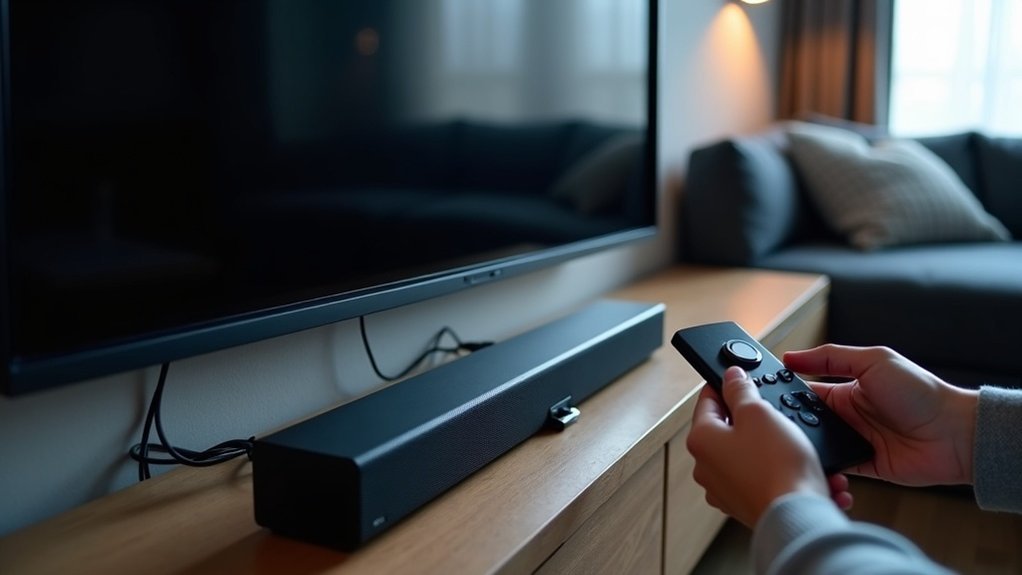
To resolve HDMI handshake issues with your soundbar, begin by powering off all connected devices and ensuring that you are using high-quality HDMI cables. Follow the proper power sequence: turn on the source device first, followed by the soundbar, and then the TV. Check all connections to ensure they are secure and verify that all devices are compatible. If you continue to experience sound loss, try using different HDMI ports or resetting your devices. Regularly updating firmware can also be beneficial. If issues persist, consider exploring advanced troubleshooting techniques for further assistance.
Key Takeaways
- Ensure all devices are powered off before connecting HDMI cables and follow the correct power sequence: source device, soundbar, then TV.
- Use high-quality HDMI cables under 2 meters to prevent handshake issues and ensure secure connections for optimal soundbar performance.
- Power cycle the soundbar and connected devices to reset the HDMI handshake and resolve any sound loss issues.
- Update the firmware on the soundbar and source devices to improve HDMI compatibility and address known sound issues.
- Test different HDMI ports or connect the source device directly to the TV if sound loss persists, ensuring your soundbar is set up correctly.
Understanding HDMI Handshake Issues
When you’re experiencing HDMI handshake issues with your soundbar, it means your devices aren’t properly communicating, which can lead to frustrating problems like no audio output.
These issues often manifest as black screens or intermittent sound loss, especially when switching sources or powering devices incorrectly. Factors like cable quality, length, and compatibility can exacerbate the HDMI handshake failure.
It’s vital to ensure your soundbar and connected devices are powered on in the correct sequence and to test different HDMI inputs to establish a stable connection.
Regular firmware updates for your soundbar are essential, as they can improve HDMI compatibility and address known handshake issues.
Preparing Your Devices for Connection
Before connecting your soundbar to your devices, always power them off to prevent handshake issues.
Ensure that your HDMI cables are high-quality and suitable for your soundbar setup.
Finally, confirm that you’ve selected the correct input on your soundbar to ensure optimal communication with the source device.
Power Off Devices
To ensure a successful connection between your soundbar and other devices, it’s crucial to power off all equipment at the wall socket before connecting or disconnecting HDMI cables. This precaution helps prevent potential damage and reduces HDMI handshake issues.
After turning off the devices, make sure that any splitters, switches, or extenders are also powered down, creating a stable environment for connections.
When powering on, follow the correct sequence: start with the source device, followed by the soundbar, and finally the display. Allow each device to fully boot up before switching inputs to confirm proper communication and a reliable HDMI connection.
Additionally, regularly check the power supply to ensure stability for your soundbar and connected devices.
Check Cable Integrity
Once all devices are powered off and ready for connection, checking the integrity of your HDMI cables is the next step in troubleshooting soundbar issues. High-quality cables are essential for optimal soundbar performance.
Here’s what to look for:
- Ensure cables are within recommended lengths to prevent signal degradation that can affect audio quality.
- Inspect for visible damage or wear that could interfere with the connection between your soundbar and other devices.
- Use certified HDMI cables that support the required bandwidth, particularly for high-definition audio formats.
Confirm that all connections are secure, as loose cables can hinder signal transmission, leading to frustrating audio issues with your soundbar.
Prioritize quality cables to enhance your soundbar setup’s overall performance.
Select Correct Input
Selecting the correct input is essential for ensuring seamless audio transmission from your soundbar. First, connect your soundbar to the HDMI ARC port on your TV, as this simplifies audio transmission and reduces HDMI handshake issues.
In your TV’s audio output settings, confirm that it’s configured to send audio to the soundbar. When powering on, turn on the TV first, followed by the soundbar, to facilitate a successful HDMI handshake.
Regularly check that all HDMI cables are securely connected and compatible with the audio formats you’re using to avoid any further issues related to your soundbar setup.
Power Sequence for Optimal Handshake
To achieve an ideal soundbar connection, you need to power your devices in the correct order, typically starting with the source device.
Consider the timing of the initialization process, as some setups may require specific sequences to establish a stable audio connection.
Power cycling all devices before connecting cables can also help resolve connection issues by allowing for fresh negotiations.
Device Power Order
Establishing the correct power sequence for your devices is essential to achieving a successful HDMI handshake, especially when incorporating soundbars into your setup.
To minimize handshake issues, follow this power order specifically for soundbar connections:
- Power on your source devices (like media players) first.
- Next, turn on your soundbar.
- Ultimately, power up your TV.
If you still encounter handshake problems, consider reversing the order: start with the TV, then the soundbar, and finally the source device.
Additionally, ensure that you’re using a high-quality HDMI cable that’s under 2 meters in length. This approach helps guarantee a stable connection and enhances performance across your soundbar setup.
HDMI Initialization Timing
When you’re setting up your soundbar with HDMI, timing is crucial for achieving a successful handshake. To ensure an optimal HDMI handshake, start by powering on your soundbar first, followed by your TV and any additional devices. This specific sequence helps establish a stable connection and minimizes handshake issues.
It’s important to avoid hot plugging HDMI cables while devices are powered on, as this can disrupt the handshake process and lead to audio and video synchronization problems.
Regularly review and adjust your power sequence, especially in complex setups involving soundbars and receivers, as unique sequences may be necessary for successful HDMI communication.
Power Cycling Techniques
Power cycling your soundbar and connected devices effectively resets the HDMI handshake, ensuring a smoother audio experience. Follow these steps for optimal results:
- Turn off all devices and unplug them for at least 10 seconds.
- Power on your source device first (e.g., Blu-ray player), then the soundbar, and finally the TV.
- If using HDMI ARC, verify that the TV is on before the soundbar.
Avoid powering on multiple devices simultaneously, and maintain this sequence consistently.
This routine minimizes HDMI handshake failures, enhancing the stability of your soundbar setup. Properly managing your HDMI cable connections is essential for seamless sound performance.
Troubleshooting Sound Loss
Sound loss during HDMI use with your soundbar can be frustrating, but several troubleshooting steps can help restore audio functionality. Start by power cycling your soundbar and connected devices. Check HDMI specifications to ensure you are using high-quality cables that are no longer than 20 meters. Adjust HDMI settings on both the soundbar and your source devices to prevent compatibility issues. If sound loss occurs when switching inputs, test different HDMI ports on the soundbar or connect your source device directly to the TV. Finally, keep the firmware of your soundbar updated to address known HDMI handshake issues.
| Step | Action | Notes |
|---|---|---|
| Power Cycle | Restart devices | Resets connections |
| Check Cables | Verify quality and length | Avoid cables longer than 20 meters |
| Adjust Settings | Review audio formats | Verify compatibility |
| Update Firmware | Check for updates | Fixes handshake issues |
Importance of High-Quality HDMI Cables
Choosing high-quality HDMI cables is essential for ensuring a reliable audio and video connection between your soundbar and other devices. Investing in superior cables helps prevent common handshake issues and audio dropouts, which can detract from your soundbar experience.
Here’s why you should prioritize high-quality HDMI cables for your soundbar setup:
- They support higher bandwidths for advanced audio formats and video resolutions, enhancing the overall sound quality.
- Cables that meet HDMI standards guarantee peak performance and compatibility with your soundbar and other connected devices.
- Shorter cables (ideally under 2 meters) minimize signal loss, ensuring a more stable connection for optimal audio playback.
Replacing aging or damaged HDMI cables with high-quality options can significantly improve your soundbar’s performance, preventing annoying disruptions and ensuring a seamless listening experience.
Resetting Your Soundbar
After confirming you have high-quality HDMI cables, the next step in troubleshooting soundbar issues may involve resetting your soundbar. To reset, unplug it from the power source for at least 10 seconds. Check your user manual for specific reset instructions, as some models may have dedicated reset buttons. After resetting, reconnect the HDMI cable from the soundbar to your TV or receiver, ensuring all devices are powered off during the process. Verify the correct HDMI input is selected, and check HDMI-CEC settings on connected devices.
| Action | Details |
|---|---|
| Unplug | Disconnect from power for 10 seconds |
| Reconnect | Ensure all devices are powered off |
| Verify Input | Check HDMI input and HDMI-CEC settings |
Checking Connections and Compatibility
To troubleshoot HDMI issues with your soundbar effectively, start by ensuring all HDMI cables are securely connected. Loose connections can lead to handshake problems between your soundbar and other devices.
Verify compatibility by checking the HDMI version supported by your soundbar and connected devices. Consider these steps:
- Use high-quality, certified HDMI cables that are suitable for your setup length.
- Enable HDMI-ARC (Audio Return Channel) on both the soundbar and TV to ensure proper audio transmission.
- Test various HDMI inputs on the TV and soundbar to identify any troublesome input, especially if you’re using an HDMI switch, as this can affect sound quality and connectivity.
Advanced Troubleshooting Techniques
When encountering persistent HDMI issues with your soundbar, power cycling all connected devices can often resolve handshake problems effectively.
Ensure all devices are turned off before reconnecting HDMI cables to avoid hot plugging issues. Additionally, check your HDMI cable length; cables exceeding 15 meters may require a signal booster or repeater for optimal performance.
Test different HDMI ports on both the soundbar and the TV, as some ports may provide better compatibility and audio quality. It’s also crucial to keep all devices updated with the latest firmware to ensure seamless connectivity.
If HDMI problems persist, consider using an optical cable as a workaround; however, be aware that this may limit the audio formats you can use, especially if you’re utilizing HDMI splitters.







