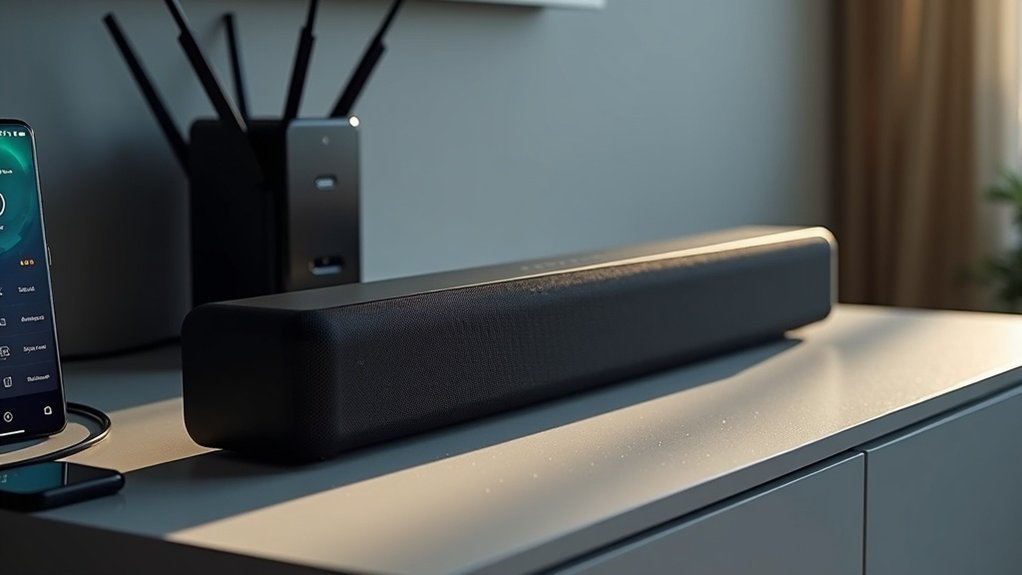
To fix soundbar Wi-Fi drops, start by positioning your soundbar at least 8 feet away from your router to minimize interference. Reset both your soundbar and router to refresh their connections, and check for any firmware updates for your soundbar. If you are using a mesh network, consider switching to the 2.4GHz band or adjusting your router’s channel to 11 or 161, as these settings can help reduce dropouts. If issues persist despite these adjustments, there are additional strategies and considerations to explore for optimizing your soundbar’s connectivity.
Key Takeaways
- Perform a soft or hard reset of both your soundbar and router to refresh connections and resolve temporary issues, ensuring a smoother audio experience.
- Position your soundbar at least 8 feet away from the router to minimize signal interference and enhance sound quality.
- Change the router’s channel to 11 or 161 to help reduce audio dropouts caused by overlapping signals, ensuring uninterrupted play.
- Switch to the 2.4GHz band on mesh networks for potentially better stability compared to the 5GHz band, which can enhance your soundbar’s performance.
- Regularly check and update your soundbar’s firmware to maintain optimal performance and connectivity, ensuring you enjoy the best sound quality possible.
Common Causes of Soundbar Wi-Fi Drops
When your soundbar experiences Wi-Fi drops, several common causes may be at play.
Interference from devices like microwaves or Bluetooth can disrupt the signal, leading to instability. Additionally, firmware updates might inadvertently introduce new connectivity issues, as many users report increased drops post-update.
Interference from microwaves and Bluetooth devices can lead to Wi-Fi instability, especially after firmware updates.
If you’re using a mesh network, such as Eero, automatic band allocation on 5GHz frequencies could also cause disconnections.
Moreover, the positioning of your soundbar is essential; keeping it at least 8 feet from the router minimizes problems.
Finally, environmental factors, including obstacles and nearby electronics, greatly impact your soundbar’s Wi-Fi performance.
Troubleshooting Steps to Resolve Connectivity Issues
To effectively resolve connectivity issues with your soundbar, you’ll want to start with some essential troubleshooting steps.
First, perform a soft or hard reset of both the soundbar and router to refresh connections. Confirm your soundbar is positioned at least 8 feet from the router to minimize interference.
Next, change the router’s channel to 11 or 161, which can help reduce audio dropouts. If you’re using a mesh network, switch to the 2.4GHz band if possible, or position nodes further from the soundbar.
Lastly, regularly check and update your soundbar’s firmware to address any previous connectivity issues and ensure optimal performance.
Understanding Network Interference and Its Impact
Understanding network interference is crucial for ensuring a reliable connection with your soundbar. Wireless interference can arise when multiple devices operate on similar frequencies, leading to disconnections or audio issues.
Mesh networks like Eero might automatically switch frequencies, which can result in satellite speakers or subwoofers disconnecting—this isn’t something you can modify.
Mesh networks, such as Eero, may change frequencies automatically, potentially causing disconnections with satellite speakers or subwoofers.
Furthermore, electronic devices such as microwaves and cell phones can emit signals that disrupt Bluetooth and Wi-Fi connections.
To mitigate these effects, make sure your soundbar is positioned at least 8 feet away from the router and consider adjusting your router settings to enhance performance and minimize interference effectively.
Tips for Optimizing Your Wi-Fi Network for Soundbars
Optimizing your Wi-Fi network for soundbars is essential for achieving seamless audio performance.
Start by positioning your mesh network nodes at least 8 feet away from the soundbar to reduce interference. If your mesh system allows, switch to the 2.4GHz band, which often offers better stability than the 5GHz band.
Enable MU-MIMO in your router settings to enhance signal efficiency for multiple devices. Regularly check and adjust your router’s channel settings to avoid overlaps with nearby networks, especially on the 5GHz band.
Finally, experiment with placements of your soundbar, subwoofer, and router to improve connectivity stability for the best audio experience.
When to Consider Professional Support or Replacement
When you notice that your soundbar is consistently dropping its Wi-Fi connection, even after trying a variety of troubleshooting methods, it may be time to consider seeking professional support or exploring replacement options.
Here are some scenarios to consider:
- You’ve tried all recommended troubleshooting steps, yet the soundbar continues to disconnect frequently.
- The device loses its Wi-Fi connection when situated far from other stable devices, which may indicate a hardware issue.
- Despite optimal placement and settings, interference remains a persistent problem.
In these situations, a professional evaluation can help determine if a repair or replacement is needed, particularly if your soundbar is still under warranty.
Don’t hesitate to contact an expert for assistance.







