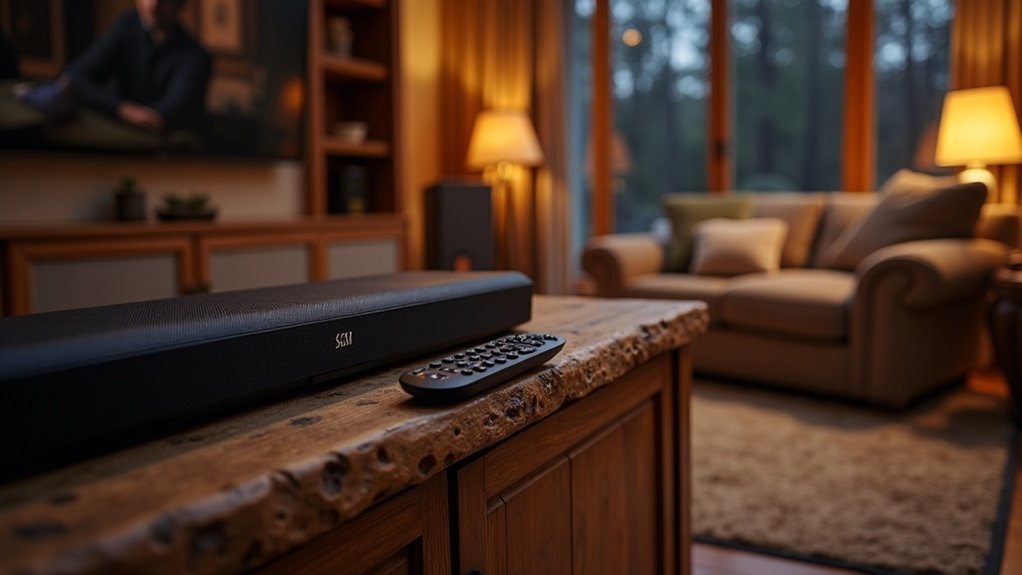
To adjust your soundbar’s dialogue enhancement, explore its settings for features such as “Voice Enhance” or “Speech Enhancement.” You can activate this mode using your remote control or the companion app. Additionally, fine-tune the center channel level between -6 dB and +6 dB to improve clarity. Experiment with audio modes like Movie or News, and adjust the bass and treble settings as needed for optimal performance. To ensure the best sound quality, keep your soundbar’s firmware updated. For more tips on maximizing your soundbar’s performance, refer to the following sections.
Key Takeaways
- Locate the dialogue enhancement feature on your soundbar, usually labeled as “Voice Enhance” or “Speech Enhancement” in the settings.
- Activate Voice Enhance mode using the remote control or companion app to prioritize spoken content over background audio.
- Adjust the center channel level between -6 dB and +6 dB to improve clarity of dialogue.
- Experiment with different sound modes like Movie or News to enhance clarity for specific content.
- Regularly update your soundbar’s firmware to access new audio enhancements and resolve sound quality issues.
Check Your Soundbar Settings
To enhance dialogue clarity on your soundbar, begin by checking its settings.
Look for the dialogue enhancement feature, commonly referred to as “Voice Enhance” or “Speech Enhancement,” accessible through your remote control or companion app.
To improve dialogue clarity, find the “Voice Enhance” or “Speech Enhancement” feature on your remote or app.
For Samsung soundbars, press the Sound Control button until the feature is displayed. In the SmartThings app, head to Advanced Sound Settings to toggle it on.
For Sonos soundbars, select the home theater speaker in the app and activate Speech Enhancement.
Additionally, fine-tune the center channel level in the audio settings, adjusting it between -6 dB and +6 dB, to improve dialogue clarity against background sounds.
Use Voice Enhance Mode
When enhancing dialogue clarity while enjoying movies or shows on your soundbar, activating Voice Enhance mode is crucial. This feature enhances spoken content, making it stand out from background audio. You can easily enable Voice Enhance mode using your soundbar remote or the SmartThings app.
- Remote Activation: Simply press the Sound Control button until “Voice Enhance” appears on the display, and then use the up and down buttons to toggle it on or off.
- App Activation: Open the soundbar’s card in the SmartThings app, go to Advanced Sound Settings, and switch on the Voice Enhancement option.
- Center Channel Adjustment: For optimal clarity, you can adjust the center channel volume anywhere between -6 dB and +6 dB.
Experiment With Audio Adjustments
While optimizing dialogue clarity can be subjective, experimenting with various soundbar audio adjustments allows you to tailor your listening experience.
Start by accessing your soundbar’s audio settings to test sound modes like Movie or News, which can enhance dialogue clarity. Fine-tune the bass and treble levels; lowering bass can help reduce low-frequency interference that may muddle speech.
Utilize the dialogue enhancement feature on your soundbar for clearer spoken words, even amidst background music. Adjust the center channel volume in increments of -6 dB to +6 dB to find the right balance for your setup.
Finally, reposition your soundbar and any surround speakers to optimize sound quality and projection for an immersive experience.
Update Firmware for Optimal Performance
Updating your soundbar’s firmware is a crucial step in maintaining optimal performance and ensuring you benefit from the latest enhancements. Regular firmware updates can significantly improve dialogue clarity and sound quality while preventing compatibility issues.
Here are some key points to consider:
- Access new audio enhancements that enhance dialogue clarity.
- Resolve known sound quality issues for the best performance.
- Enable automatic updates to stay current without the need for manual checks.
To check for updates, refer to your soundbar’s user manual or companion app.
Seek Community Support and Resources
Have you considered tapping into community support to enhance your soundbar’s dialogue clarity? Engaging in forums specific to soundbars, such as the Sonos Community or Samsung Members, can yield valuable insights from users who are tackling similar audio challenges. Sharing experiences fosters collective knowledge about effective settings and firmware updates.
| Resource Type | Purpose |
|---|---|
| Community Forums | Share experiences & solutions for soundbar issues |
| Live Chat Support | Troubleshoot audio settings for soundbars |
| Feedback Analysis | Identify audio performance patterns related to soundbars |
| Regular Interaction | Stay informed about firmware updates for your soundbar |
Utilizing these resources encourages dialogue enhancement through collaboration and informed adjustments to your soundbar settings.







