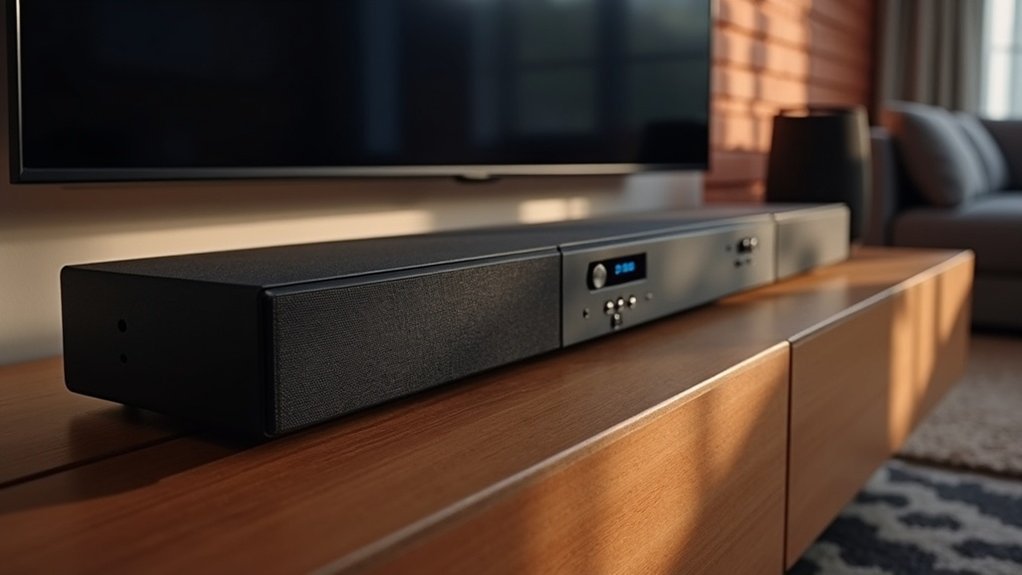
To adjust your soundbar’s dynamic range compression, press the System button on your remote and navigate to the AUDIO COMP option. Scroll through the compression settings and select Maximum, Standard, or No Compression based on your preference. Use the directional buttons to confirm your choice and press EXIT. Ensure that the soundbar is powered off during adjustments to prevent conflicts. Continue exploring how to fine-tune your soundbar audio preferences for the best listening experience.
Key Takeaways
- Access the settings menu by pressing the System button on your soundbar remote control.
- Navigate to the AUDIO COMP option using the directional buttons on the remote.
- Choose between Maximum, Standard, or No Compression based on your listening environment for optimal sound quality.
- Confirm your selection by pressing EXIT to apply the changes to your soundbar.
- It is advisable to turn off the soundbar before adjusting settings to avoid any conflicts during the process.
Understanding Dynamic Range Compression
While you may enjoy the dynamic range of your audio, understanding Dynamic Range Compression (DRC) is essential for optimizing your soundbar listening experience.
DRC balances audio levels by reducing the volume of loud sounds while amplifying quieter ones. This is particularly useful during low-volume playback, such as late-night movie sessions, ensuring clarity without disturbing others.
Soundbars often allow you to choose from Maximum, Standard, or No Compression options to customize audio dynamics.
DRC works best with formats like Dolby Digital and Dolby TrueHD, so adjusting these settings through your soundbar’s audio menu will enhance performance and overall audio clarity.
Benefits of Adjusting Compression Settings
Adjusting compression settings on your soundbar significantly improves dialogue clarity, making it easier to follow speech, particularly during quieter scenes.
You’ll experience more consistent volume levels, minimizing the need for constant adjustments while enjoying various media.
Ultimately, this results in an enhanced listening experience, smoothing out fluctuations and ensuring a balanced sound output.
Enhanced Dialogue Clarity
How can you ensure that dialogue is clear and prominent in your soundbar audio experience? Adjusting the dynamic range compression settings on your soundbar can significantly enhance dialogue clarity, particularly during quiet scenes. The “Enhance Dialogue” feature is designed to amplify spoken words while minimizing background noise. This is especially beneficial for late-night viewing, allowing you to enjoy Dolby Digital and Dolby TrueHD content without disturbing others. Use your remote control to easily toggle this setting, providing you with an immersive experience even in complex soundscapes.
| Setting | Benefit |
|---|---|
| Enhance Dialogue | Amplifies speech |
| Background Noise | Reduces distractions |
| Late-Night Viewing | Maintains clarity without volume spikes |
Consistent Volume Levels
Achieving clear dialogue isn’t the only benefit of adjusting dynamic range compression on your soundbar; it also ensures consistent volume levels throughout your viewing experience.
By compressing the audio dynamic range, you amplify quieter sounds and attenuate louder ones, resulting in a balanced listening environment. This adjustment minimizes the need for constant manual volume changes during playback, allowing you to immerse yourself in the content.
Soundbars typically offer various compression settings—Maximum, Standard, or No Compression—tailored to your preferences and surroundings. This feature is particularly advantageous for late-night viewing, as it prevents sudden loud noises from disturbing others nearby.
Improved Listening Experience
When you adjust the dynamic range compression settings on your soundbar, you can significantly enhance your overall listening experience.
Here are some key benefits to consider:
- Enhanced Dialogue Clarity: Speech becomes clearer, especially at low volumes, making late-night movie marathons more enjoyable.
- Consistent Volume Levels: With fewer adjustments required, you can enjoy a seamless listening experience across various types of media.
- Noise Control: This feature prevents sudden loud noises from disrupting others in shared living spaces.
- Customization Options: Settings like “Enhance Dialogue” and “Smart Volume” allow you to personalize your audio experience based on your preferences and environment.
Maximizing these features on your soundbar will lead to an improved and more tailored audio experience.
Accessing the Soundbar Settings Menu
To adjust the dynamic range compression on your soundbar, you’ll first need to access the settings menu.
Start by pressing the System button on your remote control while ensuring your TV input is correctly selected for visibility.
Use the directional buttons to navigate to the AUDIO COMP option in the settings menu.
Scroll left or right to explore the various audio compression settings available.
Once you’ve selected your desired setting, simply press EXIT to close the menu and apply your changes.
Remember to turn off the soundbar before you start configuring settings to prevent any potential conflicts during the process.
This will help you optimize your soundbar’s performance for an enhanced audio experience.
Selecting the Appropriate Compression Level
How do you choose the right compression level for your soundbar? Start by understanding the available options and how each affects audio output. Follow these steps:
- Access the system menu via the System button on your remote.
- Navigate to AUDIO COMP to view compression settings: Off, Enhance Dialogue, Smart Volume.
- Scroll through options to find your preferred setting.
- Confirm your choice by pressing EXIT to exit the menu.
Selecting the appropriate compression level for your soundbar depends on your environment and preferences, whether you need clear dialogue or a balanced volume across different audio sources.
Testing Different Input Sources
While testing different input sources for your soundbar, it’s crucial to ensure that your settings are optimized for each format you’re using.
Use high-quality HDMI cables to maintain signal integrity, especially for formats like Dolby Atmos and DTS:X. Make sure dynamic range compression is turned off for each source, as discrepancies can affect playback quality.
Ensure optimal audio quality by using high-quality HDMI cables and disabling dynamic range compression for all sources.
Evaluate various media types, such as UHD discs and streaming services, to observe how compression impacts audio quality. Be mindful of volume levels; Dolby Atmos often requires lower settings compared to DTS:X.
Document your observations on dialogue clarity and sound effects to pinpoint the most balanced audio experience without excessive compression.
Fine-Tuning Audio Preferences
To fine-tune your audio preferences on your soundbar, start by understanding the different compression levels available.
Each setting offers distinct benefits, allowing you to tailor the sound to your environment and listening habits effectively.
Adjusting these settings properly can greatly enhance your overall audio experience, particularly for dialogue clarity and dynamic range.
Understanding Compression Levels
Understanding the various compression levels available on your soundbar is essential for optimizing your audio experience. Here’s a breakdown of the primary settings:
- Maximum Compression: Reduces dynamic range considerably, perfect for quiet environments.
- Standard Compression: Balances loud and soft sounds, suitable for typical home use.
- No Compression: Preserves the original audio dynamics, delivering the full sound range as intended.
- Switching Settings: Easily toggle between compression levels using designated button combinations on your remote.
Familiarizing yourself with these settings allows for tailored audio experiences, ensuring you enjoy your media exactly how you want.
Benefits of Compression
Dynamic range compression (DRC) is a valuable feature for soundbars, providing significant benefits for enhancing your audio experience, especially when you desire a more uniform sound across various content. By smoothing out volume fluctuations, DRC improves dialogue clarity, making it easier to understand speech even at lower volumes. This is particularly beneficial for late-night viewing, allowing you to enjoy rich sound without disturbing others nearby. Soundbars often come with various DRC settings, such as “Enhance Dialogue” or “Smart Volume,” enabling you to customize the audio according to your specific environment. Overall, DRC reduces the need for frequent volume adjustments, offering a more seamless and enjoyable listening experience.
| Benefit | Description |
|---|---|
| Consistent Volume | Balances loud sounds and enhances quiet ones. |
| Improved Dialogue | Boosts clarity for easier speech comprehension. |
| Late-Night Viewing | Enables enjoyable sound without disturbing others. |
| Custom Settings | Provides tailored options for diverse preferences. |
| Seamless Experience | Reduces the need for constant volume adjustments. |
Adjusting Settings Properly
While adjusting your soundbar’s dynamic range compression settings, you’ll want to ensure the audio matches your specific preferences and viewing environment.
Follow these steps for ideal configuration:
- Turn off the soundbar before adjustments to avoid issues.
- Access the system menu using the System button on your remote and select the audio input.
- Navigate to the AUDIO COMP option and choose your desired compression level: Maximum, Standard, or No Compression.
- Use the designated remote button combinations to apply the settings, confirming the changes through the indicator lights that display your selected compression level.
This guide is designed specifically for optimizing soundbar performance.
Troubleshooting Common Issues
Many users encounter issues when adjusting the dynamic range compression on their soundbar, which can lead to suboptimal audio experiences. First, ensure the soundbar is powered off before using the correct button combinations—STEREO, VOLUME (+ or -), or |—followed by z. Check the indicator lights for visual confirmation of the applied level. If issues persist, verify that the audio format supports dynamic range compression, as it may not work with all formats, especially when set to “no compression.” Additionally, test different HDMI configurations or consult the manufacturer for guidance on soundbar limitations regarding dynamic range compression.







