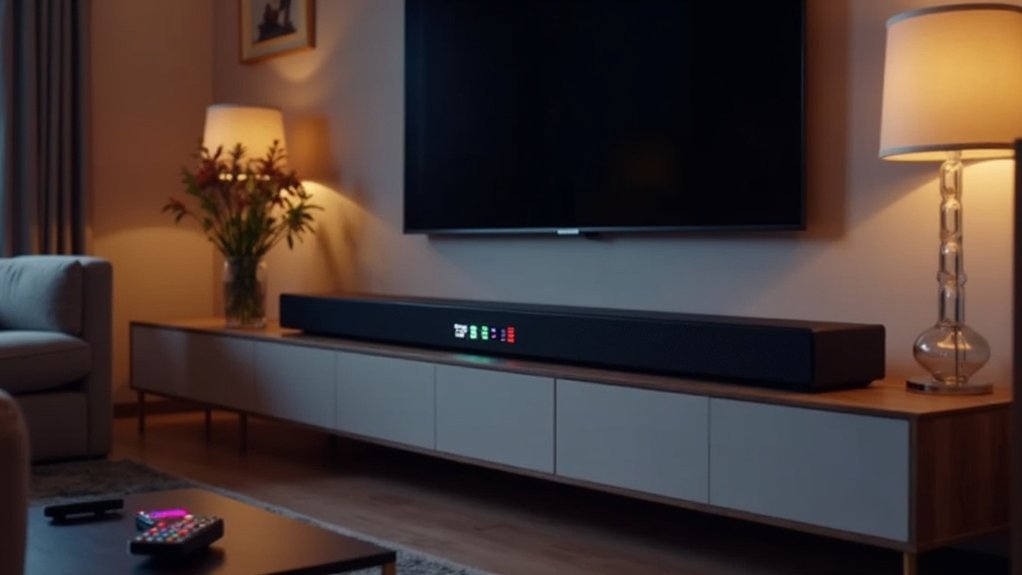
To adjust your soundbar channel levels, utilize the SoundTouch or Bose app. Navigate to Audio Settings through the app’s menu. Here, you can enhance dialogue clarity by adjusting the center channel volume and manage surround levels for a balanced audio experience. Use the + and – buttons to fine-tune each channel, aiming for a target output around 75 dB. Regularly assess your room’s acoustics to optimize sound performance. If you’re looking to further refine your audio experience, there are plenty of advanced options to explore.
Key Takeaways
- Use the SoundTouch app to access Speaker Settings and adjust the Center Channel and Surround Level for optimal sound clarity in your soundbar.
- Access audio settings through the Bose app by tapping the Audio button or using the product control icon for device selection specific to your soundbar.
- Adjust center and surround speaker levels using + and – buttons in increments of 10 for precise tuning tailored to your soundbar experience.
- Regularly evaluate room acoustics and make necessary adjustments to enhance overall sound performance and clarity from your soundbar.
- Personalize your sound experience by experimenting with different settings for balanced output across all audio channels in your soundbar.
Importance of Adjusting Center Speaker Volume
When you adjust the center speaker volume on your soundbar, you’re not just tweaking a setting; you’re enhancing the clarity of dialogue in your audio experience.
By fine-tuning this aspect, you ensure that voices are easily understood, which is essential for immersive audio in your home theater setup. Personalized adjustments allow you to tailor the sound based on your preferences and the type of content you’re consuming.
Different media, like films or music, may demand distinct center speaker levels for ideal sound quality. Regularly adjusting this volume accommodates changes in room acoustics, further enhancing overall audio performance and guaranteeing a cohesive listening experience with your soundbar.
Using the SoundTouch App for Speaker Level Adjustments
To make precise adjustments to your soundbar’s speaker levels, the SoundTouch app offers a user-friendly interface designed specifically for soundbar users.
Start by tapping the menu icon ☰ in the upper-left corner to access the app menu. Navigate to Settings, then select Speaker Settings, and choose your specific soundbar system.
On the Speaker Details screen, tap Audio Settings to access adjustments for Center Channel and Surround Level.
Utilize the Right and Left arrows to control the levels according to your preferences. Regular adjustments will enhance clarity, ensuring ideal volume and performance for an improved home theater experience with your soundbar.
Adjusting Speaker Levels With the Bose App
Adjusting speaker levels with the Bose app for your soundbar allows you to fine-tune your audio experience effortlessly.
To begin, tap the Audio button to access the audio settings for your Bose app-compatible soundbar. If you don’t see this button, select the product control icon in the lower-left corner.
For those with multiple soundbars, use the My Bose icon to select the specific product you wish to adjust.
Utilize the + and – buttons to modify the center and surround speaker levels, ensuring precise adjustments in increments of 10.
This process can greatly enhance the clarity of voices and overall sound quality, providing an immersive listening experience.
Tips for Optimizing Surround Level Adjustments
Optimizing surround level adjustments is crucial for achieving a balanced and immersive audio experience with your soundbar.
Start by regularly evaluating your room’s acoustics; adjustments can significantly enhance sound performance over time. If your soundbar system includes additional surround speakers, these adjustments become essential for creating a cohesive audio environment.
Utilize the soundbar’s companion app to fine-tune surround levels easily according to your personal preferences. For precise calibration, consider using an SPL meter during these adjustments.
This tool ensures balanced output levels across all audio channels, allowing you to achieve ideal sound quality that enhances your overall viewing experience.
Personalizing Your Sound Experience
Personalizing your sound experience with a soundbar can significantly enhance how you enjoy audio, making it essential to adjust channel levels according to your preferences.
Start by fine-tuning the center speaker audio volume to improve clarity, especially during dialogue-heavy scenes. Utilize SPL meters to ensure balanced audio output, aiming for around 75 dB for optimal performance.
Experiment with settings; for instance, consider setting the center speaker at -1 and side speakers at +1.
Regular adjustments based on feedback and room acoustics can further refine your audio experience, tailoring it to your liking and providing immersive sound that elevates your listening environment.







