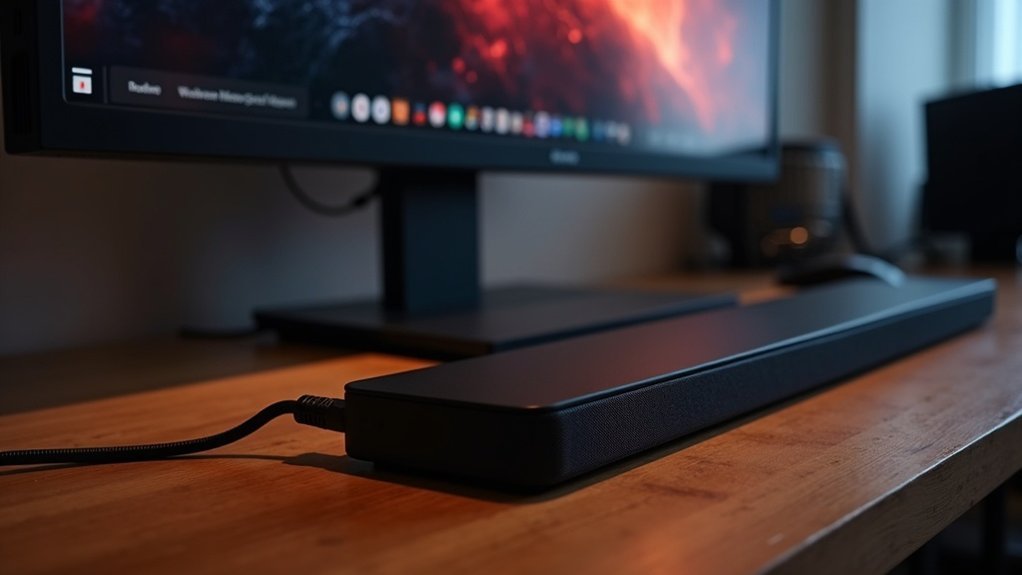
To connect your PC to a soundbar via HDMI, start by plugging one end of the HDMI cable into your PC’s graphics card and the other end into the soundbar. Ensure that the soundbar is powered on and set to the corresponding input source. Next, adjust your PC’s audio settings by selecting the soundbar as the default playback device within the system settings. For an enhanced audio experience, feel free to explore additional setup tips and troubleshooting advice specific to soundbars.
Key Takeaways
- Connect the HDMI cable from your GPU output to the HDMI input on the soundbar to enjoy high-quality audio transmission.
- Make sure to set the soundbar as the default audio output device in your PC’s audio settings to ensure optimal performance.
- Access the NVIDIA Control Panel to enable HDMI audio output and adjust your display settings as necessary.
- Verify that the soundbar is powered on and configured to the correct input source to successfully receive audio from your PC.
- Check the settings of your media player for passthrough capabilities to enhance sound quality when playing audio through the soundbar.
Understanding HDMI Connections
When you connect your PC to a soundbar via HDMI, you’re choosing one of the best ways to transmit both audio and video signals. HDMI provides high-quality audio output, ensuring that you experience surround sound as intended with your soundbar.
For ideal performance, use the HDMI output from your graphics card, which may support advanced audio formats like Dolby Digital, enhancing your overall sound experience.
Utilizing the HDMI output from your graphics card can unlock advanced audio formats like Dolby Digital for a richer sound experience.
Additionally, some soundbars may show up as additional monitors in your PC’s display settings, so it’s important to adjust these settings for a seamless audio experience.
Properly configuring your PC’s audio settings to select the soundbar as the default output device is essential for optimizing your soundbar’s performance.
Setting Up Your Soundbar
Setting up your soundbar involves a few key steps to guarantee peak performance.
First, choose the right connection type—such as HDMI, optical, or Bluetooth—and position your soundbar for the best audio experience.
Next, adjust your PC’s audio settings to ensure the soundbar is set as your default output device for optimal sound quality.
Choosing Connection Type
Connecting your PC to a soundbar can greatly enhance your audio experience, especially if you choose the right connection type. For superior audio and video quality, use an HDMI cable to connect from your PC’s GPU HDMI port to one of the soundbar’s HDMI In ports.
Ensure that the soundbar is set to the correct input source to properly receive the audio signal. After that, adjust your PC’s audio settings to select the soundbar as the default audio playback device.
If you encounter any detection issues, check the NVIDIA Control Panel, and consider using the optical output as an alternative connection. This will allow you to enjoy an immersive sound experience that complements your visual content perfectly.
Optimal Soundbar Placement
How can you guarantee the best sound quality from your soundbar? Start by positioning it centrally beneath your TV at ear level for an optimal listening experience.
Keeping it close to the wall behind can enhance surround sound effects, as reflections from the wall contribute to a richer audio environment.
Avoid placing the soundbar in enclosed spaces, as this can muffle sound and limit the performance of upward-firing speakers.
Ensure that there are no obstructions between the soundbar and the listening area to maintain clarity.
Finally, calibrate the soundbar settings according to its placement and the room’s acoustics, utilizing built-in sound calibration features if available to achieve the best results.
Adjusting Audio Settings
When you’ve connected your PC to the soundbar via HDMI, it’s essential to adjust the audio settings for optimal sound quality. Begin by ensuring that the soundbar is set as your default audio output device in the system settings. Next, access the NVIDIA Control Panel to adjust display settings and disable any phantom monitors that may interfere with audio transmission. Proceed to the Windows Control Panel’s “Sound” section to activate the HDMI audio output. Lastly, check your media player’s audio format settings to enable passthrough sound, ensuring that you experience the full capabilities of your soundbar.
| Action | Location | Purpose |
|---|---|---|
| Set default audio output | System Settings | Ensure sound output via HDMI |
| Configure display settings | NVIDIA Control Panel | Avoid sound interference |
| Enable HDMI audio output | Windows Control Panel | Enhance audio performance |
| Check media player format | Media Player Settings | Attain high-quality audio output |
Configuring PC Audio Settings
To ensure your soundbar operates flawlessly with your PC via HDMI, it’s essential to configure your audio settings properly.
Follow these steps to optimize your sound experience:
- Right-click the sound icon in the system tray and select ‘Playback devices’ to make your soundbar the default playback device.
- Verify that HDMI audio is enabled in the NVIDIA Control Panel under ‘Set up multiple displays’ for an optimal connection.
- Inspect the soundbar’s properties in Windows Sound settings to enable supported formats such as Dolby Digital, which can enhance your audio experience.
Troubleshooting Common Issues
Even with the right configurations in place, you might encounter some common issues when connecting your PC to a soundbar via HDMI.
First, ensure that the HDMI cable is securely connected from the GPU to the soundbar’s HDMI IN port. If your soundbar appears as an extra monitor, adjust the display settings in the NVIDIA Control Panel to set it as the primary audio output.
Make sure the soundbar is powered on and set to the correct input source. It’s also a good idea to update your audio drivers and check your system audio settings to confirm that the soundbar is set as the default playback device for audio output.
Exploring Alternative Connections
How can you ensure the best audio experience with your soundbar when your PC isn’t connecting directly via HDMI? Consider these alternative connections:
- HDMI ARC: Connect your PC to your TV through HDMI, then use an ARC connection to connect to your soundbar for a seamless audio experience.
- Optical Cable: Utilize an optical connection for high-quality digital audio from your PC to the soundbar, ensuring clear and rich sound.
- Bluetooth: For a wireless solution, stream audio via Bluetooth, allowing for flexible placement of your soundbar without the hassle of cables.
Be sure to set your soundbar to the correct input source to optimize performance.
Setting your soundbar to the right input source is essential for achieving optimal audio performance.
Enjoy the enhanced audio experience that your soundbar offers!
Enhancing Surround Sound Experience
Achieving an immersive surround sound experience with your soundbar can significantly enhance your home audio setup. Start by ensuring your soundbar supports Dolby Atmos and connect it via HDMI for high-definition audio. Proper placement near walls can improve reflections, enriching the surround sound effect.
Next, adjust your audio settings in your device’s control panel to enable 5.1 surround sound output, setting the soundbar as the default audio device. If available, utilize the HDMI ARC feature for seamless audio transmission, which can help reduce lag.
For optimal performance, consider upgrading to a soundbar that includes dedicated surround speakers or upward-firing drivers, which can create a more enveloping soundstage for your viewing and listening pleasure.
Best Practices for Sound Quality
To ensure your soundbar provides the ultimate audio experience, begin by using a high-quality HDMI cable for the connection. This minimizes signal loss and ensures optimal audio clarity.
Using a high-quality HDMI cable is essential for minimizing signal loss and achieving optimal audio clarity with your soundbar.
Here are some best practices to enhance sound quality with your soundbar:
- Set your PC’s audio output settings to designate the soundbar as the default device.
- If available, utilize HDMI ARC for improved integration and superior audio transmission.
- Regularly check for and update your audio drivers to sustain compatibility and performance with your soundbar.
Considerations for Future Upgrades
As you think about future upgrades for your soundbar, it’s important to assess your audio needs and explore options that fit your lifestyle.
Consider your budget constraints when deciding whether to invest in a high-end soundbar or gradually enhance your existing setup with additional features.
Staying informed about technology changes in soundbar innovations will help you make effective choices that elevate your audio experience.
Assessing Audio Needs
How can you ensure your soundbar setup meets both your current needs and future aspirations? Start by evaluating your space and budget while considering how often you might want to upgrade your audio experience.
A soundbar could suffice now, but investing in a more advanced model with features like Dolby Atmos might enhance your movie and gaming experience later.
- Think about the immersive audio capabilities that soundbars can offer.
- Consider the benefits of soundbars that support dedicated Atmos technology.
- Reflect on your music playback needs and how a soundbar can meet those preferences.
Making these assessments now can assure you enjoy high-quality audio for years to come, all while maximizing the benefits of a soundbar setup.
Exploring Upgrade Pathways
Upgrading your soundbar can significantly enhance your overall listening experience, particularly as your needs change.
Consider investing in a higher-end soundbar that supports advanced audio technologies for improved sound quality and surround sound effects. If your requirements go beyond basic sound, look for models that offer virtual surround sound or include a subwoofer for deeper bass.
To future-proof your setup, choose soundbars that are compatible with advanced formats like Dolby Atmos, ensuring they can handle new media releases.
Regularly assess your soundbar’s features; upgrading to a model with better connectivity options or integrated smart features can further elevate your audio performance.
Budget Considerations and Constraints
While budget constraints can limit your options, it’s essential to evaluate both current needs and future enhancements when selecting a soundbar for your PC setup via HDMI.
Here are some considerations:
- Choose soundbars that support future upgrades, such as the ability to add subwoofers, to enhance your sound experience over time.
- Consider quality 2.1 soundbar systems, which may often outperform entry-level options and provide greater versatility.
- Allocate part of your budget for future enhancements, such as additional soundbar features or accessories.
Investing wisely now in your soundbar can lead to a richer audio experience as your needs change, ensuring you don’t compromise on sound quality.







