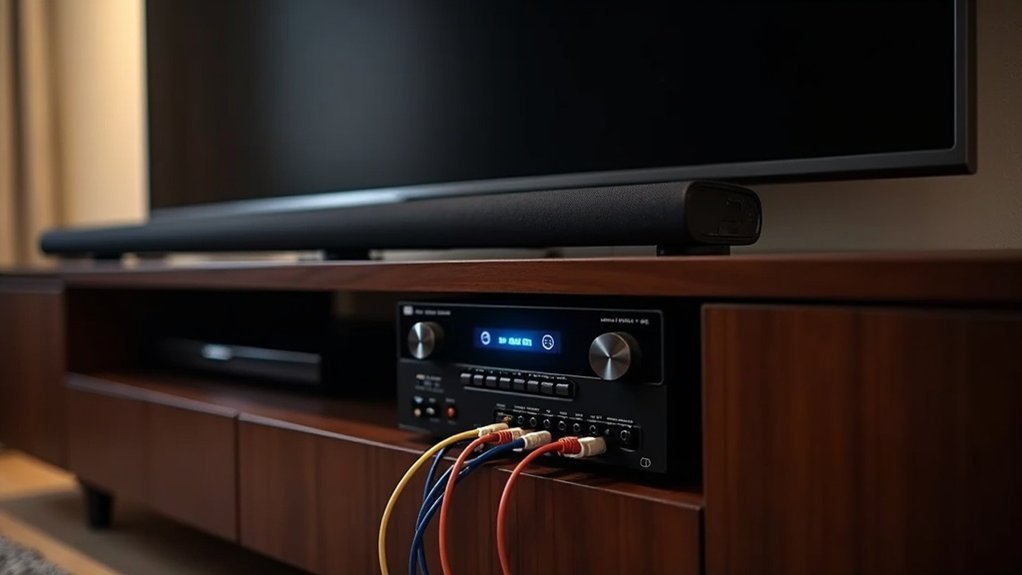
To connect a soundbar through a receiver, start by using an HDMI cable with ARC capability for optimal sound quality. Connect the soundbar to the TV’s HDMI OUT labeled “ARC.” Alternatively, you can use an optical cable, connecting it from the receiver’s optical output to the soundbar’s optical input. Be sure to check your TV settings to confirm that audio is directed to your soundbar. For more detailed setups and troubleshooting tips related to soundbars, continue exploring the various connection options available.
Key Takeaways
- Use an HDMI cable with ARC capabilities to connect the soundbar to the TV’s HDMI OUT port labeled “ARC” for optimal audio quality.
- Alternatively, connect the soundbar to the receiver using an optical cable, ensuring both devices are set to the correct input/output.
- If using RCA cables, connect the dual RCA or RCA auxiliary cables between the soundbar and receiver for basic audio transmission.
- Ensure all devices are powered on and configured to allow audio pass-through from the TV or receiver to the soundbar.
- Regularly check and update the firmware on all devices to prevent compatibility issues and enhance performance.
Understanding Soundbars and Receivers
When you’re looking to enhance your TV’s audio experience, understanding the role of soundbars is essential.
Soundbars provide improved audio quality by delivering stereo channels for left and right audio, all within a single enclosure. They’re particularly ideal for smaller spaces due to their simplicity and compact design.
Soundbars enhance audio quality with stereo channels in a compact design, perfect for smaller spaces.
Soundbars are designed to be user-friendly and often come with features like Bluetooth connectivity and built-in subwoofers, making them a versatile solution for elevating your audio experience without the need for additional equipment.
Whether you’re watching movies, playing games, or listening to music, soundbars can significantly enhance your sound quality, making them a popular choice for many households.
Connection Options for Soundbars and Receivers
Connecting a soundbar to a receiver involves understanding the various options available to guarantee ideal audio performance.
For serious listening, using an HDMI cable with ARC capabilities is recommended, as it provides the best sound quality.
For more casual setups, optical cables serve as a viable alternative, allowing your soundbar to connect to your TV seamlessly.
While soundbars can connect to receivers via dual RCA or RCA auxiliary cables, it’s important to note that they’re primarily designed as standalone audio solutions.
If you’re considering a surround sound setup, be cautious; combining soundbars with other speakers may lead to audio issues, potentially affecting your overall experience.
Step-by-Step Guide to HDMI Connection
To achieve the best audio performance from your soundbar, follow this step-by-step guide for connecting it via HDMI.
First, ensure that your soundbar supports HDMI ARC (Audio Return Channel). Connect the soundbar to your TV’s HDMI OUT port labeled “ARC” using a high-quality HDMI cable.
Next, set your TV’s output to HDMI ARC mode and configure the soundbar to the corresponding HDMI input.
Check that your TV settings allow audio output through HDMI ARC, enabling the ARC functionality in the TV’s audio settings if necessary.
Finally, power on all devices and verify the HDMI cable is securely connected.
Enjoy enhanced audio quality with your soundbar!
Step-by-Step Guide to Optical Connection
Optical connections provide a reliable way to link your soundbar, especially when using a receiver. Start by obtaining a high-quality optical cable.
Connect one end to the optical output on the receiver and the other end to the optical input on the soundbar, ensuring that the U-shaped connectors align correctly.
Next, use your soundbar’s remote to select the optical input. Then, adjust your TV settings to ensure that the audio output is directed to the soundbar by selecting the appropriate optical output option.
Keep in mind that using an optical connection may affect sound quality, and make sure all devices are powered on for proper audio pass-through.
Troubleshooting Common Connection Issues
While setting up your soundbar, you may encounter some common connection issues that can disrupt your audio experience.
First, verify that your soundbar and all connected devices are powered on and configured for audio pass-through; otherwise, no sound output will occur.
Check the TV and receiver settings to confirm the correct audio output is selected for your soundbar.
For optimal sound quality, use high-quality optical cables to prevent degradation.
If you experience audio delays, adjust the sync settings on your TV or soundbar.
Lastly, regularly update the firmware on all devices, as outdated software can create compatibility issues, especially when using multiple HDMI connections and your remote control.
Alternatives to Using a Soundbar With a Receiver
If you’re exploring alternatives to using a soundbar with a receiver, it’s worth considering a traditional surround sound system. This setup typically involves multiple speakers that create a more immersive audio experience, enhancing your home theater.
However, soundbars remain a popular choice due to their sleek design and ease of use. They often come with built-in subwoofers, delivering impressive sound quality and clarity without the complexity of a full surround sound system.
If you prefer a more minimalist approach, modern soundbars can connect wirelessly to your TV, providing excellent audio without the need for additional receivers or bulky equipment.







