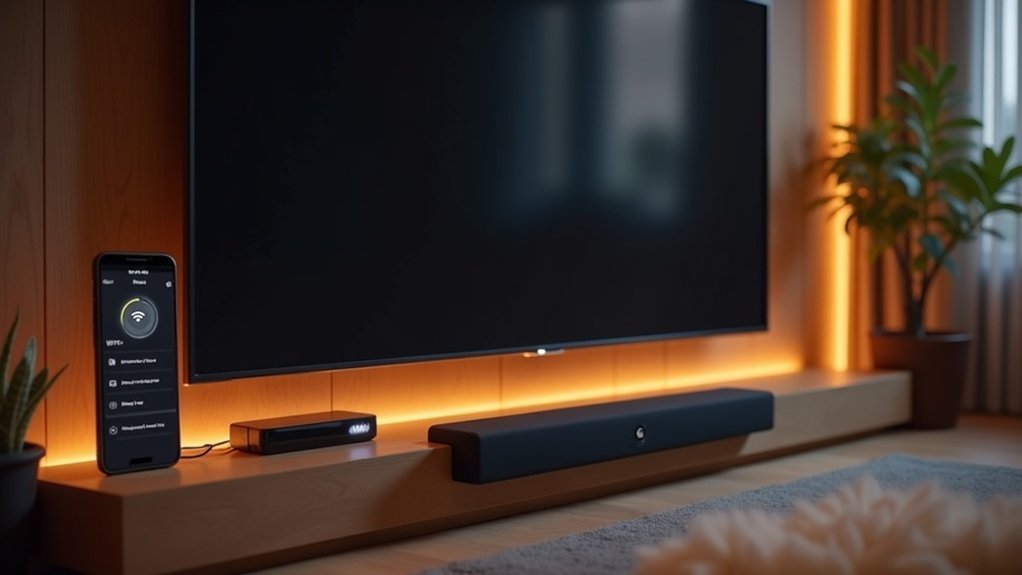
To connect your soundbar to your TV via Wi-Fi, first ensure compatibility by verifying that both devices support connection to the same network. Switch your soundbar to Wi-Fi mode using the Source button. Then, download the Samsung SmartThings app to add your soundbar and follow the prompts within the app. Once added, make sure to set the soundbar as the audio output in your TV settings for optimal sound quality. If you experience any issues, there are effective troubleshooting methods available to help resolve them.
Key Takeaways
- Ensure your TV model is from 2013 or later and connected to a functional Wi-Fi network for compatibility with soundbars.
- Switch your soundbar to Wi-Fi mode using the Source button to initiate the connection setup.
- Download the relevant app (such as Samsung SmartThings) to easily add and configure your soundbar.
- Set the soundbar as the output device in your TV settings to achieve optimal audio performance.
- Maintain a strong Wi-Fi signal and minimize interference to ensure a stable connection for your soundbar.
Benefits of Using Wi-Fi Over Bluetooth
When you connect a soundbar to your TV, opting for Wi-Fi over Bluetooth can significantly enhance your audio experience.
Wi-Fi offers a more stable connection with a wider range, allowing for connectivity up to 30 feet and beyond, making it perfect for larger setups. It supports lossless audio, which improves your overall sound quality, and is ideal for streaming high-definition formats.
Additionally, with Wi-Fi, you can connect multiple devices simultaneously without interference, unlike Bluetooth connections that often suffer from disruptions. This means you can enjoy consistent audio performance, free from interruptions that could detract from your listening enjoyment.
Upgrade to Wi-Fi for a superior sound experience with your soundbar.
Check Before Connecting the Soundbar
Before connecting your soundbar to the TV, it’s crucial to consider a few essential factors to ensure a seamless setup.
First, check that your TV model is from 2013 or later, as older models may not support Wi-Fi connections with soundbars.
Next, ensure that your TV is connected to a functional Wi-Fi network. Both the TV and soundbar must connect to the same wireless router and frequency band (2.4GHz or 5GHz).
Additionally, confirm that your soundbar supports Wi-Fi connectivity and is compatible with the SmartThings app.
Lastly, make sure your Wi-Fi network isn’t utilizing DFS channels to prevent any connection issues.
How to Connect Your Soundbar to Wi-Fi
To connect your soundbar to Wi-Fi, first, ensure your soundbar is compatible with your TV model (preferably from 2013 or later) and that both devices are connected to the same network.
Next, switch your soundbar to Wi-Fi mode and utilize the Samsung SmartThings app to finalize the connection.
Pre-Connection Requirements
Connecting your soundbar to Wi-Fi requires a few essential steps to ensure compatibility and a smooth setup.
First, confirm that your soundbar model is compatible with Wi-Fi connectivity and that it isn’t using DFS channels.
Next, ensure your TV model was released in 2013 or later and is connected to a working Wi-Fi network. Both your TV and soundbar should be on the same wireless router and frequency.
Additionally, verify that your mobile device is connected to the same Wi-Fi network.
Finally, download and open the Samsung SmartThings app to initiate the connection between your soundbar and TV.
Check before you try!
Connection Steps Overview
Establishing a Wi-Fi connection between your soundbar and TV is straightforward, as long as you follow the right steps. Here’s how to connect:
- Verify your TV is from 2013 or later and both devices are on the same Wi-Fi network.
- Select Wi-Fi mode on your soundbar using the Source button.
- Download and open the Samsung SmartThings app on your mobile device.
- Tap the Add icon (+) in the app, select your soundbar brand, and follow the prompts.
- Confirm the soundbar is set as the output device in your TV’s settings to enjoy enhanced audio.
Connecting the TV & Soundbar Together Using Wi-Fi
Connecting your soundbar to your TV via Wi-Fi may seem daunting, but it’s a simple process if both devices are compatible and on the same network.
Start by ensuring that your soundbar is in Wi-Fi mode; you can do this by pressing the Source button.
Next, navigate to the TV’s Speaker Settings by going to Home > Settings > Sound, and select your soundbar from the Sound Output options.
For added convenience, consider using the Samsung SmartThings app to add your soundbar as a device and follow the on-screen prompts.
If your soundbar experiences disconnection later, you can easily reconnect it through the TV’s sound settings, provided both devices remain on the same Wi-Fi network.
Troubleshooting Wi-Fi Connection Issues
If you encounter issues with your Wi-Fi connection between your soundbar and TV, there are several steps you can take to troubleshoot the problem.
- Check for interference from other devices on the same network, as this can lead to audio dropouts with your soundbar.
- Reconnect your soundbar via the TV sound menu if it disconnects after use.
- Consult your router provider for output changes if connection issues persist, as this may affect your soundbar’s performance.
- Consider alternative connection methods like HDMI –(e)ARC for more reliable audio streaming to enhance your soundbar experience.
- For persistent problems, reach out to Samsung support for tailored assistance with troubleshooting connection issues specific to your soundbar.
Sound Quality Considerations
When connecting your soundbar to your TV via Wi-Fi, sound quality can greatly improve, especially when compared to Bluetooth connections. Wi-Fi supports lossless audio formats, which enhances audio fidelity and overall performance. Streaming apps often deliver audio in Dolby Digital Plus, boosting clarity and creating an immersive sound experience. However, network stability is crucial; any interference could lead to audio drop-outs, negatively impacting your listening experience. Below is a comparison of audio performance factors specifically for soundbars:
| Factor | Wi-Fi Connection |
|---|---|
| Audio Fidelity | High (lossless support) |
| Compatibility | Multiple devices |
| Format | Dolby Digital Plus |
| Stability | Dependent on network |
Soundbar Placement Considerations
To achieve the best sound quality from your soundbar, careful placement is crucial. Here are key considerations to enhance audio performance:
Careful placement of your soundbar is essential for optimal sound quality and immersive audio experiences.
- Position the soundbar directly above or below the TV for clear audio projection.
- Ensure it remains unobstructed by furniture or objects to minimize sound distortion.
- Aim for ear level when seated for optimal sound immersion.
- Consider the room acoustics and furniture layout, as they significantly impact sound quality.
- Wall-mounting may be an excellent option to save space and improve positioning closer to ear level.
These factors will greatly enhance your overall listening experience with your soundbar.
Recommendations for Optimal Use
To get the most out of your soundbar, ensure that both the soundbar and your TV are connected to the same Wi-Fi network for a seamless connection.
Regularly monitor your Wi-Fi signal strength, as a robust connection is essential for preventing audio dropouts.
If you experience any issues, consider switching to a wired connection to enhance sound quality.
Ensure Strong Wi-Fi Signal
A strong Wi-Fi signal is essential for achieving the best performance from your soundbar. To guarantee an ideal connection, consider these tips specifically for soundbar users:
- Position your router centrally in your home to minimize obstructions between the router and the soundbar.
- Utilize a Wi-Fi extender or mesh network to boost the signal for soundbars located far from the router.
- Limit the number of connected devices on your network to reduce congestion, ensuring your soundbar has a steady connection.
- Opt for a 5GHz frequency band for your Wi-Fi to experience less interference and better audio streaming.
- Monitor your Wi-Fi signal strength through the SmartThings app or the settings on your soundbar to ensure optimal performance.
Regularly Check Network Conditions
Regularly checking your network conditions can greatly enhance your soundbar’s performance. Monitoring your Wi-Fi signal strength is essential to ensure it’s strong enough for stable audio streaming, ideally within 30 feet of your router.
Be mindful of high traffic on your network, as multiple devices can lead to audio dropouts during your viewing experience. Assess the quality of your router; investing in a more robust device can significantly improve connection reliability for your soundbar.
Additionally, watch out for interference from other wireless gadgets that might disrupt the Wi-Fi link between your TV and soundbar.
To optimize your setup, consider using network management tools to adjust settings and prioritize bandwidth for your soundbar, minimizing latency and sync issues for a seamless audio experience.







