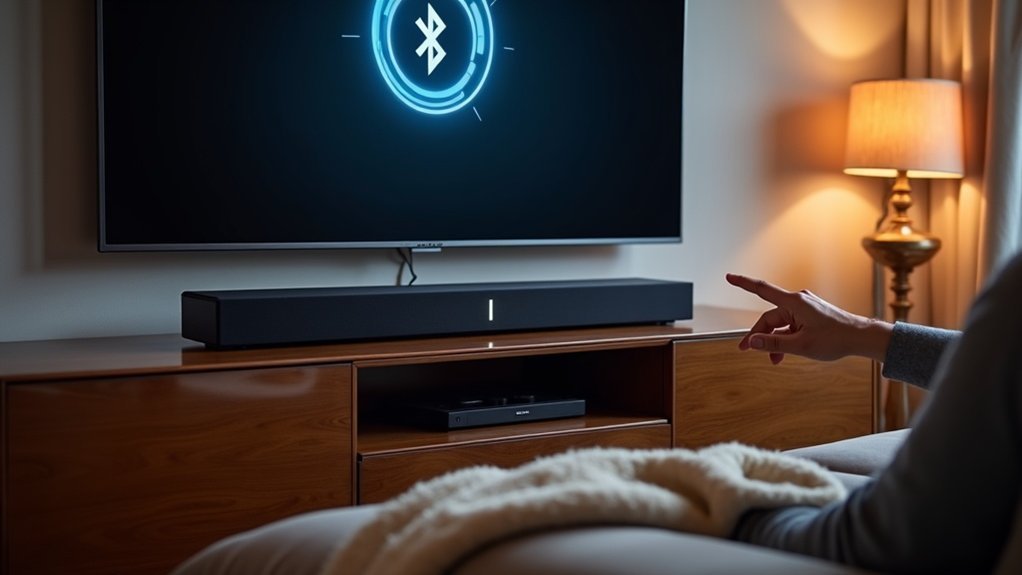
To connect your soundbar to your TV via Bluetooth, first, ensure both devices are powered on and Bluetooth-capable. Press the Bluetooth PAIR button on your soundbar to activate pairing mode. Next, navigate to your TV’s settings, select Sound, and open the Bluetooth Speaker List. From there, choose your soundbar from the list and confirm the connection when it displays your TV name followed by “→ BT.” For optimal audio performance, consider exploring additional tips for enhancing your soundbar setup!
Key Takeaways
- Ensure both the soundbar and TV are Bluetooth-capable and powered on before starting the connection process.
- Activate pairing mode on the soundbar by pressing the Bluetooth PAIR button or selecting BT from the source menu.
- On the TV, navigate to the Settings menu, select Sound, and access the Bluetooth Speaker List to find the soundbar.
- Select the soundbar from the discovered devices list and confirm the connection when it shows the TV name followed by “→ BT.”
- For optimal performance, minimize interference and consider adjusting audio delay settings if experiencing lip-sync issues.
Preparing Your Devices for Bluetooth Connection
Before you start pairing your soundbar with your TV, ensure that both devices are Bluetooth-capable and powered on.
Next, activate pairing mode on your soundbar by pressing the Bluetooth PAIR button on the remote or selecting BT from the source menu for 5 seconds.
Activate your soundbar’s pairing mode by pressing the Bluetooth PAIR button or selecting BT from the source menu for 5 seconds.
On your TV, navigate to the Settings menu, select Sound, and access the Bluetooth Speaker List to discover available devices.
Once your soundbar appears on the list, select it to initiate the connection process.
Finally, confirm the connection when your soundbar displays the TV name followed by “→ BT” on its screen, indicating a successful audio output.
Pairing Your Soundbar With the TV
Pairing your soundbar with the TV is a straightforward process that enhances your audio experience.
Follow these steps to ensure a seamless Bluetooth audio connection:
- Press the Bluetooth PAIR button on your soundbar remote to activate pairing mode.
- Navigate to your TV’s settings, select Sound, and then find the Bluetooth Speaker List.
- Ensure your soundbar is in pairing mode, and select it from the list to establish a connection with your TV.
- Confirm the connection when you see the message [TV Name] → BT on the soundbar display, indicating successful pairing.
Now, enjoy the best audio experience with your new soundbar setup!
Troubleshooting Common Bluetooth Issues
Despite successfully pairing your soundbar with the TV, you might encounter some common Bluetooth issues that can disrupt your audio experience. Here’s a quick troubleshooting guide specifically for soundbars:
| Issue | Solution | Tip |
|---|---|---|
| Audio lag | Consider switching to a wired connection | Use a soundbar that supports wired connections |
| Frequent disconnects | Reduce distance between devices | Keep soundbar close to TV |
| Can’t connect | Verify both devices are in Bluetooth pairing mode | Disconnect other Bluetooth devices |
| Interference | Keep electronic devices away | Minimize electromagnetic interference |
| Lip-sync errors | Test with different settings | Adjust audio delay settings on your soundbar |
Following these steps can significantly enhance your Bluetooth audio experience with your soundbar.
Enhancing Your Bluetooth Audio Experience
Enhancing your Bluetooth audio experience with soundbars can greatly improve how you enjoy your favorite shows and movies.
Enhance your viewing experience with soundbars for a captivating audio journey while enjoying your favorite shows and movies.
To optimize your soundbar setup, follow these tips:
- Use Pairing Mode: Ensure your soundbar is in pairing mode for a seamless connection with your TV.
- Adjust Audio Delay: If you experience any audio delay, adjust the audio settings on your TV to synchronize sound and video effectively.
- Maintain Proximity: Keep your soundbar close to the TV during the initial setup to avoid any connection issues.
- Consider Wired Options: For the best audio quality, opt for HDMI or optical cables instead of Bluetooth whenever possible.
Alternatives to Bluetooth for Connecting Soundbars
When it comes to connecting your soundbar to the TV, there are several alternatives to Bluetooth that can provide superior audio quality.
HDMI connections are ideal, especially if your TV and soundbar support ARC or eARC, as they transmit high-quality audio and video.
Optical audio cables also offer a reliable option, ensuring excellent digital audio output without the lag of Bluetooth.
For older TVs lacking HDMI or optical ports, digital coaxial or analog connections can simplify audio output.
Wired connections generally provide better sound quality and easier audio management, allowing you to enjoy immersive surround sound without interruptions.







