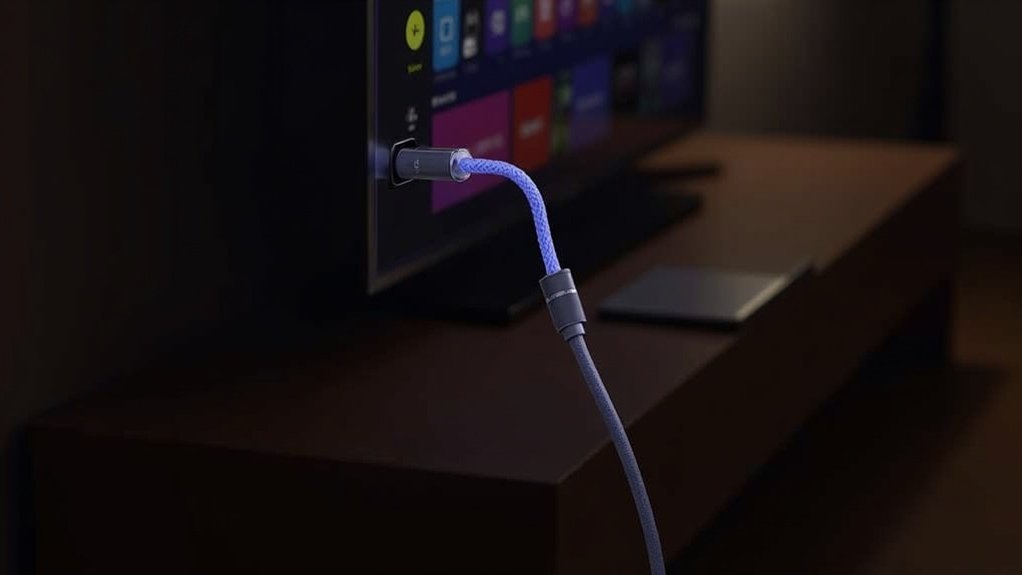
To connect your soundbar to the TV via HDMI ARC, simply plug a compatible HDMI cable into the soundbar’s HDMI OUT and the TV’s HDMI IN (ARC) port. Ensure that both devices support ARC functionality. Next, switch the soundbar to D.IN mode. Adjust the TV’s audio output settings to “external speakers” or “HDMI ARC.” If you encounter any issues, check the settings or power cycle both devices. For more tips on optimizing your soundbar experience, be sure to explore our website dedicated to soundbars.
Key Takeaways
- To connect your soundbar to the TV using ARC, begin by using a compatible HDMI cable to connect the soundbar’s HDMI OUT port to the TV’s HDMI IN (ARC) port.
- Before proceeding, verify that both the soundbar and TV support ARC functionality; look for the ARC label on the HDMI ports.
- Next, navigate to the settings of both the TV and soundbar to activate ARC, making sure to choose the correct audio output options.
- Set the soundbar to D.IN mode to establish the ARC connection and ensure that the audio output settings are correctly configured.
- If you encounter any issues during the setup, try power cycling both the TV and soundbar, and double-check that the HDMI cable is securely connected at both ends.
Understanding HDMI ARC and Earc
When you’re setting up your soundbar for the ultimate home theater experience, understanding HDMI ARC and eARC is essential for optimizing your audio performance.
HDMI ARC (Audio Return Channel) simplifies connectivity by allowing audio to flow from your TV to your soundbar using a single HDMI cable.
eARC (enhanced Audio Return Channel) offers higher bandwidth, supporting advanced audio formats like Dolby Atmos and uncompressed audio, which significantly enhances sound quality.
To take advantage of these features, ensure that both your TV and soundbar support ARC or eARC, which is typically indicated on the HDMI inputs.
Most modern soundbars are compatible with ARC, making them a great choice for elevating your audio experience.
Setting up Your Soundbar With HDMI ARC
To set up your soundbar with HDMI ARC, you’ll need a compatible HDMI cable and access to the correct ports on both devices.
Connect the HDMI cable from the soundbar’s HDMI OUT to the TV’s HDMI IN (ARC) port.
Then adjust the settings on both devices to activate ARC functionality.
Ensure that your TV supports ARC and configure the audio output settings to direct sound through the soundbar for an enhanced audio experience.
Required Cables and Ports
Connecting your soundbar to the TV via HDMI ARC requires specific cables and ports for optimal audio performance.
First, ensure that both your TV and soundbar have HDMI ports labeled “ARC” to allow for bi-directional audio transmission.
Utilize a high-speed HDMI cable to connect the soundbar’s HDMI OUT port to the TV’s HDMI IN (ARC) port for superior sound quality.
Once connected, power on both devices and switch your soundbar to D.IN mode to activate ARC functionality.
Finally, check the TV’s audio settings to confirm that you’ve selected the HDMI ARC option, ensuring that audio is effectively output through your soundbar.
Device Settings and Activation
After establishing the physical connection between your soundbar and TV, it’s essential to configure the device settings to enable HDMI ARC functionality for optimal audio performance.
Start by powering on all external devices before turning on your TV and soundbar. Use the SOURCE button on the soundbar or its remote to select D.IN mode, which activates the Audio Return Channel.
Next, enable the Anynet (HDMI-CEC) feature using the soundbar remote, allowing you to control the soundbar with your TV remote.
Finally, verify that your TV settings are configured to output audio through the external speakers. If you encounter any issues, try power cycling both devices and reconnecting the HDMI cable before turning them back on.
Enjoy an enhanced audio experience with your soundbar!
Troubleshooting Common ARC Issues
While enjoying your new soundbar through HDMI ARC, you may encounter some common issues that disrupt your audio experience.
While using your soundbar via HDMI ARC, be aware of potential audio issues that may arise.
Here’s how to troubleshoot:
- Ensure that a single HDMI cable connects the soundbar to the TV’s HDMI IN (ARC) port.
- Check that the Anynet or CEC feature is enabled on your soundbar for seamless communication.
- Adjust your TV audio output settings to “external speakers” or “HDMI ARC” to ensure proper sound routing.
- Power cycle both devices by turning them off and unplugging them for 30 seconds if necessary to reset connections.
Audio Format Compatibility and Limitations
When connecting your soundbar via ARC, it’s essential to understand the supported audio formats.
While ARC can handle compressed formats like Dolby Digital, it struggles with uncompressed formats unless you’re using eARC.
Additionally, be aware that older TVs may limit you to basic stereo output, which can impact your overall audio experience with your soundbar.
Supported Audio Formats
Understanding supported audio formats is essential for maximizing your soundbar’s performance. When it comes to connecting your soundbar, HDMI ARC typically supports standard audio formats, but for high-fidelity options, eARC is your best choice.
Consider these formats for your soundbar setup:
- Stereo and 5.1 surround sound via HDMI ARC
- Uncompressed audio with eARC for superior quality
- Dolby TrueHD and DTS-HD Master Audio compatibility
- Multi-channel audio up to 7.1 with eARC
Make sure to check your devices for compatibility; this ensures your soundbar effectively transmits your desired audio formats.
Embrace eARC’s capabilities to experience the full range of modern audio technologies, significantly enhancing your home theater experience with your soundbar.
Limitations of ARC
Despite the advantages of supported audio formats with HDMI ARC for soundbars, it’s important to recognize its limitations. ARC typically supports only compressed audio formats like Dolby Digital, but not high-definition formats such as Dolby TrueHD, which many soundbars are capable of delivering.
While it can transmit 5.1 surround sound, many TVs may default to stereo audio unless they feature 5.1 pass-through, which can hinder the immersive experience soundbars are designed to provide. The maximum bandwidth of ARC is limited to 1 Mbps, restricting audio quality compared to eARC, which offers uncompressed formats and lip-sync compensation for a more seamless audio experience.
Additionally, older devices may face compatibility issues, leading to potential audio playback limitations when using standard HDMI cables, potentially diminishing the performance of your soundbar.
Exploring Alternative Connection Options
If your TV lacks HDMI ARC support, there are several reliable alternative connection options to consider for your soundbar:
If your TV doesn’t support HDMI ARC, explore various alternative connection options for your soundbar.
- Use an optical cable to send a digital audio signal; however, keep in mind that sound quality may be lower than with HDMI ARC.
- Directly connect your Blu-ray player or gaming console to the soundbar for improved audio performance.
- Consider using an AV receiver as a central hub, allowing you to link multiple devices and connect a single HDMI ARC cable to your TV.
- For devices that don’t support ARC, standard 3.5mm audio jack or RCA cables can be used as fallback options, though they typically offer inferior sound quality compared to digital connections.
Tips for Optimizing Your Soundbar Experience
To enhance your soundbar experience, start by confirming that both your TV and soundbar are equipped with HDMI ARC ports, which are clearly labeled for easy identification. Use a high-speed HDMI cable to connect them for optimal audio quality. Enable the Consumer Electronics Control (CEC) feature to unify volume control and power functions across devices. Adjust your TV’s audio output settings to external speakers to route sound through the soundbar effectively. Regularly check for firmware updates to ensure peak performance and compatibility. If you encounter audio issues, perform a power cycle by unplugging both devices for 30 seconds before reconnecting them.
| Action | Description |
|---|---|
| Check HDMI ARC ports | Verify both devices support HDMI ARC |
| Enable CEC feature | Activate Anynet or an equivalent for control |
| Set audio output | Change to external speakers in TV settings |
| Update firmware | Regularly check for soundbar updates |
| Power cycle | Unplug devices, wait 30 seconds, then reconnect |







